1
Copy, move and delete email
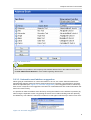
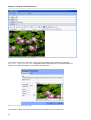
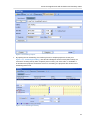
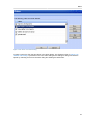
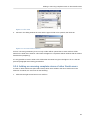
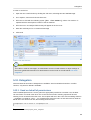
In some browsers it is possible to paste an image from your clipboard directly into the editor. This
will embed the image into the source of the body and it means that it will not become an attachment.
The image will be shown properly in Firefox and Internet Explorer 9, with limited support in Internet
Explorer 8. In Outlook the image will not be visible properly.
2.4.3. Copy, move and delete email
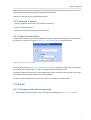
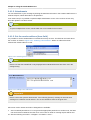
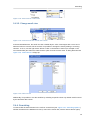
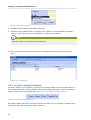
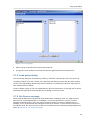
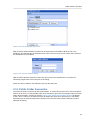
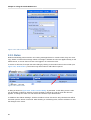
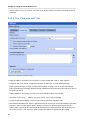
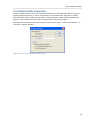
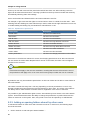
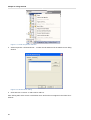
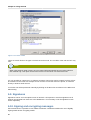
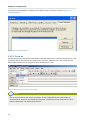
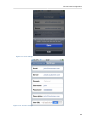
The following screenshot (Figure 2.15, “Context menu from a mail message”) shows the context menu
that shows up when clicking with the right mouse button on an email. Through this menu most copy,
move and delete operations are performed. It also is possible to download a message as a file.
Figure 2.15. Context menu from a mail message
2.4.3.1. Delete email
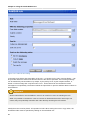
There are several ways to delete email. They are:
• Via the delete button on the keyboard
• Via the delete button in the right mouse button menu (as shown in Figure 2.15, “Context menu from
a mail message”)
• Via the red cross button in the top bar of the webaccess
2.4.3.2. Move email
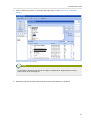
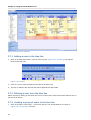
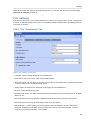
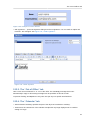
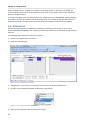
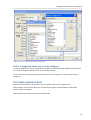
To move a single items it is most convenient to simply drag the item to its new location. Place the
mouse cursor over the item to be moved, click and hold the left mouse button. Continue to hold the
button down while moving the mouse cursor until it is over the folder the message needs to be placed.
13