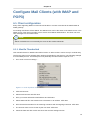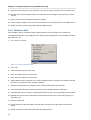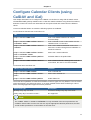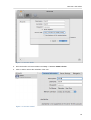
1
Chapter 4. Configure Outlook (using the Zarafa Windows Client)
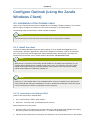
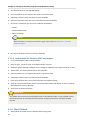
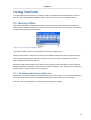
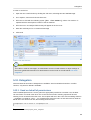
4.2.4. What is the best connection type to choose?
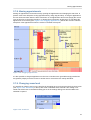
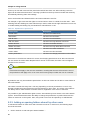
Table 4.1. Connection type options
Type of user
Zarafa profile type
User that always works on the same fixed PC in the office
Online
User that uses roaming profiles and logs in on different fixed PC’s in
the office
Online
User that works with a fixed PC remote from a sub department over a
small bandwidth internet connection
Cached Zarafa Mode
User with a laptop that is inside the office most of the time
Detect at startup
User with a laptop that is always out of the office
Cached Zarafa Mode
User that works on a Terminal Server
Online
4.3. Advanced configuration
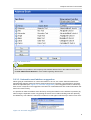
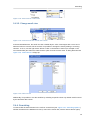
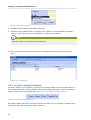
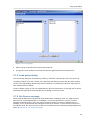
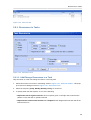
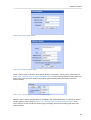
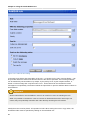
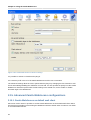
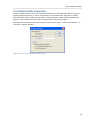
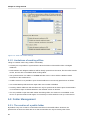
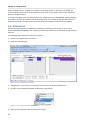
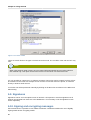
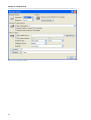
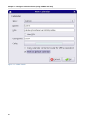
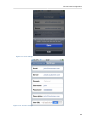
Since version 6.20 two new settings are introduced in order to improve connection to the Zarafa
server.
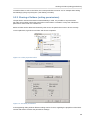
Figure 4.1. Connection settings
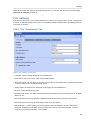
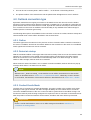
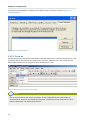
4.3.1. Proxy settings
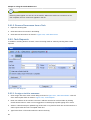
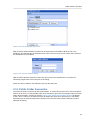
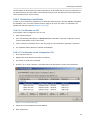
If the zarafa server is only reachable via a proxy server it is possible to enter the information of the
proxy server into the client settings.
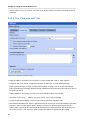
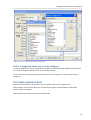
4.3.2. Other connection settings
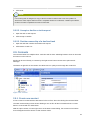
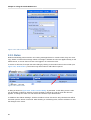
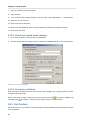
Two other connection settings are configurable:
Compression: Uncheck this option if compression is not wanted. This option is on by default.
Server connection timeout: Depending on the connection quality it is possible to change the timeout
to the zarafa server. Default is 30 seconds.
54