1
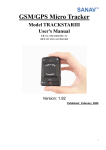
GSM/GPS Micro Tracker
Model TRACKSTARIII
User's Manual
CE No: EM/2004/80113C
FCC ID: RUU-G19041000
Version: 1.9
Published: November 2005
1
PREFACE
Thank you for purchasing the SAN JOSE NAVIGATION TRACKSTARIII GSM/GPS Micro Tracker.
This deliberately edited manual is to introduce the users, to provide the complete technical data that is
needed, and so as to operate TRACKSTARIII smoothly and correctly as soon as possible. Make sure to
read this manual carefully before using this product. Most problems will be solved through the
explanations and the troubleshooting tips. Once you finish reading it, keep it handy for necessary
reference.
Please note that specification and information are subject to change without prior notice in this manual.
Any change consequently will be integrated into future editions. The manufacturer assumes no
responsibility for any errors or omissions in this document.
This manual is divided into the following chapters:
Chapter
1
2
3
4
5
6
7
Content
Information
Brief Introduction of Hardware Parts and
Hardware Description
Status
Getting Started
General Installation & Operation Guide
General Functions Complete Functions Description
Setup SMS Messages Detail Setup SMS Messages Information
Respond SMS
Detail Respond SMS Messages Explanation
Messages
NMEA-0183 $GPRMC NMEA-0183 $GPRMC GPS Coordinate Data
Description
Description
Specifications
of
modules
used
in
General Specifications TRACKSTARIII
8
Warranty
9
FAQ
After Sales Services & Limited Warranty for
this Product
Trouble Shooting
2
Table of Contents
1
Hardware Description ………………..………….………………………5
2
Getting Started ………………………..……….………………….………10
3
General Functions ….…………………………………..……...…….11
4
Setup SMS Messages …….……………………………….....…...….13
4.1
4.2
4.3
4.4
4.5
4.6
4.7
4.8
5
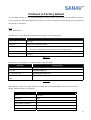
Change ID. ……………………………………………………………...….…..14
Built-in Cellular Phone Setup…………………….….…………………..15
Report Interval Setup……………..……………………...……...…..…16
Remote Parking Start Setup……………..……….………….…...……..17
Reset to Factory Default………..…………………….……...…………18
Change Password………….…….…….……...………..…………….….…19
SMS Polling Command…………………………………….…………………20
Inquire IMEI code………………………………………….…………………21
Respond SMS Messages .……………………...………….………22
5.1
5.2
5.3
5.4
Polling/Auto Report………….……….………….…...………………..….…23
Parking….……………..……...……………..….………………...….…..24
Emergency……………..…………………...….…..………………..….…25
Power Low Alert……………………….………………………………….26
6
NMEA GPRMC Description………………………….….…….………27
7
General Specifications …….…………………….……………………28
8
Warranty … … … … … … … … … … … . . … … . … … … … … … … … … … 2 9
9.
FAQ………………………………………………………..30
3
Chapter 1
Hardware Description
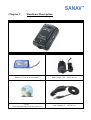
Main Unit
Package Contents
Battery x2 (one in the main unit)
Wall Charger (100 ~ 240V AC) x1
CD x1
(User manual & MapTracking software)
Cigar Charger (8 ~ 38V DC) x1
4
5
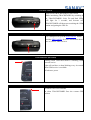
ON/OFF Switch
Turn On/Off TRACKSTARIII by this switch
While initializing TRACKSTARIII by switching it
on, TRACKSTARIII’s Link, Fix and Park LEDs
will light for 3 seconds, and become off.
TRACKSTARIII will then start searching the GSM
station and getting the GPS fix.
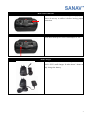
Eject Button
Use a sharp tool to eject the SIM card slot. Please
read the SIM Card Slot for more information about
how to insert a SIM card in it.
GSM Indicator (Red LED)
Blinking when TRACKSTARIII is searching GSM
network service
Light still and have a short blinking every 4 seconds
when GSM service is available
Off when no power
GPS Indicator (Blue LED)
Off when GPS is not available
On when TRACKSTARIII fixes the current GPS
position
6
Mini-USB Connector
This Reserved Com Port is for engineering purpose.
Please do not try to utilize it before having proper
instruction.
External DC Power Connector
TRACKSTARIII power source that adapts 6V DC
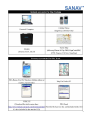
Wall Charger
The picture shows the European standard
(100V~250V) wall charger. It takes about 3 hours to
fully charge the battery.
7
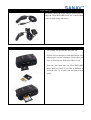
Cigar Charger
The picture shows the cigar charger, which you can
charge the TRACKSTARIII in the car. It takes about
3 hours to fully charge the battery.
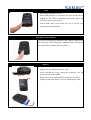
SIM Card Slot
1. Use a sharp tool to eject the SIM card slot.
2. Pull the slot out and put a valid SIM card in it by
following the correct orientation. Before that, you
have to deactivate the PIN code if there is any.
3. Push the slot back into the TRACKSTARIII.
Don’t push too hard if you find it difficult to
insert the slot. Try to pull it out and push it back
gently.
8
Park
1. Press when you park your car.
2. When Park function is activated, the green LED will be
lighted on. The LED is embedded at the place where the
red arrow points in the picture.
3. Towed SMS will be sent when your car is moved over
500m from the parked place.
Emergency Panic Button
Press when an emergency situation occurs. Built-in buzzer will
start buzzing for alert. Emergency SMS messages will also be
sent to the built-in cellular phone number(s)
Battery
1. If you would like to change the battery, you may open the
battery case by sliding the plastic cover.
2. After removing the cover, unplug the connector. See the
picture placed in the middle.
3. Pull out the battery and install the spared one provided.
4. Gently put back the plastic cover by following the track.
9
Chapter 2
Getting Started
1. Charge the battery for 3 hours by using the wall charger (page7) or cigar charger (page8) provided if you
would like to run the TRACKSTARIII by battery embedded.
2. Please prepare a valid GSM SIM Card.
3. Insert the SIM card by following the procedure shown in SIM Card Slot (page8).
4. Place the TRACKSTARIII upward and let it has a clear sky vision. Switch the power on.
5. You also can run or evaluate the TRACKSTARIII while it is charging.
6. The Red LED will be blinking while TRACKSTARIII is searching the GSM network.
7. After 10 ~ 20 flashes, the red LED should stay still. GSM network connection is successful. If you have any
difficulties, please refer to the FAQ in the last page.
8. For the first-time operation of TRACKSTARIII, the Blue LED will light on and keep still within 90 seconds.
That means the TRACKSTARIII gets the GPS fixed. If you have any difficulties, please refer to the FAQ the
last page
9. You may start tracking!
10
Chapter 3
General Functions
After completing the procedures in Chapter 2 (page10) and both red and blue LED keep the lights still, you
may try the following functions of TRACKSTARIII.
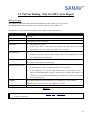
The General Functions are described as following.
Polling (Requesting immediate response from TRACKSTARIII)
There are 2 methods to obtain the immediate response from TRACKSTARIII.
Method 1:
Dial the phone number of TRACKSTARIII through your mobile phone, and then you will receive a respond
message within 20 seconds, depending on how busy the GSM network is.
Method 2:
When you are in overseas, you can send a command via SMS to the TRACKSTARIII (see Chapter 4.7, page22).
And then you will receive a respond message.
Note1: TRACKSTARIII can accept any cellular phone call and reply SMS message to the one that is calling.
Note2: Once the “Own Number Sending” function is deactivated in your cellular phone, TRACKSTARIII will
not recognize the calling number so as to lose polling function.
Change User ID and Password
The default user ID and password of TRACKSTARIII is “Username” and “0000” respectively. You can change
them according to your preference. Please refer to Chapter 4.1 (page 14) and Chapter 4.6 (page21) for more
information about how to change User ID and Password.
Predefine Cellular Number(s)
Before using the functions of Auto Report, Emergency Alert and Park, you need to predefine at least one and
maximum of 5 cellular numbers. Please refer to Chapter 4.2 (page15) for more information of this setup.
Auto Report
TRACKSTARIII can report SMS message only to the designate cellular phone. It is the first cellular number
predefined in TRACKSTARIII. However, the default Auto Report function is off. To turn on Auto Report
function, send the setup SMS message to launch. See chapter 4.3 for further information.
11
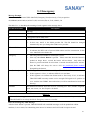
Emergency Alert
When in emergency circumstance, you can press-and-release the on board “Panic Button” and TRACKSTARIII
will send SMS message(s) to ALL the predefined cellular number(s). If you would like the draw attentions from
people, you can press and hold on the button for more than 2 seconds. The built-in buzzer will alarm for 20
seconds and send emergency SMS message(s) at the same time.
Note1: When the time you activate the buzzer by press-and-hold the Panic button for 2 seconds, the buzzer will
be always alarmed in the future once you press the Panic button, even you just press-and-release.
Note2: If you would not like the buzzer to be always alarmed, you can switch TRACKSTARIII off for 30
seconds and then on.
Parking
While you park or leave your vehicle or valuable asset for some personal purposes, you can press “Park” button
to guard it. Once the Park function is launched and the carrier is moved without permission for over 500m from
the original position, TRACKSTARIII will report “towed” messages to user for burglarproof purpose. The
Parking SMS will only be sent to the 1st cellular phone number “PH-01” predefined in TRACKSTARIII. The
SMS contains the GPRMC’s UTC time, latitude and longitude information for you to track the carrier.
Note1: Park function will not be activated when GPS is down (blue LED is gone).
Note2: Besides pressing the Park button activate Park function; you also activate it from distance by sending
the TRACKSTARIII an SMS. Please see chapter 4.4 (page 18) for more information.
Note3: Each of the “Auto Report”, ”Emergency Alert”, and “Parking” function needs to predefine the cellular
phone number(s) for SMS sending.
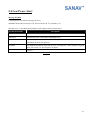
Low Power Alert
When TRACKSTARIII is in the condition of low power, it will automatically send you a SMS to inform you. In
the SMS, it contains the $GPRMC’s UTC time, latitude and longitude information for you to track the carrier.
The description is seen in Chapter 5.4.
12
Chapter 4
Setup SMS Messages
TRACKSTARIII currently provides 8 commands to setup its functions. You can setup the TRACKSTARIII by
following the instructions shown in this chapter via SMS through your cellular phone. Key the specific SMS
message in your cellular as the instruction, sending it to the phone number of TRACKSTARIII. The setup
messages are seen in the following sections.
Note1: Before doing any setup, please ensure TRACKSTARIII is connected with the GSM network. The red
LED must be lighted on and keep still.
Note2: While you are keying in any setup message, note that NO space is allowed in between the characters.
Characters can be letters, commas or any signs.
Note3: Any setup message must be started with a “#” sign and ended up with a “*” sign.
Note4: Only when the password and setup message are correct, the TRACKSTARIII will update information
itself according to user’s definition.
Note5: Be sure to add the “Country Code” when you setup TRACKSTARIII’s phone numbers; TRACKSTARIII
can accept the “+” sign (e.g. +49xxxxxxxxxx for German).
13
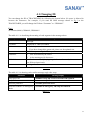
4.1 Changing ID
You can change the ID of TRACKSTARIII by following the format below. No space is allowed in
between the characters. For example, if you send the SMS message shown in E.g.1 to the
TRACKSTARIII, you will change the ID from “Username” to “GPS00001”.
E.g.1
#Username,0000,1,GPS00001,GPS00001*
The table 4.1.1 is describing the meaning of each segment in the message above.
Text Keyed In SMS
Description
#
Start sign.
Username
Default ID of TRACKSTARIII.
0000
Default password.
If you have changed the password, please use the updated one.
1
Mode 1 is representing the ID setup
GPS00001
New ID defined by the owner.
At the maximum of 8 characters.
GPS00001
Confirm the new ID by keying it again. It must be exactly the same as the
new ID keyed previously.
*
End sign.
Table 4.1.1
The table 4.1.2 is showing each confirm message reply after setup.
Situation
Message Reply
Setup Succeeds
GPS00001 setup OK. TRACKSTARIII ID updated.
Setup Fail
Username setup fail.
Incorrect password
Username password error
TRACKSTARIII is in Emergency Username in emergency, ID setup not allowed.
Mode
Table 4.1.2
14
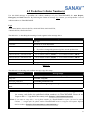
4.2 Predefine Cellular Number(s)
Use this SMS message to predefine the cellular number(s) of your TRACKSTARIII for Auto Report,
Emergency and Park functions. By following the format of message, E.g.2 below, you will predefine 5 sets of
cellular numbers in TRACKSTARIII.
E.g.2
#Username,0000,2,+886123456789,+492234567890,+866323456789,
+886423456789,+886523456789*
The table 4.2.1 is describing the meaning of each segment in the message above.
Text Keyed In SMS
Description
#
Start sign.
Username
Default ID of TRACKSTARIII.
0000
Default password.
If you have changed the password, please use the updated one.
2
Mode 2 is representing the ID setup
+886123456789, +492234567890
1st set of cellular numbers, PH-01, 2nd set of cellular numbers, PH-02
+866323456789, +886423456789
3rd set of cellular numbers, PH-03, 4th set of cellular numbers, PH-04
+886523456789
5th set of cellular numbers, PH0-5
*
End sign.
Table 4.2.1
The table 4.2.2 is showing each confirm message reply after setup.
Situation
Message Reply
Setup Succeeds
Username setup OK. TRACKSTARIII phone updated.
Setup Fail
Username setup fail.
Incorrect password
Username password error
TRACKSTARIII is in Emergency
Username in emergency, phone setup not allowed.
Mode
Table 4.2.2
Note1: In order to be compatible with GSM Network Service in different countries, it is suggested to add
the country code before the predefined cellular number(s) in TRACKSTARIII. Please do not
forget to add a “+” sign before the country code. Example: +491783496936 (German)
Note2: If you want to setup only 1 set of phone number for TRACKSTARIII to report, you need to add 4
commas ”,” straight after the phone number. TRACKSTARIII needs to recognize and separate different
built-in numbers. Example: #Username,0000,2, +886123456789,,,,*
15
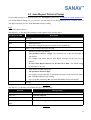
4.3 Auto Report Interval Setup
Use this SMS message to set up the frequency for Auto Report function after predefining the cellular number(s). If
you send the SMS according to E.g.3 seen below, you will have an Auto Report Message every 2 minutes. After 12
Auto Report messages are sent, TRACKSTARIII will stop sending.
E.g.3
#Username,0000,3,002,12*
The table 4.3.1 is describing the meaning of each segment in the message above.
Text Keyed In SMS
Description
#
Start sign.
Username
Default ID of TRACKSTARIII.
0000
Default password.
If you have changed the password, please use the updated one.
3
Mode 3 is representing report interval setup.
002
Auto Report interval in minutes.
This parameter must be 3 digits. The minimum unit is 002 and maximum is
120 minutes.
For example, 002 means that an Auto Report message will be sent every 2
minutes.
To cancel Auto Report function, set the interval as “000”. The default setting
of auto report is also off.
12
Total number of SMS will be sent.
This parameter must be 2 digits.
For example, 12 means that only 12 Auto Report messages will be sent in total. After
that, TRACKSTARIII will stop sending.
If you set up this value being “00”, the TRACKSTARIII will stop Auto Report.
*
End sign.
Table 4.3.1
The table 4.3.2 is showing each confirm message reply after setup.
Situation
Message Reply
Setup Succeeds
Username setup OK. TRACKSTARIII auto-report.
Setup Fail
Username setup fail.
Incorrect password
Username password error
TRACKSTARIII is in Emergency Username in emergency, auto-report not allowed.
Mode
Table 4.3.2
16
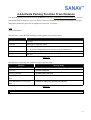
4.4 Activate Parking Function From Distance
Use this SMS message to remotely activate the Park function after predefining the cellular number(s). You can
just send the SMS according to E.g.4 seen below to TRACKSTARIII to activate the Park function. If you have
changed the default ID, please use the updated one instead of “Username”.
E.g.4
#Username,0000,4*
The table 4.4.1 is describing the meaning of each segment in the message above.
Text Keyed In SMS
Description
#
Start sign.
Username
Default ID of TRACKSTARIII.
0000
Default password.
If you have changed the password, please use the updated one.
4
Mode 4 is representing the Activation Of Parking Function From Distance.
*
End sign.
Table 4.4.1
The table 4.4.2 is showing each confirm message reply after setup.
Situation
Message Reply
Setup Succeeds
Username setup OK. TRACKSTARIII parking.
Setup Fail
Username setup fail.
Incorrect password
Username password error
TRACKSTARIII is currently not GPS Username GPS Time To First Fix, parking not allowed.
fixed
TRACKSTARIII is in Emergency
Username in emergency, parking not allowed.
Mode
Table 4.4.2
Note1: You can also launch the parking function by pressing the “Park” button on TRACKSTARIII.
17
4.5 Reset to Factory Default
Use this SMS message to reset TRACKSTARIII to factory default. You can just send the SMS according to
E.g.5 seen below to TRACKSTARIII to do resetting. If you have changed the default ID, please use the updated
one instead of “Username”.
E.g.5
#Username,0000,5*
The table 4.5.1 is describing the meaning of each segment in the message above.
Text Keyed In SMS
Description
#
Start sign.
Username
Default ID of TRACKSTARIII.
0000
Default password.
If you have changed the password, please use the updated one.
5
Mode 5 is representing the Reset.
*
End sign.
Table 4.5.1
The table 4.5.2 is showing each confirm message reply after setup.
Situation
Message Reply
Setup Succeeds
Username setup OK. TRACKSTARIII reset to default.
Setup Fail
Username setup fail.
Incorrect password
Username password error
TRACKSTARIII is in Emergency Username in emergency, reset not allowed.
Mode
Table 4.5.2
When the reset setup is successful, all the user setting data in TRACKSTARIII will be erased and reset to
default. Default settings are seen below.
Setting
Default Value
ID
Username
Password
0000
Time Interval (in minutes)
000
Total Number of Report
12
Predefined Cellular Number
Non
Parking
Disable
18
4.6 Changing Password
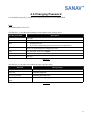
Use this SMS message E.g.6 seen below to change the password of TRACKSTARIII
E.g.6
#Username,0000,6,5725,5725*
The table 4.6.1 is describing the meaning of each segment in the message above.
Text Keyed In SMS
Description
#
Start sign.
Username
Default ID of TRACKSTARIII.
0000
Default password.
If you have changed the password, please use the updated one.
6
Mode 6 is representing the Changing Password.
5725
New password. It has to be 4 digits.
5725
Confirm the new password by repeating it.
*
End sign.
Table 4.6.1
The table 4.6.2 is showing each confirm message reply after setup.
Situation
Message Reply
Setup Succeeds
Username password setup OK
Setup Fail
Username setup fail.
Incorrect password
Username password error
TRACKSTARIII is in Emergency Username in emergency, password not allowed.
Mode
Table 4.6.2
19
4.7 SMS Polling
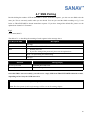
Besides dialing the number of TRACKSTARIII to obtain immediate response, you also can use SMS to do the
same job. This is extremely useful when you are abroad. You can just send the SMS according to E.g.7 seen
below to TRACKSTARIII to obtain immediate response. If you have changed the default ID, please use the
updated one instead of “Username”.
E.g.7
#Username,0000,7*
The table 4.7.1 is describing the meaning of each segment in the message above.
Description
Text Keyed In SMS
#
Start sign.
Username
Default ID of TRACKSTARIII.
0000
Default password.
If you have changed the password, please use the updated one.
7
Mode 7 is representing the SMS Polling.
*
End sign.
Table 4.7.1
Situation
Message Reply
Incorrect password
Username password error
Incorrect parameter
Username setup fail
Once this SMS is sent successfully, you will receive a reply SMS from TRACKSTARIII within 30 seconds,
depending on how busy the GSM network is.
Note1: You will read the same reply message as you dial the TRACKSTARIII.
Note2: The description of each reply message will be seen in the coming chapter.
20
4.8 Inquire IMEI code
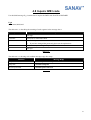
Use this SMS message E.g.8 seen below to inquire the IMEI code from TRACKSTARIII
E.g.8
#Username,0000,imei*
The table 4.8.1 is describing the meaning of each segment in the message above.
Text Keyed In SMS
Description
#
Start sign.
Username
Default ID of TRACKSTARIII.
0000
Default password.
If you have changed the password, please use the updated one.
imei
Mode imei is representing the Inquire IMEI code.
*
End sign.
Table 4.8.1
The table 4.8.2 is showing each confirm message reply after setup.
Situation
Message Reply
Setup Succeeds
Username password setup OK
Setup Fail
Username setup fail.
Incorrect password
Username password error
Table 4.8.2
21
Chapter 5
Respond SMS Messages
This chapter shows you how to read and understand the data/SMS sent from
TRACKSTARIII. According to different situations, the TRACKSTARIII will send the
SMS in different formats for you to distinguish them. Basically, there are 3 formats and
they listed as below.
5.1 Via Dialing/ Poll Via SMS/ Auto Report…………………………………….22
5.2 Park…………………………..………………………………………………..23
5.3 Emergency…………………….………………………………………………24
5.4 Low Power Alert…………………………………..…………………………25
22
5.1 Poll Via Dialing / Poll Via SMS /Auto Report
Message Example
$Username,45,GSM:46697,BTS:2906F250,Respond,Now(Previously 17:26),At position
of-$GPRMC,095838.000,A,2458.9733,N,12125.6583,E,0.41,79.21,220905,,*30
The table 5.1.1 is describing the meaning of each segment in the message above.
Text Shown In SMS
Description
$
Start sign.
Username
Default ID of TRACKSTARIII.
45
A encrypted code for PDA Track
The GSM Provider ID.
GSM:46697
In this case, 46697 is the GSM provider ID. This ID should be changed
automatically once you change the GSM service provider.
The GSM Station ID
BTS:2906F250
It indicates the BTS code of current GSM station used for transmission. In this
case, 2906F250 is the Station ID.
Respond
Indicates this SMS is sent from TRACKSTARIII for respond purpose. It will be
shown only when Polling and Auto Report.
This segment indicates GPS data validity of TRACKSTARIII.
Now(Previously 17:26)
If this segment is “Now”, it indicates GPS fix is in real time.
If this segment is in 24 hour time format such as “Previously 17:26”, it
indicates TRACKSTARIII currently cannot receive enough GPS signal to fix
position so as to send the last GPRMC data at that time (it will be transformed
to local time directly).
$GPRMC
GPS NMEA information from GPS receiver, including UTC time, latitude,
longitude, speed, true course, etc. See Chapter 6 for detail.
*
End sign.
Table 5.1.1
Note1:If you are not sure about how to get the SMS via dialing, SMS or Auto Report, please refer to the page ?
for more information.
23
5.2 Parking
Message Example
$Username,45,GSM:46697,BTS:2906F250,Towed (Still),Move 450m NE,Now(Previously 17:26), At position
of-$GPRMC,095838.000,A,2458.9733,N,12125.6583,E,0.41,79.21,220905,,*30
The table 5.2.1 is describing the meaning of each segment in the message above.
Text Shown In SMS
Description
$
Start sign.
Username
Default ID of TRACKSTARIII.
45
A encrypted code for PDA Track
GSM:46697
The GSM Provider ID.
In this case, 46697 is the GSM provider ID. This ID should be changed
automatically once you change the GSM service provider.
BTS:2906F250
The GSM Station ID
It indicates the BTS code of current GSM station used for transmission. In this
case, 2906F250 is the Station ID.
Towed (Still)
After you press the “Park” key, while the carrier’s position is away from its parking
space over 100m, TRACKSTARIII will auto report “towed” message to the first
predefined phone number, PH-01; otherwise it will report “still”.
Move 450m NE
This segment indicates the movement of TRACKSTARIII.
TRACKSTARIII will calculate the distance between the original position of
your car and current position to show the moved distance and on-going
direction.
Now(Previously 17:26)
This segment indicates GPS data validity of TRACKSTARIII.
If this segment is “Now”, it indicates GPS fix is in real time.
If this segment is in 24 hour time format such as “Previously 17:26”, it
indicates TRACKSTARIII currently cannot receive enough GPS signal to fix
position so as to send the last GPRMC data at that time (it will be transformed
to local time directly).
$GPRMC
GPS NMEA information from GPS receiver, including UTC time, latitude,
longitude, speed, true course, etc. See Chapter 6 for detail.
*
End sign.
Table 5.2.1
Interval of Parking SMS Message
After TRACKSTARIII detects your car or asset is towed/moved, it will send SMS messages to only to the first
predefined phone number, PH-01 so as to remind the user. Its transmitting time interval is 2minutes and it will
send 20 reports in total. Check Chapter 4.2 for more PH-01 setup detail.
24
5.3 Emergency
Message Example
$Username,45,GSM:46697,BTS:2906F250,Emergency,Now(Previously 17:26),At position
of-$GPRMC,095838.000,A,2458.9733,N,12125.6583,E,0.41,79.21,220905,,*30
The table 5.3.1 is describing the meaning of each segment in the message above.
Text Shown In SMS
Description
$
Start sign.
Username
Default ID of TRACKSTARIII.
45
A encrypted code for PDA Track
GSM:46697
The GSM Provider ID.
In this case, 46697 is the GSM provider ID. This ID should be changed
automatically once you change the GSM service provider.
BTS:2906F250
The GSM Station ID
It indicates the BTS code of current GSM station used for transmission. In this
case, 2906F250 is the Station ID.
Emergency
Indicating TRACKSTARIII is in Emergency status.
Sent only when Panic Button is pressed.
Please note that when the button is
pushed no longer than 1 second, the buzzer will not alarm.
Only when the
button is pressed and held for more than 2 seconds should the buzzer activate.
(But the SMS will always be sent to ALL the predefined phone numbers
disregarding the buzzer)
Now(Previously 17:26)
This segment indicates GPS data validity of TRACKSTARIII.
If this segment is “Now”, it indicates GPS fix is in real time.
If this segment is in 24-hour time format such as “Previously 17:26”, it indicates
TRACKSTARIII currently cannot receive enough GPS signal to fix position so
as to send the last GPRMC data at that time (it will be transformed to local time
directly).
$GPRMC
GPS NMEA information from GPS receiver, including UTC time, latitude, longitude,
speed, true course, etc. See Chapter 6 for detail.
*
End sign.
Table 5.3.1
Note1: All the setting functions will be invalid once the Emergency is launched. Only when the power of
TRACKSTARIII is turned off should the Emergency status be cancelled.
Interval of Emergency SMS Message
After the Panic button is pressed, TRACKSTARIII will send SMS messages to all the predefined cellular
numbers (5 sets at most). Its transmitting time interval is 2minutes and it will send 20 reports in total.
25
5.4 Low Power Alert
Message Example
Username,Power low,Check/recharge,Last trace$GPRMC,095838.000,A,2458.9733,N,12125.6583,E,0.41,79.21,220905,,*30
The table 5.4.1 is describing the meaning of each segment in the message above.
Text Shown In SMS
Description
Username
Default ID of TRACKSTARIII.
Power low
Indicates the power of the battery embedded is low.
Last trace
Before the power is exhausted, TRACKSTARIII will send a SMS containing
information about the last position.
$GPRMC
GPS NMEA information from GPS receiver, including UTC time, latitude, longitude,
speed, true course, etc. See Chapter 6 for detail.
*
End sign.
Table 5.4.1
26
Chapter 6 NMEA-0183 $GPRMC Description
27
Chapter 7
General Specifications
GPS Micro Tracker Model TRACKSTARIII
Dual Band GSM Module
(EGSM 900/1800 MHz), Tri-band 1900 MHz Optional
Compliant with ETSI GSM Phase 2+ standard Class 4 (2W @ 900 MHz)
Class 1 (1W @ 1800/1900 MHz)
Equipped with 16 parallel channels GPS receiver in 0.35u CMOS technology
Emergency “panic" button
Acquisition Time
Reacquisition
Cold
Warm
<2 sec
<45sec TTFF (Time to First Fix)
<28 sec TTFF
Hot
<5 sec
TTFF
Accuracy
Position Accuracy
15 meters RMS without SA
Velocity Accuracy
0.1 m/s without SA
Speed Accuracy
0.1 km/h without SA
Antenna Type
Internal GSM antenna / Internal GPS patch antenna
Power Supply
12V DC Cigarette Lighter/3.6V DC Li-Ion Battery (Option)
Operation Time
20hr minimum after full charged, in continuous mode.
Device Size and Weight
45 (W) x 66 (L) x 25 (H) mm, 87g
Environmental
Operating Temperature: -30°C to + 70°C
Storage Temperature: -40°C to + 85°C
Relative Humidity: 5% to 95%, non-condensing
Obtain CE and FCC approval with CE No: EM/2004/80113C and FCC ID: RUU-G19041000
Specifications subject to change without notice
28
Chapter 8
Warranty
Warranty Time Period and Repair Coverage
SAN JOSE NAVIGATION, INC. warrants TRACKSTARIII to be free from all defects and
malfunctions in materials and workmanship for a period of 12 months from the original purchase date
from San Jose Navigation or authorized dealers. If the equipment functions improperly during the
warranty period, San Jose Navigation will either repair or replace the unit without charge. Such repair
service will include necessary adjustment, remanufacture, and replacement. The product should be
returned freight-prepaid by the purchaser within valid warranty period. Notice that you must contact
San Jose Navigation for a RMA (Return Material Authorization) number before returning the
goods for repair.
Telephone assistance will also be provided during the warranty period.
Limitations
This warranty is limited only to the repair or replacement of defective parts confirmed by San Jose
Navigation to be a result of faulty materials or workmanship. Instruments mechanically or physically
damaged due to the following conditions are beyond our warranty:
1. Neglect, misuse or abuse, such as incorrect testing, installation, or operation.
2. Place subject in extreme environments beyond the limits of the specifications.
3. Subjected to disassembling, soldering, alteration, unauthorized repair, and electrical shock
by nature.
4. Any incidental or consequential losses or damages result from the purchase.
5. Disaster, accident, cost or loss of any substitutive equipment.
For damages caused under the above conditions, we'll contact you to discuss replacement options.
SANJOSE NAVIGATION, INC.
9F NO. 105 SHI-CHENG ROAD, PAN-CHIAO CITY
TAIPEI HSIEN, TAIWAN, R.O.C.
TEL: 886-2-26879500
FAX: 886-2-26878893
WWW.SANAV.COM
29
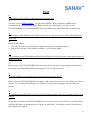
FAQ
Q:
GSM indicator (Red LED) kept blinking and never being still.
A:
You may eject the SIM Card Slot (page8) and reinstall it. Then examine the GSM network
availability by a working mobile phone. Please use the same GSM service provider as what
TRACKSTARIII has. Also check the PIN code of the SIM card in TRACKSTARIII is deactivated.
Q:
When polling, GSM indicator (Red LED) is fixed, but no reply message after TRACKSTARIII hang
up the call.
A:
Please check 2 things.
1. If you are using the pre-paid SIM card, please check there is enough credit in it.
2. Check if you activate “Own Number Sending” on your mobile phone.
Q:
After switching on, the GSM indicator (Red LED) will flash or be still for a period of time and then drop off
(Red LED is gone).
A:
Please connect the TRACKSTARIII with main power source by wall or cigar chargers provided and
then check out if TRACKSTARIII works properly. If not, see the next FAQ.
Q:
TRACKSTARIII is not working if the external power source is removed.
A:
Please switch the TRACKSTARIII off and plug it with external power source. Let it charge for 2 hours
and see if it is working after charging. If it is still not working after charging, you may change the
battery.
Q:
The GSM indicator (Red LED) is still, but the GPS indicator (Blue LED) does not light on after a few
minutes.
A:
Please make sure that your TRACKSTARIII has a clear sky vision. Leave it there for 2 minutes. If you
still have difficulties in getting the blue LED on, try other place. The unknown electrical interference
may influence the signals.
30
Q:
Why the embedded battery cannot last for 24 hours as the specification says?
A:
24 hours will be reached if the TRACKSTARIII is in standby mode. In another word, it’s GPS status
has to be in continuous tracking and always connected to the GSM network.
Q:
Why TRACKSTARIII does not hang up my phone when I am dialing its number?
A:
The GSM network of where TRACKSTARIII is in may not be good enough. The TRACKSTARIII
might not actually receive your call. You may have to wait for a while and dial again. Or you can send
a SMS commands (page21) to request the response from TRACKSTARIII.
Q:
31