1
258
FINAL DRAFT
Macros
Macintosh
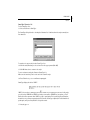
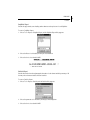
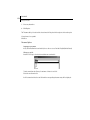
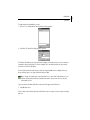
To view or modify macro settings:
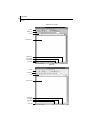
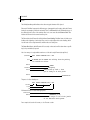
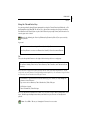
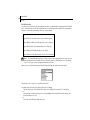
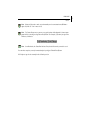
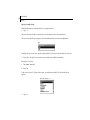
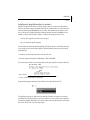
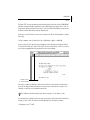
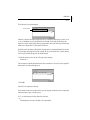
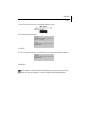
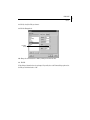
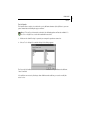
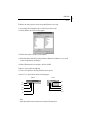
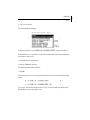
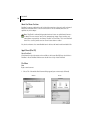
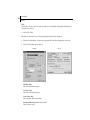
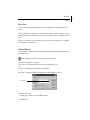
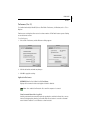
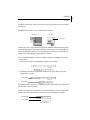
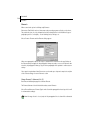
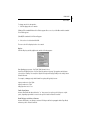
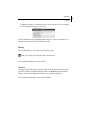
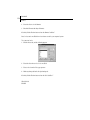
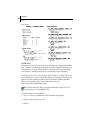
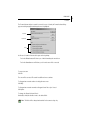
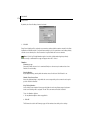
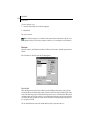
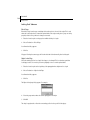
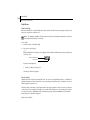
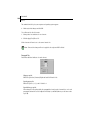
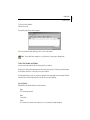
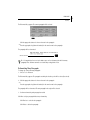
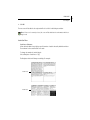
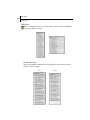
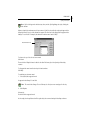
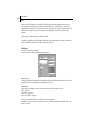
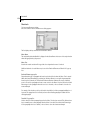
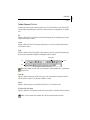
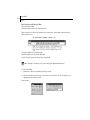
Choose Document > Macros and the macros dialog appears:
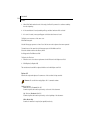
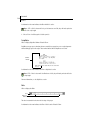
The list displays the key combinations and the Macro Names.
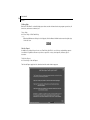
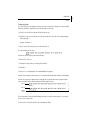
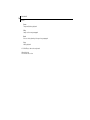
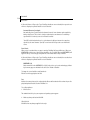
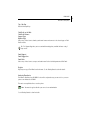
Macro Name
The text (usually abbreviated) which is displayed in the Status Bar at the bottom of the script window
when the appropriate keys are pressed.
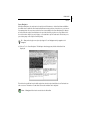
Macro Text
Contains the actual text that will be typed into the script when the macro is invoked.
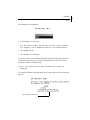
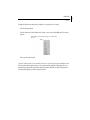
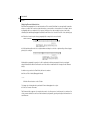
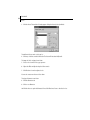
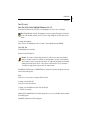
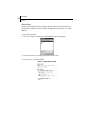
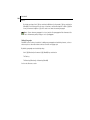
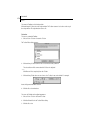
Additional behaviors for each Macro may be set via the Preferred Element and Transition To pop-up
lists.
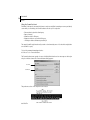
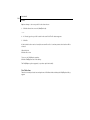
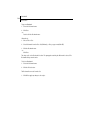
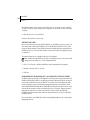
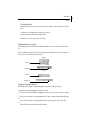
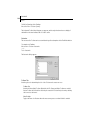
Preferred Element pop-up list
Determines what type of paragraph the insertion point should be in when the Macro Text is entered.
Unlike the Control/Command key combinations, invoking a Macro does not split the paragraph the
insertion point is currently in. The Preferred Element mechanism eliminates the need to manually
move to the end of a paragraph and create a new one before the Macro is invoked. Select the desired
Element type for the paragraph where the text is to be inserted, or choose General to leave the element unchanged.
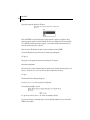
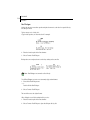
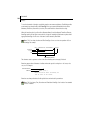
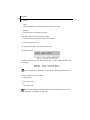
For example, if the insertion point is positioned in the middle of an Action paragraph and Option + 1
is pressed, the appropriate text is entered, and a new Scene Heading paragraph is added after the
existing paragraph.
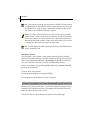
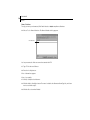
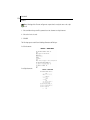
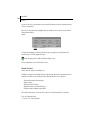
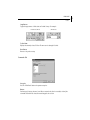
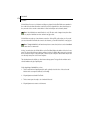
Transition To pop-up list
Used to switch to another paragraph type after the Macro Text has been entered. This eliminates having to manually create a new paragraph after the Macro is invoked. Select the desired Element type
for the paragraph that is to be added, or choose None to leave the element unchanged.