1
Getting Started
Channel Parameters
Channel Parameters are what defines a particular Channel; the Channel Name, Unit Definition, Resolution,
Filters if necessary, and Graphic Scaling that the channel will be displayed on in Analysis.
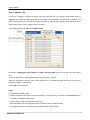
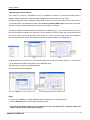
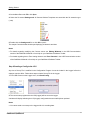
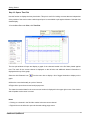
1. Under Channels on the menu bar select Edit Calibration, the Calibration Window will open (Fig.1).
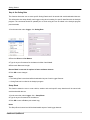
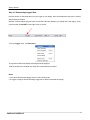
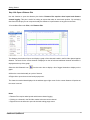
2. From the Calibration Window menu bar under Channel, click Select Channel or Ctrl L. Choose the
channel for calibrating from the list (Fig.2).
Fig.1
Fig.2
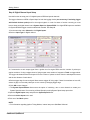
3. From the calibration window menu bar under Channel select Channel Parameters.
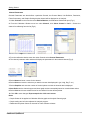
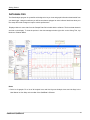
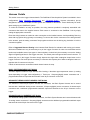
4. The channel parameter editor window will display the parameters for the selected channel (Fig.3).
Fig.3
5. Select Name and enter a name for the channel.
6. Select Units and enter the units that you want the sensor data displayed in.(psi ,inHg, Deg F. etc.)
7. Select Graphics and enter the number of decimal places to which the channel data is displayed.
8. Auto Scale sets the channels upper and lower graph scales automatically based on recorded data values.
9. Select Color and choose a default color for the channel from the defined palette.
10. Click OK to save changes. Repeat steps 2 thru 10 for each sensor.
Notes
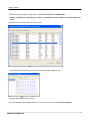
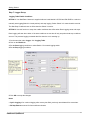
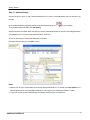
· Graph Scales will be applied to Calibration Window graph and Analysis Channel graph.
· Graph scaling can be further adjusted in Analysis program.
· Dashboard drop down feature is reserved for future software releases.
Edelbrock QwikData 2
9