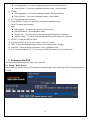
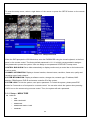
1
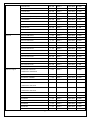
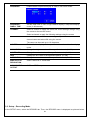
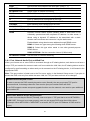
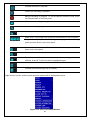
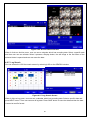
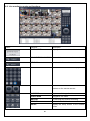
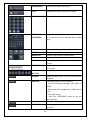
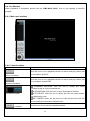
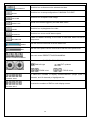
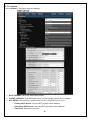
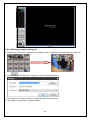
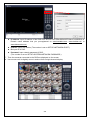
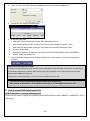
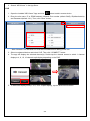
Click this icon to capture a still image.
CAPTURE
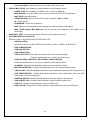
Opens list of events logged by the UMS Multi Client.
EVENT LIST
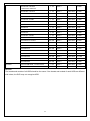
Click this icon to set the beginning time for backup of the recorded
MARK IN
video in AVI format.
Click this icon to set the ending time for backup of the recorded video
MARK OUT
in AVI format.
Click this icon to backup the recorded video in AVI format.
BACKUP
AUDIO
Use the volume control bar to set the audio level.
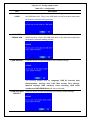
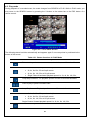
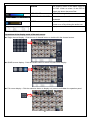
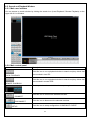
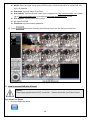
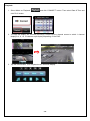
To select the numbers of DVR/DVRs (1 DVR, 4 DVRs, 9 DVRs, 16
DVR SITE SPLIT
DVRs) on main display screen.
To select the numbers of display channel/channels (Single, quad, 9
CHANNEL SPLIT
channels, and 16 channels) of highlighted site.
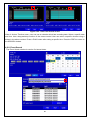
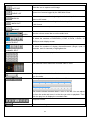
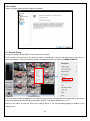
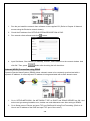
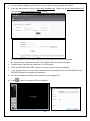
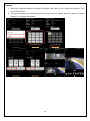
To select the channel to playback.
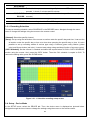
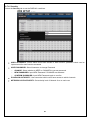
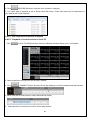
The calendar shows dates with recorded video in color.
To display the recorded data of selected channel or all channels on a
time line scale.
To change a timeline scale from 24 hours to 60 minutes.
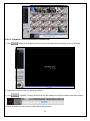
The timeline shows recorded data in color on the bar. You can adjust
the time line scale and move it to the time you wish to playback. Then
click the play icon to display the recorded video.
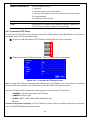
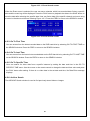
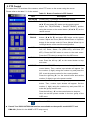
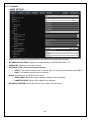
Playback buttons.
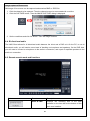
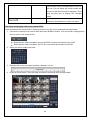
Time search settings
76