1
12. Rarely but possible if two or more Wireless Handheld Keyboard are within a close
proximity the units may get confused. In that situation you need to run an ID Code Verification
procedure. This is very simple process. Please unplug all the Wireless Handheld Keyboard
USB Adaptors from their respective computers and then power off all of the Wireless Handheld
Keyboard, Then take any pair of Wireless Handheld Keyboard and USB Adaptor to begin ID
Code Verification procedure. First turn on your Wireless Handheld Keyboard and then
re-insert the USB Adaptor into a vacant USB port. Now simultaneously press the Left Mouse
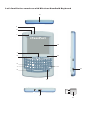
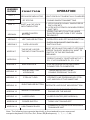
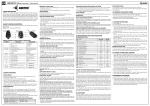
Button as indicated by arrow 5 above and the RF key indicated by arrow 10 above until LED 2
begins to flash slowly. Immediately release both keys. You should see LED 2 flash rapidly
for about 5 seconds. If you have observed this then you have successfully completed ID Code
Verification
After completed ID Code Verification, use mouserate.exe to confirm the Wireless Handheld
Keyboard works fine. Move TMP on Mouserate window, you read the average is
about 70 or above, as more as better. If it is below the value, please repeat to adjust.
After you have completed the ID Code Verification the Wireless Handheld Keyboard
will immediately enter power save mode. In order to wake the unit please presses any key.
If you find that LED2 are flashing slowly after your attempt at ID Code Verification then it
means you have not successfully completed the pairing of the Wireless Handheld Keyboard
with the USB Adaptor. You must then repeat this process until both units pair together.
This process usually takes one time. We recommend that you are near your computer
during this process.
The Wireless Handheld Keyboard will operate in parallel with your existing keyboard
and mouse. Any of the keyboards or mice will operate equally and simultaneously without
interference or any configuration. This is truly a plug and play product.