1
2BAccounts
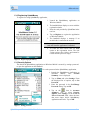
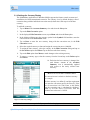
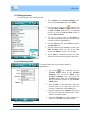
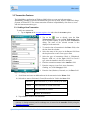
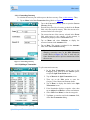
3.3.1.3 Creating/Editing a Transaction Type
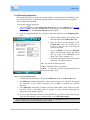
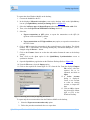
To create/edit a new transaction type,
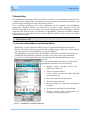
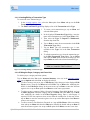
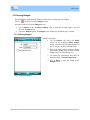
1. In the accounts register view, select the List option from Menu and tap on the Edit
Transaction Types option.
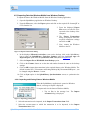
2. The Edit Transaction Type dialog displays a list of the Transaction and its Type.
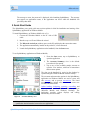
3. To create a new transaction type, tap on Menu and
select the New option.
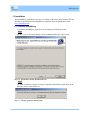
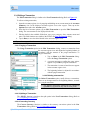
4. In the displayed Transaction Type dialog, enter the
name of the transaction type in the Type Name: field.
5. Then select the Type: as Deposit or Withdrawal,
from the drop down list.
6. Tap on Done to enter the new transaction in the Edit
Transaction Type dialog.
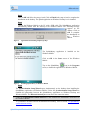
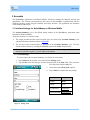
7. Tap on Done. The new transaction type is now
available in the Type: list in the New Transaction
dialog
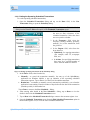
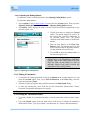
8. To edit the transaction type, select the transaction type
in the Edit Transaction Type dialog. Tap on Menu
and select the Edit option to edit the existing type and
tap on Delete to remove the selected transaction type.
) Built-in transaction types (Withdrawal, Deposit,
ATM, etc.) cannot be edited or deleted.
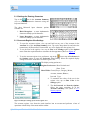
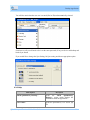
Figure 19 Creating/Editing a transaction type
3.3.1.4 Editing the Payee, Category and Class Lists
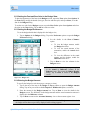
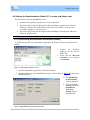
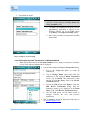
To edit the payee, category and class options,
Tap on Menu and select List in the Accounts Summary view (or) in the accounts register
view, tap on Options and select List, to display the edit list.
•
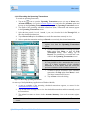
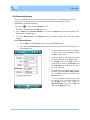
To edit or create a new payee, tap on Edit Payees. Select the payee in the displayed Edit
Payees screen. Then tap on Menu and select Edit. Tap on Done after modifying the
details, in the Edit Payee dialog. In the next screen, tap on Done to enter the accounts
register view or tap on New option from Menu to create a new payee name.
•
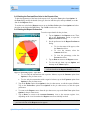
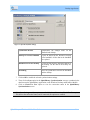
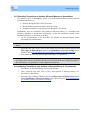
To edit or create a category (Salary, Groceries, Insurance, Household, Medical, etc.) tap
on Edit Categories. Select the category and tap on Menu and select Edit. Tap on Done
after modifying the details in the Edit Categories dialog. Enter a sub-category if
required. Use the Icon option to select an icon from the available list. In the next screen,
tap on Done to enter the accounts register view or tap on the New option from Menu to
create a new category.
•
To edit or create a class (Business, Personal, etc.) tap on Edit Classes. Select an existing
class and tap on Menu and select the Edit option. Modify the details and tap on Done to
enter the accounts register view or tap on New option from Menu, to create a new class.
SplashMoney on Windows Mobile User Guide
15