1
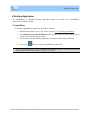
Desktop Application
To export data from Windows Mobile to the desktop,
1. Connect the handheld to the PC.
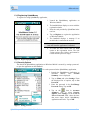
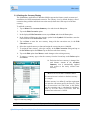
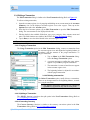
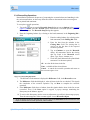
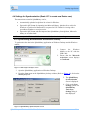
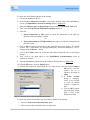
2. In the displayed Microsoft ActiveSync screen on the desktop, click on the SplashMoney
icon to open SplashMoney ActiveSync Settings (Refer to Figure 33).
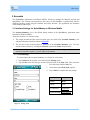
3. Select the 3rd Party apps via Import/Export option from the Synchronize with: field.
4. Then, select the Export from WinMobile to Desktop check box.
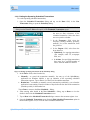
5. Select the,
•
Export transactions to QIF option, to export the transactions to the QIF (for
Quicken or Microsoft Money) format.
(or)
•
Export transactions to CSV(Spreadsheet, etc.) option, to export the transactions to
the CSV format.
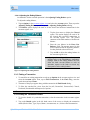
6. Click on OK to export the transactions in the required format, to the desktop. The default
location like C:\Documents and Settings\dchristy\My Documents\SMExport\...,can be
changed using the Browse… button.
7. Click on the Format…button to set the date and number formats the same as the desktop
settings.
8. Then, click on the Sync option in the SplashMoney Synchronization screen to
synchronize the data.
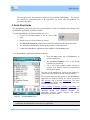
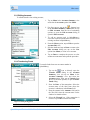
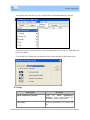
9. Open the SplashMoney application on the Windows Desktop (Refer to Figure 30).
10. From the File menu, select the Import option.
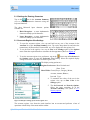
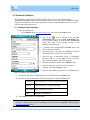
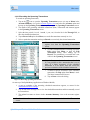
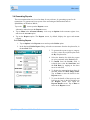
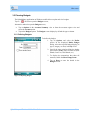
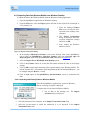
11. Click on the required file format (QIF or CSV) from the list. From the displayed Import
File screen, select the
required file to be
imported, and click on
Open.
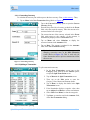
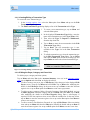
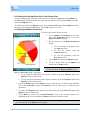
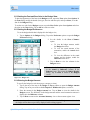
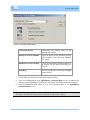
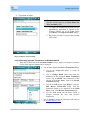
12. A Select Account
dialog is displayed.
Create a new account
or select an existing
account, to import the
data.
13. Click on OK to import
the selected file format
(QIF or CSV) to the
Windows Desktop.
Figure 35 Selecting the account for importing transactions
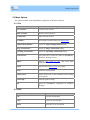
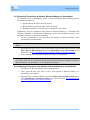
To export only the new transactions from the Windows Mobile to the desktop,
1. Select the Export new transactions only option.
2. Follow the procedure mentioned above to export data.
SplashMoney on Windows Mobile User Guide
36