1
Desktop Application
4.5.3 Exporting Transactions to Quicken, Microsoft Money or a Spreadsheet
The desktop version of SplashMoney allows, to record transaction when travelling and later
upload the transactions to,
•
Quicken through the QIF or OFX file format.
•
Microsoft Money through the QIF or OFX file format.
•
Spreadsheet, database or a word processor through the CSV format.
SplashMoney does not synchronize with Quicken or Microsoft Money or a spreadsheet but
facilitates uploading of transactions automatically, so that the transactions created on the
handheld need not be re-entered on the desktop.
1. For the synchronization to be successful, exit Quicken or Microsoft Money before
performing the synchronization.
) The accounts in SplashMoney must have the same names as the accounts in Quicken or Microsoft
Money.
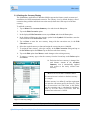
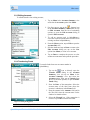
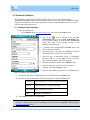
2. Export the files (QIF, OFX or CSV) to the desktop from Windows Mobile using the 3rd
Party apps via Import/Export option in the SplashMoney ActiveSync Settings screen
(Refer to section 4.5.1 Exporting data from Windows Mobile to Windows Desktop).
3. Then, import the files into Quicken, Microsoft Money or a spreadsheet.
) After importing the file formats into Quicken, Microsoft Money or spreadsheet, delete the files on
the desktop. If the files are not deleted, then the next time when the files are imported to Quicken,
Microsoft Money or a spreadsheet, it creates duplicate transactions.
4.5.4 Importing Transactions from Quicken or Microsoft Money or a Spreadsheet
1. Exit Quicken or Microsoft Money before synchronization.
2. Then, export the files (QIF, OFX or CSV) from Quicken or Microsoft Money or a
spreadsheet, to the desktop.
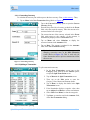
3. Import the files to Windows Mobile using the 3rd Party apps via Import/Export option
in the SplashMoney ActiveSync Settings screen. (Refer to section 4.5.2 Importing data
into Windows Mobile from Windows Desktop).
SplashMoney on Windows Mobile User Guide
39