1
User Manual
Ver: 1.0
Quick guide by Ertebat Paydar Yekta co :
1.connect the flash to pc , Press key button on flash
2.enter the password on the keypad on the flash ( default password : 111111)
3.Press again the key button on flash
4.the unlock led is red and the flash is unclock
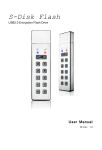
Product View
Lock LED
Unlock LED
KEY Button
Power Button
Product
USB2.0 Secure Flash Drive
Material
Aluminum Case with Silicon key
Mode
Flash Drive
Features
Tough design for Dust and water resistant
Secure PIN Access with keypad
Real-time 256-bit AES Hardware Encryption
Software Free Design
Keypad
Wear Resistant Keypad
Drive Reset Feature
Encryption: AES Cipher-Block Chained mode
Comments
LED Indication
LED
Encryption Keys: 256-bit Hardware
Hashing: 256-bit SHA
OS
Windows 2000 / XP / Vista / Win7/Win8
Requirement
Mac OS 10.2 or higher
Indication
Instructions
Blue
Key is locked
Linux
Red
Key is unlocked, can
Android…)
Environment
transfer data
Blink
1
Inputting
time
password
Blink
Data
the
2.4.2
or
higher(such
as
Operating Temperature: 5°C ~ 40°C
Operating Humidity: 20%RH ~ 80%RH
user
Storage Temperature: -20°C ~ 70°C
is
Storage Humidity: 10%RH ~ 90%RH
being
transferred
Blue
Accepting
Blink
password
user
Capacity
8GB/16GB/32GB/64GB
Interface
USB2.0
Power Supply
USB Bus Power 5V/500mA
Size
8cm x 2.2cm x 0.7cm
Change password
A user password can be changed to almost any number that is desired. To create your new password be sure to follow the instructions below
1. The new password is 6 digits long.
2. The default user password is 111111. We recommend that you change the user password immediately for security reasons.
Step
Indication
1. Connected the key into the computer
2. Double press the Key button
in 2 second。
will be on Blue
will be on Blue
and
will blink Red
3. Input the old password
will blink Blue
4. Press the Key button
to confirm the old
will blink Red
password
5. Input a new password
will blink Blue
will blink Red
6. Press the Key button
to confirm the new
will blink Red
password
7. Input the new password again
will blink Blue
will blink Red
8. Press the Key button
to
complete the new password
OFF
will be on Red
Note:
If a mistake is made when inputting the password, Please repeat the above operation。
Ubuntu、
Format Flash key
When first use, You will need to initialize and format the Flash key
1. Setup a new password
2. Connect the Flash key to the compute and Unlock it.
3. Right-click “My Computer” and then click Manage from the Windows desktop.
5. In the Computer Manage window, click Disk Management.
6. Right-click Removable Raw drive, in the blank area under the Unallocated section, and then select Format.
7. The Format window opens and Select FAT32 of NFTS depending on your needs and click OK
Unlock the Flash key:
Lock the Flash key:
Step
1.
Connected
Indication
the
key
into
the
will be on Blue
computer
2. Press the Key button
3. Accepting user password
(The default password is 111111)
will be on Blue
Step
and
4. Input user password
5. Press the Key button
Indication
will blink Red
1. To lock the Flash key, unplug it
will blink Blue
from the USB port.
2. or press the key button
OFF
on the
unlocking mode
will blink Red 1
will be on Blue
OFF
time
6. When input the correct password,
OFF
you can transfer data now.
will be on Red
Reset the Flash key
If you forget your password, or If you would like to delete all data storaged on the Flash key and setup one new password, follow the instruction below.
The reset process will clear your password and destroy all data. This means a new User password will have to be defined in order to re-enable the Key. Also, since this will force the creation of a
new encryption Key, the Flash key will have to be reformatted.
Step
Indication
1. Connected the key into the computer
will be on Blue
2. Press and hold the Key button
OFF
And the number 9 button for 5 seconds
3. Press the number 0 button to reset the Flash key
(The default password is 111111)
will blink Red
and
will blink together 1 seconds, then will turn
off.
4. Unplug the key , and re-connect the key into the
computer.
Note:
By resetting the Flash key, all data previously stored on the drive will be lost! Please backup all your data first before do it!
FAQs
Q: If forget the password, How about the data on the Flash Key?
A: If you forget the password, there is absolutely no way of gaining access
to the data stored on the Key.
You must be completely reset the Flash Key. By resetting, all data stored on the Key will be inaccessible.
When the Flash Key is reset the following occurs:
* The user password is deleted and restore to the default password.
* All the data on the Key is no longer accessible
* A new user password will need to be set
* The Flash key will need to be formatted