1
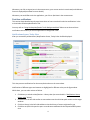
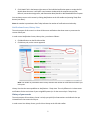
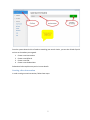
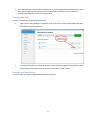
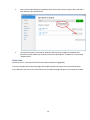
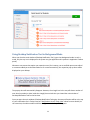
Working with ABE Desktop Notification Tool This chapter provides you with the comprehensive step-by-step instructions on how to accomplish various tasks with ABE Desktop Notification Tools. The sections below cover topics as follows Starting ABE Desktop Notification Tool Real-time notifications History of your events Quick actions on students Quick links Starting ABE Desktop Notification Tool 1. Start the application through Start menu or by clicking the desktop icon 2. Welcome screen appears when you start ABE Desktop Notification Tool. Its main purpose is to facilitate user login process 3. To log into the system, use following steps: a. Specify your user name and password (the same as you use on School Site) b. Press Sign In button Notes: You can also use the respective check boxes to enable the following options Sign you in automatically, using the login and password you have just provided Auto-start ABE Desktop Notification Tool when your machine starts If you do not remember your password, you can click on ‘Forgot it?’ link. It will open a new browser window with the password reminding form. Once you provide the email used to register your School Site account, the system will automatically email you the 2