1
4
Running ACORN Stand Alone on a Demo Data Set
This section will show you how to quickly run an atmospheric correction on one of the example
data sets included on the ACORN CD using the stand alone ACORN program. The main goal of
the test is to verify that the program and data files have been installed correctly, and that a
correction can run without errors. These steps assume that the Cuprite AVIRIS data set has been
installed on your system into the default location. Please refer to the users manual and tutorial
for complete instructions on how to run ACORN.
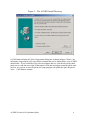
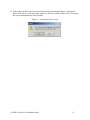
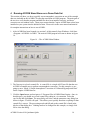
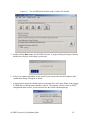
1. After ACORN has been licensed (see section 3 of this manual), from Windows, click Start>Program->ACORN4->ACORN. The main ACORN program will start as shown in figure
16.
Figure 16 – The ACORN Main Window
2. The first step is to load a control file. A control file is a simple ASCII text file that the core
ACORN executable uses to perform an atmospheric correction. For this example, we are
going to run a “Mode 1: Simple Atmospheric Correction of Calibrated Hyperspectral Data”
on the Cuprite AVIRIS data set.
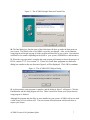
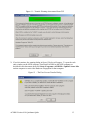
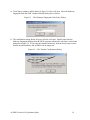
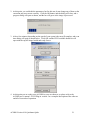
3. Click the Open button, and navigate to C:\Program Files\ACORN4\Data\Cuprite. Once in
that directory, you should see several control files ending in a .in extension. Select the
cup1.in file and click Open. The open dialog will close, and the parameter entry dialog box
shown in figure 17 below will open. This allows you to quickly note that everything for that
control file is correct. The processing mode and full path to the control file is listed in the
title bar of that dialog box.. Nothing needs to be changed for this example, so simply click
OK to close the dialog.
ACORN Version 4.10 Quickstart Quide
16