1
3
Requesting your ACORN License
The ACORN license is node locked to a single computer. The security that ACORN uses
collects various parameters about your system, and generates a unique Hardware Fingerprint
for your computer. This code is then sent to AIG, who in turn will send back a Name and Key
value that will allow ACORN to run. Once a valid code is entered, ACORN will store that value
and no further user action is required to run ACORN.
3.1 A Note about the Hardware Fingerprint
Because ACORN uses various parameters about your system to generate a hardware fingerprint,
please keep in mind that changing certain aspects of your system may invalidate the ACORN
license. Examples include changing your primary hard drive and updating the Flash BIOS in
your computer. If you know that you intend to upgrade your computer, you can transfer your
license to a second machine temporarily, and transfer it back after your machine is upgraded.
3.2 Requesting your ACORN License
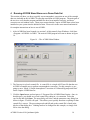
1. The first step in requesting your ACORN license is to retrieve the Hardware Fingerprint of
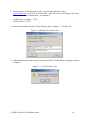
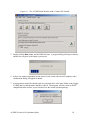
your computer. To do this, from Windows, click the Start->Programs->ACORN4>Update License Info item. When you do the dialog box shown in Figure 6 will appear.
The Hardware fingerprint is circled and pointed to in that figure. In this example the value is
7424-9250. Note this code for use in the next step.
Figure 6 – The ACORN License Dialog
ACORN Version 4.10 Quickstart Quide
9