1
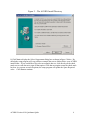
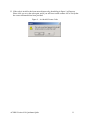
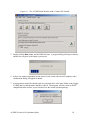
Figure 3 – The ACORN Example Data and Control Files
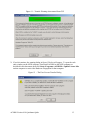
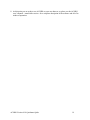
10. The final dialog box lists the name of the folder that will show up under the Start menu on
your system. The default value of ACORN4 is typically not changed. After you hit Next the
setup program will begin copying all of the program and data files to your system. Note that this
could take a few minutes depending on the speed of your system, CDROM drive and hard drive.
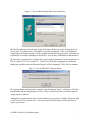
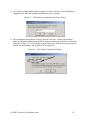
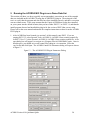
11. When the copy operation is complete the setup program will attempt to detect the presence of
ENVI® version 3.2, 3.4 or version 3.5. If one, two or all three programs are detected a
dialog box similar to the one shown in figure 4 will be displayed. Click OK to continue.
Figure 4 – The ACORN ENVI Plug-in Dialog
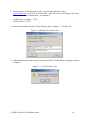
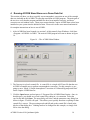
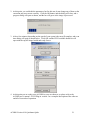
12. At this point the setup program is complete, and the dialog in figure 5 will appear. Click the
Finish button, and the setup program will exit. There is no need to restart your system after the
setup program is finished.
Although the program and data files are now installed on your system, ACORN will not run until
a valid license is received from AIG. The next section of this document will describe how to
request your license.
ACORN Version 4.10 Quickstart Quide
7