1
2.
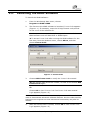
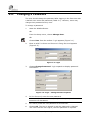
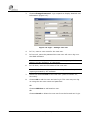
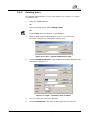
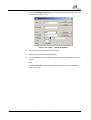
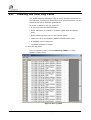
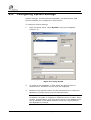
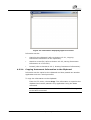
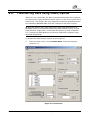
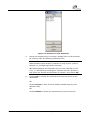
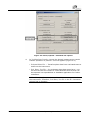
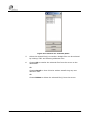
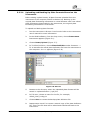
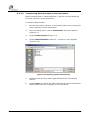
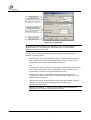
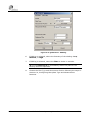
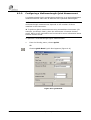
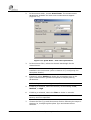
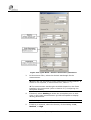
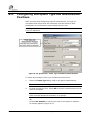
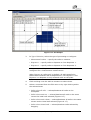
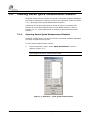
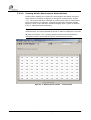
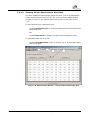
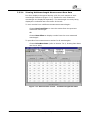
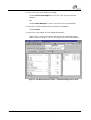
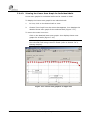
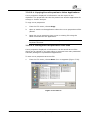
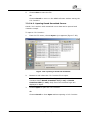
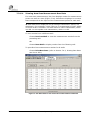
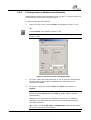
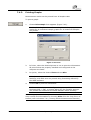
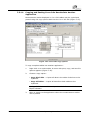
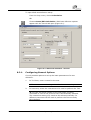
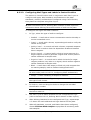
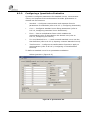
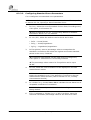
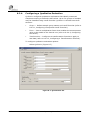
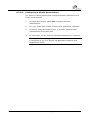
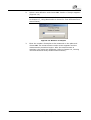
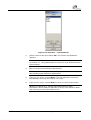
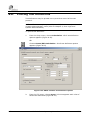
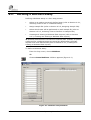
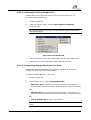
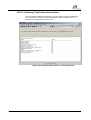
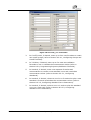
Highlight the desired plate to load or delete.
Î To narrow the list by date, select dates in from and to, and
choose update list.
To search for a specific plate ID by characters in the Plate ID name,
choose Matchcode (refer to Section 8.7, Using Matchcode to
Search for Test Definitions and Saved Plates).
3.
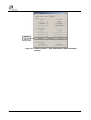
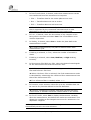
Choose OK to load the plate.
OR
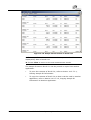
Double-click the desired plate. The plate data appears in the main
window.
OR
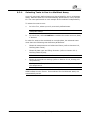
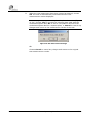
Choose Delete to remove the plate from the database.
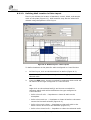
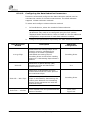
10.7.2. Saving Plate Data to the Database
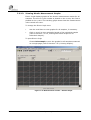
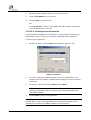
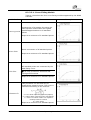
Raw data of measured plates are automatically saved to the database.
Plate data can also be saved to the database manually or to a text file
outside the database.
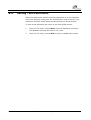
To save plate data to the database:
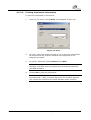
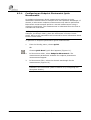
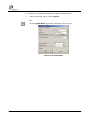
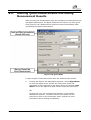
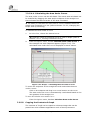
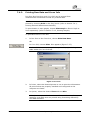
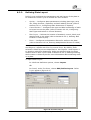
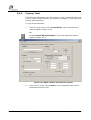
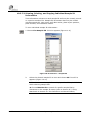
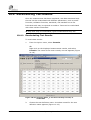
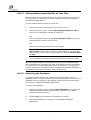
From the Database menu, choose Save Actual Data. The plate data
is saved to the database.
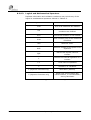
To save plate data as a text file separate from the database:
From the Database menu, choose Save as TXT-File. The plate data
is saved as a text file that is separate from the database and can
be opened by many applications such as text editors, word
processors, and spreadsheets.
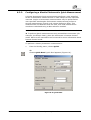
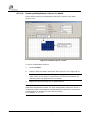
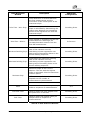
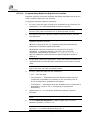
10.7.3. Repairing and Compressing the Database
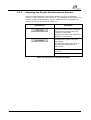
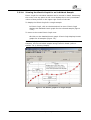
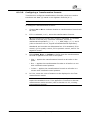
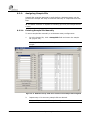
When a plate or test is removed from the database, only the data is
deleted from the fields. The empty data fields remain, which increases
the size of the database, which may slow down access. Periodically, it is
recommended to remove empty fields using Compress Database. Repair
Database removes unassigned entries from the database before
compressing it.
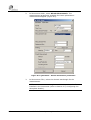
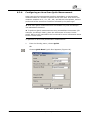
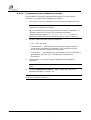
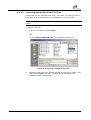
To repair or compress the database:
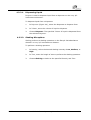
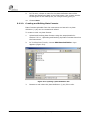
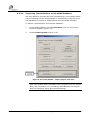
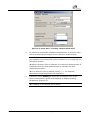
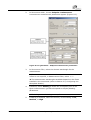
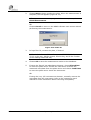
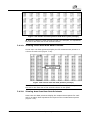
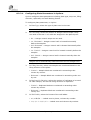
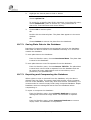
From the Database menu, choose Repair Database to remove
unassigned entries and empty fields. The database is repaired.
OR
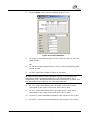
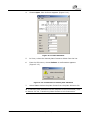
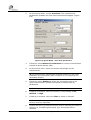
From the Database menu, select Compress Database to remove
empty fields. The database is compressed.
10-42
ADAP Software Operating Manual
ADAP