1
an answer you can always come back at anytime to continue or change the answers. If you
do come back at a later time, please be aware that this may change the number of forms you
need to fill out.
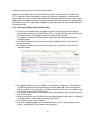
The forms that are raised for completion can be seen on the Project Index/Navigate page and
this can be accessed at anytime by pressing the 'Navigate' link in the top left corner of the
'Project Filter' page (or 'Navigate' while you are on any other form page), or clicking on a
specific project listed on the 'My Projects' page.
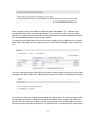
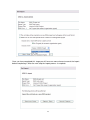
One of the first fields you will see on the 'Project Filter' is the text box asking for the 'Short
Title' for your project. You should put a name to remind you what the project is about − this
can be changed at a later date if you want − but it is this name which will help you identify a
particular on the 'My Projects' page.
It is important to realise that there is only one 'Project Filter' per project.
1.2.2 Project Index/Navigate
This page is the main way of accessing your data and forms for a particular project. It can be
accessed by clicking on any Project listed on the My Projects page, or when you are in any
form or Project Filter − by clicking on the 'Navigate' button. This page also consists of many
active areas, but once you understand the basic principles of the page you will be able to
access all data and forms in your project very quickly.
Below the main IRAS menu bar you should find the following sections:
5