1
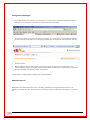
 Installation & Configuring 1. Extract the StickApp Password Manager download package to your desktop or other temporary location – you will have two root folders, one with the installation files, and one called Documentation. Copy / move the \passwordmanager folder to your own SafeConsole Publisher location – for example \\myserver\publisher\passwordmanager NOTE: In the Publisher UNC share you must now have a folder \passwordmanager which contains all of the sub‐folders, programs, settings and other necessary associated files – approx 12Mb. 2. CRITICAL STEP: The Password Manager program utilises a very specific path for users data. <safestick root>\My Roboform Data\Default Profile This folder must be created on users SafeSticks, and populated with the supplied "Empty" Default Profile else the program simply will not run. You MUST configure the Autostart script file to do this automatically – see below for details. Having the users Data stored in this very specific location has two major benefits; a) User data will always be persistent, as it will always be stored in the personal storage area of their SafeStick. Even if Publisher is disabled, users saved data will always remain. b) If you have SafeConsole backup configured, personal user data will be automatically backed up to SafeConsole. 3. The “Default Profile” (which contains the recommended default settings for all of your SafeStick users) has been created for you as part of this package. If you wish to modify the settings in this Default Profile, it is necessary to check and set these settings before rolling out the solution. See further in this document for details on modifying this default profile. Configuring AutoStart NOTE: Follow the StickApps Technical Guide for creating and enabling Autostart in SafeConsole. To Autostart StickApp Password Manager specifically; 1. In Windows Explorer, navigate to your Published UNC share where the Autostart.bat file is located ‐ for example; \\myserver\publisher\autostart 2. With Notepad or similar edit the Autostart.bat file 3. Add the following entry into the Autostart.bat file – for example; >> Echo Starting Password Manager...... REM First create and populate default empty data profile for PasswordManager if one doesnt exist.. if not exist %1"My Roboform Data" xcopy %1Applications\PasswordManager\Empty_Roboform_Data\"Default Profile" %1"My Roboform Data\Default Profile" /D /S /E /C /I /Y %1Applications\PasswordManager\Roboform\RoboForm.exe exit >>
V7.0.66 1994‐2010 (c) StickApps.co.uk 3