1
•
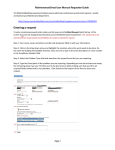
You’ll be taken to the following page:
•
Enter your Query Name.
•
Enter your filter options by selecting Available Columns, Operand, and Value
from the drop-down boxes provided.
•
If you’d like to view the values available for that field, click the Show Values
button. You can use the “AND” and “OR” buttons to link more items to the
“where” clause. The default is set to “AND”.
•
Click the Insert button to enter your Where Clause.
•
Select the output fields you’d like to use. Click the box under “Show?” if you
want the field to display on your query. You can select the order and row that it
will display on by choosing from the drop-down boxes.
•
Click Save Query or Run Query at the bottom of the page, depending on what
you’d like to do.
•
To print the query result in a PDF file, click the “Print This” icon near the bottom
of the page. To print the query to an Excel spreadsheet, click the “Print to Excel”
button.
13