1
USER GUIDE
Several additional options are available for choosing when to log data, which data to log, and how often to log
data. These options can be configured under the “Data Logging Setup” menu.
If you choose to have data logging stop when the buffer is full, don’t forget to clear the logging buffer
before each flight, from the Preflight menu.
7.4.2 Downloading, Viewing and Saving Logged Flight Information
With the software, you can download flight information from the Vector, view the data, and save it for later
retrieval.
7.4.2.1 Downloading Data
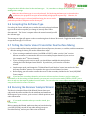
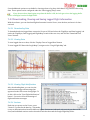
To download and view logged data, connect the Vector to USB, and select the “EagleEyes and Data Logging” tab
under the ”EagleEyes, Data Logging and Flight Map” branch in the tree view, and click the “Download from
Vector” button.
7.4.2.2 Viewing Data
To view logged data on a chart, click the “Display Chart of Logged Data” button.
To view logged GPS Data with Google Maps™, navigate to the “Google Flight Map” tab.
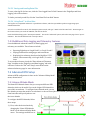
7.4.2.3 Viewing Flight Notifications
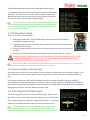
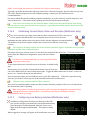
After downloading data, you can view the
notification messages and warnings that
appeared on the OSD screen during flight. To
do this, click on the “View Flight Notifications”
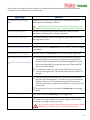
button. See section 9 for the meanings of
flight notification messages.
7.4.2.4 Sessions
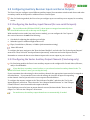
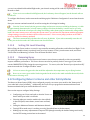
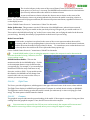
Each time you power on the Vector, a new
“Session” is created in the data log. This makes
it easy to differentiate data between different flights. Sessions are indicated with vertical gray bars on the
chart, and individual sessions can be selected on both the chart and the Google Flight Map views.
71