1
Getting Started
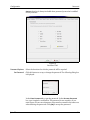
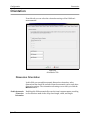
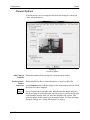
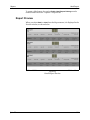
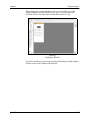
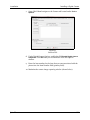
Main Window
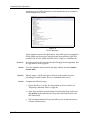
Refer to Chapter 3, “Database Management” for information on managing
databases.
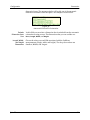
Customizing the Main Window
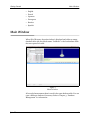
You can move, resize, or hide some windows of the main window to
customize the display. The measurement window cannot be moved and
acts as a point of reference for all of the other Qbit-DB windows.
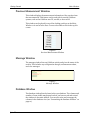
• The stacking window, CubiScan picture window, message window,
camera image window, previous measurement window, and database
window can be resized.
• The stacking window, CubiScan picture window, message window,
camera image window, and previous measurement window can be
separated from the main window and moved to a different docking
position or left to float on the screen.
• The stacking window, CubiScan picture window, message window,
camera image window, previous measurement window, and Database
fields can be hidden or shown.
Resizing
NOTE
Moving
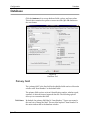
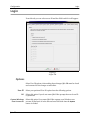
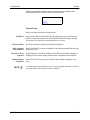
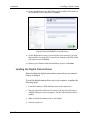
To resize a window, move the mouse pointer over any side or corner until
the pointer changes to directional arrows. Click and hold the mouse button,
and drag the side or corner of the window until it is the size you want, then
release the mouse button.
You can resize the entire main window using the same method.
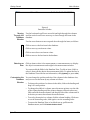
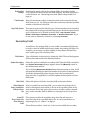
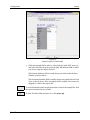
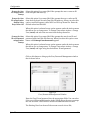
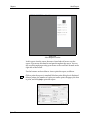
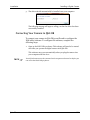
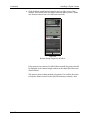
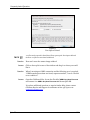
Each window that can be separated has a “docking bar” at the top when the
window is docked, or in a fixed position, in the window.
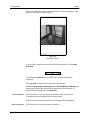
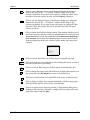
To move the window, click the docking bar, hold down the mouse button,
and drag the window to another location in the window. As you drag it, you
will see an outline that indicates the position and size it will be. When it is
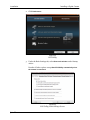
in the position you want, release the mouse button. If you move a window
to a floating, or undocked, position, the docking bar changes to a title bar.
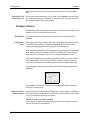
To move a floating window, click the title bar, hold down the mouse button,
and drag the window. When you move it into a docked position, the
docking bar appears again.
NOTE
Qbit-DB
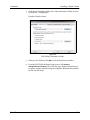
If you do not want the window to “snap” into a docked position, hold down the
<Ctrl> key as you drag it. It then becomes a floating window that can be positioned
anywhere on the screen.
13