1
Reports
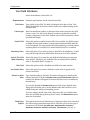
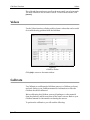
Label Report
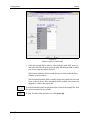
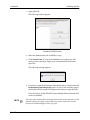
Click to open a different report. A Load Report dialog box is displayed.
Reports are saved in the ... > CubiScan > Reports folder with an .fp3
extension by default. If you saved your reports in a different folder, select
the folder. Select the report you want, and click [Open] to display it.
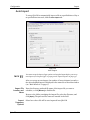
Click to save the displayed report. A Save Report dialog box is displayed.
Reports are saved in the ... > CubiScan > Reports folder with an .fp3
extension by default. If you want to save your reports in a different folder,
select the folder. Save report files can be opened in the Qbit-DB report
viewer (see above).
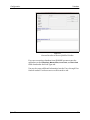
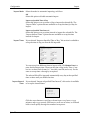
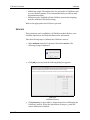
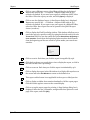
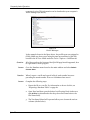
Click to display the Find Text dialog window. This window will allow you to
search the report for specific word(s) by typing the desired word(s) into the
Text to find: field. You can also enable the options Search from beginning or
Case sensitive. Search from the beginning option searches the document
from the beginning and the case sensitive option makes your search case
sensitive.
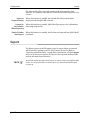
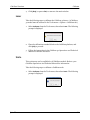
Click to zoom in. Each time you click the report is magnified by 25%.
Click the drop-down arrow and select a size to display the report, or click in
the text box and enter a percentage.
Click to zoom out. Each time you click the report is minimized by 25%.
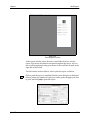
Click to display the report in the full window view. Right-click anywhere on
the screen and select Full Window to return to the default view.
This report outline button is not applicable in the report or label preview.
Click to display a sidebar that contains thumbnails of all the report pages.
Click this button again to return to the normal display.
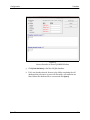
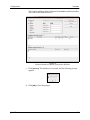
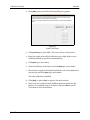
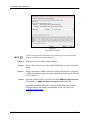
Click to set up the report pages for printing. A Page Settings dialog box is
displayed. Select the size, orientation, margins and other options for each
page of the report, and click [OK].
Qbit-DB
103