1
i-Guard DVR User’s Manual
C.
Operation
I.
Activating the Software
Method (1): Click the shortcut of i-Guard DVR on your desktop screen.
II.
Method (2): Run Start\Program Files\i-Guard DVR\i-Guard DVR.
Main Screen
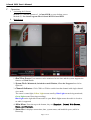
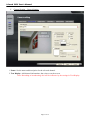
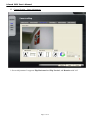
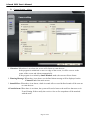
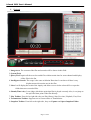
1. Real View Screen: Four cameras can be monitored at one time and the system supports the
function of Click-To-Go.
2. System Tools: Minimized, Switched to small Window, Close the Program from left to
right side.
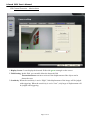
3. Channel Indicators: Click CH01 to CH04 to switch into that channel with single channel
view mode.
The center is status light; Yellow Light means stand by; Blue Light means being monitored;
Green Light means Detecting(recording).
Blue Light on the right side means audio is open; Black Light means the audio is closed or
no audio is supported
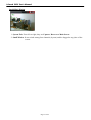
4. Main Menu: From the top to the bottom, they are Snapshot , Detect, Web Server,
Setup, and Playback.
5. Status Bar: It displays current time, date, system status, and hard disk space (while in
Detecting)
Page 3 of 14