1
MRS Software 4.1.3: MR Cube module
2.
Add Bluetooth connection
Chapter will explain how to add a connection between the MR Cube and a computer.
This
To connect the MR Cube to a computer, the computer needs to be provided with Bluetooth. This can
be a standard function on your computer, or you can add this function by installing a Bluetooth USB
converter. The following instructions are about installing the MR Cube on a computer which is provided with Bluetooth. The pictures in these instructions may vary from the screens you will see during
installation. This is because the different Microsoft operating systems and the different Bluetooth
configuration programs.
If the MR Cube will be connected to another computer, the Bluetooth pairing should be done again.
The MR Cube should be switched off before re-use. We do not recommend to use one MR Cube on
more computers according the above extra actions.
2.1 Bluetooth installation Windows XP
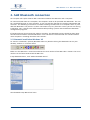
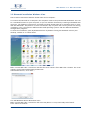
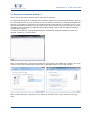
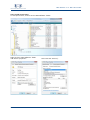
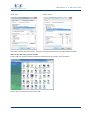
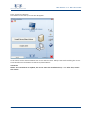
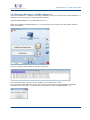
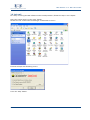
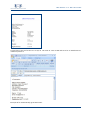
To start the installation, open My Bluetooth Places by double clicking the Bluetooth icon on your
desktop, taskbar or in Control Panel.
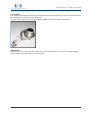
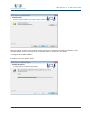
Make sure the MR Cube is turned on and that the serial number of the MR Cube is known. The serial
number can be found underneath the MR Cube.
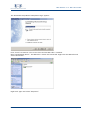
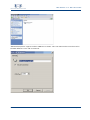
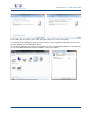
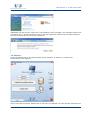
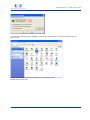
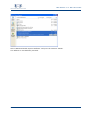
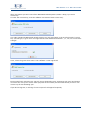
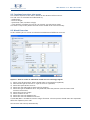
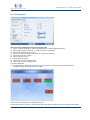
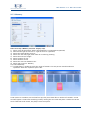
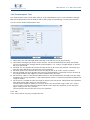
In My Bluetooth Places, click "Add a Bluetooth Device".
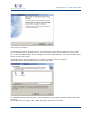
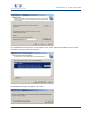
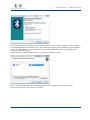
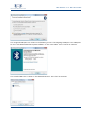
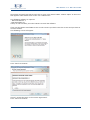
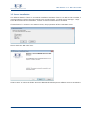
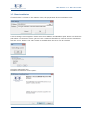
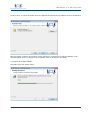
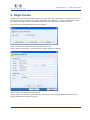
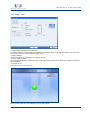
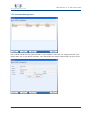
The Bluetooth Setup Wizard will start:
© 2010 Monitored Rehab Systems