1
4.
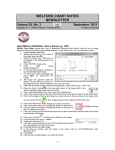
You can scroll through the list at the top of the window and see each e-mail displayed in the Body
section below. If this e-mail was sent to you in HTML format (not just plain text, but with different
colors, images, fonts etc.) and contains any hyperlinks, then clicking on those hyperlinks will take
you to the corresponding websites using your computer's default web browser.
5. If you want to read the Body in a larger window, press the Zoom button.
6. If you simply want to indicate that you have read an e-mail, press the Mark As Read button. Doing
so also removes it from your inbox inside Microsoft Outlook.
7. If you want the list to exclude those e-mails that you have marked as Read, uncheck the Read box.
8. If you want to write a response to a highlighted e-mail, press the Reply button. This opens the
Send window described above, and allows you to write and then send your response.
9. If there are Attachments listed in the Attachment list, highlight one and press View to view the
attachment. If the attachment is an image, it is displayed in the Image Utility. If it is a Microsoft
Word document, it is displayed using Microsoft Word (assuming you have it installed on your
computer).
10. If you wish to see a different portion of the e-mail database, press Redisplay. Fill in the
corresponding elements, and press OK. For example, if you want to see all of the e-mails
pertaining to a specific patient, enter the name of that patient in the Patient box, and set the Start
Date the first date that you started using this feature.
11. You can press the Jump button to move to other locations in Welford Chart Notes while reviewing
your e-mail and then return to where you left off.
JUMPING TO WRITE AN E-MAIL
You can jump from other locations in Welford Chart Notes into your Outlook E-Mail features. This is handy,
for example, if you are reviewing a test result or message from one of your staff and want to send an e-mail
to a patient or provider regarding that information. Let's see how this is done:
1. Press View\Lab Book and enter the name of Kelly Erickson.
2. Press Add.
3. Enter a test result.
4. Press Jump\Outlook E-Mail\Send.
5. You are taken into the Send E-Mail window. The patient’s name is already filled in on the screen.
Compose your e-mail and press Send. When the Send E-Mail window closes, you are back in the
Lab Book Add window, where you can complete your work.
MICROSOFT
WARNING
OUTLOOK
SECURITY
Microsoft Outlook has some internal security settings
which may cause a warning to pop up each time you
launch Microsoft Outlook from Welford Chart Notes. If
you see this warning, press Allow. You can disable this
warning by going into Microsoft Outlook, pressing
Tools\Trust Center\Programmatic Access, and selecting
Never warn me about suspicious activity.
NEWS ON VERSION 6.1
We are putting the finishing touches on version 6.1, due for release next month. Version 6.1 allows you to
view your retrieved and sent e-mails within the Visiter. It also retains the formatting from the Writer when it
is imported into the Outlook E-mail Send window, and shows the CC: and BCC: fields in the Outlook E-Mail
Review window. The Outlook E-Mail Review window can be resized to fill the screen, and the program
remembers the last size and position of this window each time you open it.
SEND US YOUR TIPS
If you have tips, shortcuts, questions, or suggestions for future newsletter topics, please send them to us at:
Welford Medical Computing, Inc.
or
MEDCOM Information Systems
3779 Hermitage Trail
2117 Stonington Avenue
Rockford, IL 61114
Hoffman Estates, IL 60195
15