1
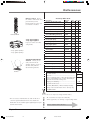
Using the TV’s Menu System
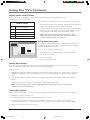
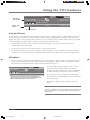
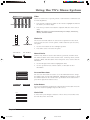
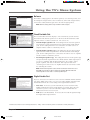
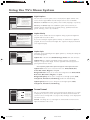
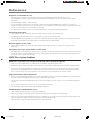
Main Menu
0 Go Back
1 Caption Display
2 Analog Captions
3 Digital Captions
4 Caption Priority
5 Caption Style
Preferences
Service 1
Closed Captioning
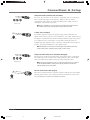
You can select a mode or source of
closed captions for digital-TV
programs.
Service 2
Service 3
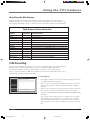
If the "Caption Priority" feature is set
to "Use the digital captions", then the
digital caption mode you select is
used for digital-TV programs.
Service 4
Service 5
Service 6
Note: Services 1 and 2 usually have
the primary and secondary language
captions for an area, respectively.
Press or to point to an option, then press OK to
select it. Press to return to the menu.
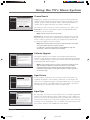
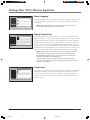
Main Menu
0 Go Back
1 Caption Display
2 Analog Captions
3 Digital Captions
4 Caption Priority
5 Caption Style
Preferences
Closed Captioning
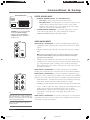
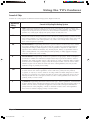
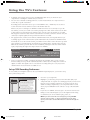
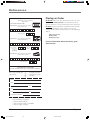
If a digital TV program has both analog and digital captions:
Use the digital captions. Never use analog captions.
Use the analog captions. Never use digital captions.
A digital TV program may include analog-TV captions and
digital-TV captions, either one of the two, or neither of the
two. The setting above will determine which type of
captions the TV will display.
Analog captions will be used more often in the early years
of digital TV broadcasting. Digital captions are more
advanced and have new capabilities.
Press or to point to an option, then press OK to
select it. Press to return to the menu.
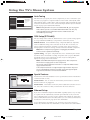
Main Menu
0 Go Back
1 Caption Display
2 Analog Captions
3 Digital Captions
4 Caption Priority
5 Caption Style
Preferences
Closed Captioning
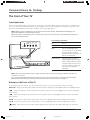
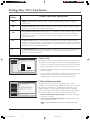
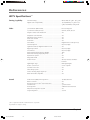
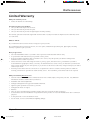
When available digital captions can be displayed using:
Your custom settings below.
The caption provider's default settings.
Standard
Font 1
Yellow
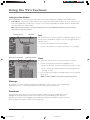
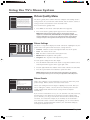
You can select a closed caption, service mode (1-6) for digital channels. The
service modes support MPEG-2 based transport sources such as DTVLink.
Service 1 and Service 2 are the primary and secondary languages, respectively.
Service 3 and Service 4, 5, 6 are additional caption sources that may be
available. Specific label names may be displayed (e.g., Spanish) instead of a
generic label (e.g., Service 1), if available.
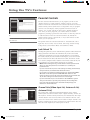
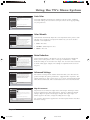
Caption Priority
You can choose whether the TV uses digital or analog captions for digital TV
programs that have both or either.
If you select analog on digital captions and they are available for a digital TV
program, the CC icon in the banner lights. The captions are displayed if turned
on in Caption Display.
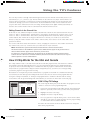
Caption Style
Customize closed captioning for the digital captions by choosing the settings for
the following options:
Caption Size
Caption Font
Magenta
Digital Captions
Caption Color
Caption Size is the font size (Standard, Large, Small) of the text characters.
Background Color
Transparent
Background Opacity
Translucent
Caption Opacity
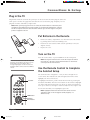
Press OK to select one of the three Caption sizes. Pressto
return to the menu.
Caption Font is a complete assortment of letters, numbers, punctuation
marks,etc. of a given font design. You have eight fonts with varying styles of
spacing from which to choose.
Note: A preview graphic of the caption font appears on the right of the screen.
Caption Color allows you to choose the font color: White, Black, Red,
Green, Blue, Yellow, Magenta, and Cyan.
Background Color allows you to choose the background color: White, Black,
Red, Green, Blue, Yellow, Magenta, and Cyan.
Background Opacity allows you to change the see-through options: Solid,
Transparent, Translucent, and Flashing. Solid is the default setting.
Caption Opacity allows you to change the see-through options: Solid,
Transparent, Translucent, and Flashing.
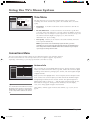
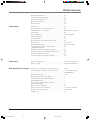
Main Menu
0 Go Back
1 Closed Captioning
2 Screen Format
3 Record Output
4 Color Scheme
5 Translucency
6 Menu Language
7 Digital Channel Info
8 Lamp Power
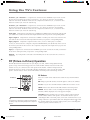
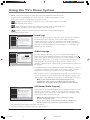
Screen Format
Preferences
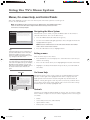
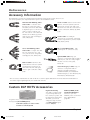
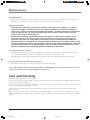
A picture with a 4:3 aspect-ratio
can be displayed on a 16:9
wide-screen TV in one of three
ways.
Normal
Stretch
Screen Format can also be
changed from the remote or
keyboard with the FORMAT key.
Zoom
The Screen Format of some
signal sources can't be changed.
Select Normal for 4:3 images to retain their width and
height. Side panels will appear at the left and right sides.
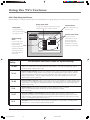
The Screen Format feature allows you to change how the image of a 4:3 picture
is displayed on your 16:9 screen. The options are Normal, Zoom or Stretch. If
your TV receives an image with a 4:3 aspect ratio, the image can be displayed in
one of three ways:
Normal The image of a 4:3 video signal is centered with black bars on the
right and left sides of the screen.
74
RCA_DLP_MENU
Chapter 4
74
9/18/03, 10:05 AM