1
Chapter 8
Reports and Queries
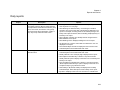
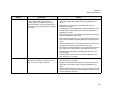
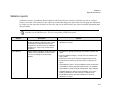
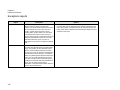
Daily reports
Report
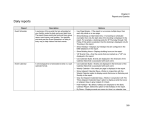
Event Schedule
Description
A summary of the events that are scheduled at
your facility, sorted by date and event start time.
The report shows event start and end time, group
name, event name, and location. You typically
print and post the Event Schedule in a lobby or
entry way to help visitors find their events.
Options
• Use Page Breaks - If the report is run across multiple days, then
each day starts on a new page.
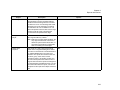
• Show Bookings on Start Date Only—If a booking is scheduled
overnight, then only the start date of the booking is displayed in the
report. For example, a booking exists for 3P Thursday through 10A
Friday. If this option is selected, then the booking is displayed only for
Thursday in the report.
• Show Holidays—Displays any holidays that are configured in the
EMS database on the report.
• Show Building Hours—Displays building hours on the report.
• VIP Events Only—Only the events that are marked as a “VIP” are
displayed in the report.
• Use Calendar Styles: Events are displayed in the font/color of the
Calendar Style that is associated with each event.
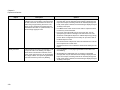
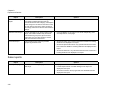
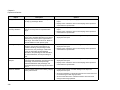
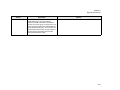
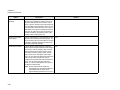
Event Calendar
A chronological list of scheduled events in a wall
calendar format.
• Use Calendar Styles—Events are displayed in the font/color of the
Calendar Style that is associated with each event.
• Weekly Calendar—One week per page is displayed in the report.
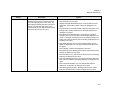
• Show Adjacent Calendar Days—Works in conjunction with the
Weekly Calendar option to display events that occur on Saturday and
Sunday in the report.
• Grey Out Adjacent Calendar Days—Works in conjunction with The
“Show Adjacent Calendar Days” option to display events that occur
on adjacent days in gray instead of in black.
• Hide Holidays—By default, holidays are displayed on the Daily
Calendar Report. Select this option to hide holidays in the report.
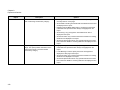
• By Room—Displays events one room at a time in a calendar view.
329