1
Configuration & Options Manager - continued
Configuration Settings
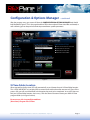
Enable Auto Start X-Plane after Texture Install - This allows REX to autostart X-Plane from within the REX
GUI. This is a handy feature that is activated any time immediately AFTER you install textures into X-Plane via
the REX user interface.
Enable Weather Sync with X-Plane- Enabling this option will allow REX to communicate with our new
private online weather data server and enhance METAR smoothing/probing features within X-Plane. (In
order to correctly use this feature within X-Plane, the “SCAN Real-Weather file METAR.RWX to set weather”
checkbox needs to be checked to ON, and the “DOWNLOAD Real-Weather file METAR.RWX from the net”
checkbox should NOT be checked).
Minimize REX when X-Plane Starts - Checking this option will minimize the REX GUI after X-Plane is started.
Quit REX after Texture Install - So that you don’t have to manually quit the REX GUI after X-Plane starts, we
have provided this option. Best to check this for lower-end systems.
Real Environment Xtreme™ for X-Plane – Version 1.0 User Manual – May 2010
Page 6