1
Configuring Users
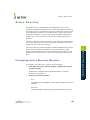
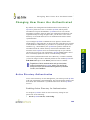
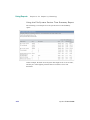
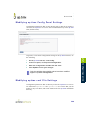
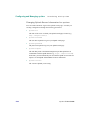
Changing How Users Are Authenticated
2
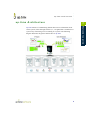
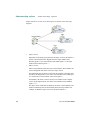
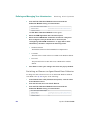
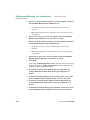
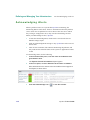
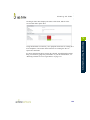
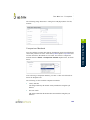
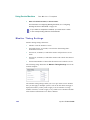
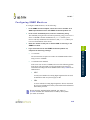
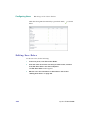
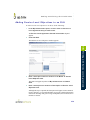
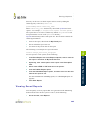
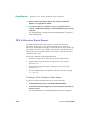
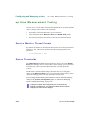
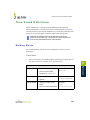
In the Tree panel, click User Authentication.
3
Click Edit Configuration.
4
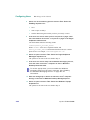
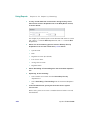
Select Active Directory as the authentication method.
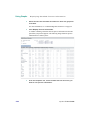
You will next need to provide access details for the Active Directory server.
5
6
7
8
9
10
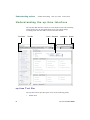
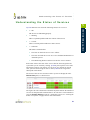
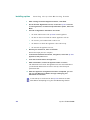
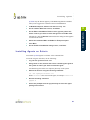
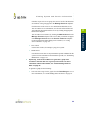
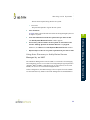
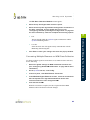
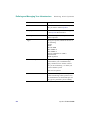
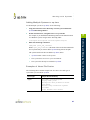
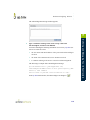
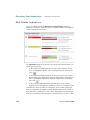
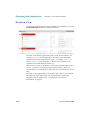
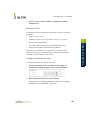
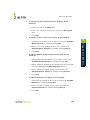
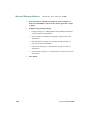
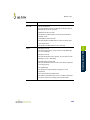
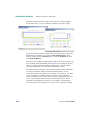
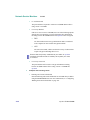
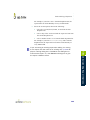
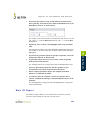
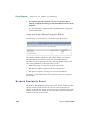
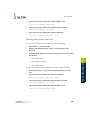
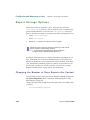
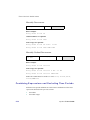
In the Primary Domain Controller field, enter the host name of
the server acting as the domain controller, most likely enabled as
the global catalog.
If applicable, in the Backup Domain Controller field, enter the
name of the server acting as an additional domain controller on
the same domain.
Enter the Port through which communication to the domain
controller occurs.
If communication to the domain controller is secure, select the
SSL check box.
In the Domain Name field, enter the domain that contains the
domain controller.
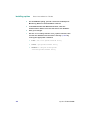
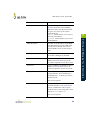
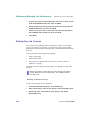
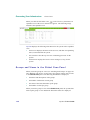
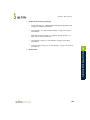
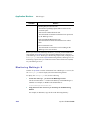
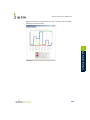
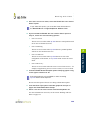
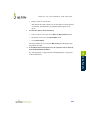
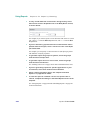
Continue to the next section to enable and configure
synchronization from the Active Directory listing to up.time user
profiles. If you do not wish to synchronize users, click Save .
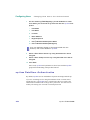
Clicking Save switches the authentication source to Active Directory.
Administrators still need to create profiles for all up.time users, but will not
need to set a password for each one. See “Adding Users” on page 337 for
more information.
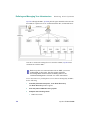
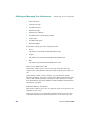
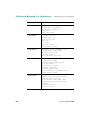
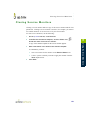
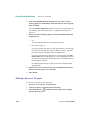
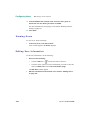
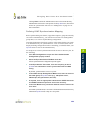
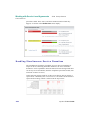
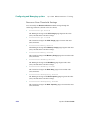
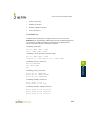
Defining Active Directory Synchronization Mapping
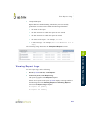
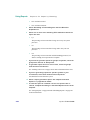
Before synchronizing user details, a populated “uptime” group must already
exist in the Active Directory listing; you will also need to know its
distinguished group name, as it will be required during configuration.
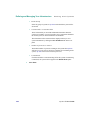
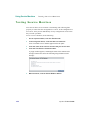
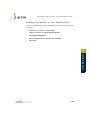
All DataStore-based user profiles will be deleted when you switch to Active
Directory for synchronization—a list of affected users will be displayed
during configuration. Before continuing, you should ensure your up.time
users are also in the AD listing.
350
up.time 5 User Guide