1
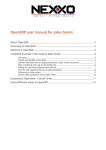
OpenERP Warehouse User's Manual
About OpenERP......................................................................................................................2
Accessing to OpenERP..........................................................................................................2
Working in OpenERP.............................................................................................................3
Warehouse's Example: From goods reception to goods storage..................................4
Use case......................................................................................................................................... 4
Checking the goods reception schedule..................................................................................4
Receiving goods........................................................................................................................... 5
Arrived goods quantities are equal to PO quantities....................................................5
Exceptional receipt operation: Differences between received quantities and PO
greater than 5%.................................................................................................................. 6
Exceptional receipt operation: Differences between received quantities and PO
lower than 5%..................................................................................................................... 8
Warehouse Tasks assignment.................................................................................................... 9
Quality Control performed....................................................................................................... 10
Receiving QC Assignment............................................................................................... 10
Uploading Quality Control report form........................................................................11
Updating Incoming Shipment status.............................................................................11
Receive the goods on the system - All the goods pass the QC..................................12
Exceptional QC Operation: Only part of the goods passed the QC..........................12
Exceptional QC Operation: All the goods has to be Rejected...................................14
Returning goods to Supplier........................................................................................... 15
Packaging and labeling procedures........................................................................................ 16
Updating Product Status before packing.....................................................................16
Exceptional Case: The QC approved quantity is different than Sold quantity........17
Creating Packages on the ERP........................................................................................ 18
Almost All packages have the same quantity and the same sizes.............................18
Exceptional Case: The packages have different sizes and quantities.......................20
Exceptional Case: The packages contents mixed products inside............................21
Labeling............................................................................................................................. 22
Leaving goods Ready to Deliver.....................................................................................22
Packs Traceability....................................................................................................................... 23
Using different Views in OpenERP....................................................................................24
OpenERP User Manual for Warehouse Teams
Page 1 of 25
OpenERP Warehouse User's Manual
Goal
Guide the management of the information related to warehouses using the Enterprise
Resource Planning tool available for the company (OpenERP), to create accurate and
correct product movements and to keep the stock quantities reliable.
Scope
This document will help the user from its First Steps, access to the ERP platform, Manage
two major types of stock moves: Incoming Shipment and Delivery Order (For Return
goods only), Exceptional operations for Receipt and QC , Packaging and labeling, and
ending with the packs traceability option and using different views on OpenERP.
About OpenERP
OpenERP is an amazing software system that is easy to use and provides great benefits to
help you organize your daily work.
Users no need to install special software (a web browser is enough), and offers unrivaled
functionality, all you require is a device with internet access.
Accessing to OpenERP
To access OpenERP you must enter the following
address
in
your
web
browser:
http://erp.nexxogroup.com/
Enter the username and password that were
supplied by the system administrator
Ensure to select the right database on the top
corner of the screen.
OpenERP User Manual for Warehouse Teams
Page 2 of 25
Working in OpenERP
We will explain the different components of the work area in OpenERP:
Main Menu: It Indicates the modules which your
user can access, in this case the user can access to
sales functionalities, messaging, and sales reports
modules.
User Menu: The menu at the top right allows:
Modify user preferences, such as name,
language, email, signature for outgoing mails, and
others.
To check the documentation and Help
Log off to exit of the system.
Compose a new message: This is a quick access
icon that is always available while you work, will
allow you to send an email at any time.
Vertical Menu: contains the options related to
the main menu that is active.
Search Bar: this tool allows searches related to
the area where you are working, it has different
filter options.
OpenERP User Manual for Warehouse Teams
Page 3 of 25
Workspace: It is the larger space on the screen
and this is where the documents information is
displayed while working in OpenERP.
Warehouse's Example: From goods reception to goods
storage
Here we will show you a complete warehouse flow, from goods reception to Quality
check, packing and labeling, to goods storage in a step-by-step scenario, some cases we
also will add explanations to exceptionals situations.
First you will get an explanation about the use case (what Xiao Ming or one of his
colleagues is supposed to do). Then the Notes beside the pictures will let you learn how
Xiao Ming (or a colleague of his) enters the information in OpenERP. For the simplicity of
the use case we will do all of the steps under the Warehouse Manager user.
Use case
Our company was exhibiting at the “House & Design” Fair in Paris and Paulo, a salesman of
our company made some business. Paulo has requested to the purchases department to
help him buying some products, Jerry is the purchases guy who is following those order,
he went to the factory and he made the DPI (During Production Inspection), So now the
goods are ready to arrive to Guangzhou warehouse and Xiao Ming must arrange
everything to send those goods to the customer.
Checking the goods reception schedule
Xiao Ming checks his Dashboard everyday and sees the list of goods to receive today, the
schedule was updated by the purchases guys. Xiao Ming coordinates the work between
Ling the Reception guy, Nebo the QC inspector and Steven the Packing and Labeling's
guy.
Xiao Ming goes to Warehouse →
Receive/Delivery By Orders → Incoming
Shipments, Here lists all the incoming
shipments
He can use the filters bar to arrange and
search by different options: Schedule Time,
PO, SO, supplier, creation date, status and
others.
OpenERP User Manual for Warehouse Teams
Page 4 of 25
When an Incoming Shipment is red in color,
it means that it has passed the expected
reception date, and the goods still has not
arrived.
He also can change to “calendar view”
clicking on the view option at right hand of
the screen.
Receiving goods
Jerry, the purchaser guy was in the warehouse when the supplier's truck came with the
goods, then after he made the first review and agreed with the goods received then Ling,
the warehouse reception guy, downloads it and he compares the received count against
supplier's packing list and Purchase Order.
Ling
goes
to
Warehouse
→
Receive/Deliver By Orders → Incoming
Shipments and makes double click to open
the concerned document.
Arrived goods quantities are equal to PO quantities
When Ling counts the goods and all the
physical goods are the same than the
product lines, it means that the arrived
goods are the same quantity than the
Ordered goods, then he just need click on
the “Receive” button.
Ling posts a message to inform that the
goods quantity arrived successful
OpenERP User Manual for Warehouse Teams
Page 5 of 25
Exceptional receipt operation: Differences between received quantities
and PO greater than 5%
Ling sends a message to the purchaser and
waits for confirmation.
He has to indicate that a higher quantity
difference
exist and the real received
quantity for these specific Items.
When Ling gets the confirmation to receive
with quantities differences, then he clicks on
the “Edit” button to make changes and later
clicks the specific product line which has
quantity differences.
A pop-up screen appear when he clicks on
the product line.
Ling changes the product received quantity
on the “Details” area.
When Ling changes the quantity a warning
alarm appear, then he clicked on “Ok”
button to agree.
OpenERP User Manual for Warehouse Teams
Page 6 of 25
Now Ling can confirm the changes on the
product line clicking on “Save” button.
On the left down corner of the Incoming
shipment, Ling adds a comment Directly on
the document.
He indicates the original ordered quantity
as an Internal note for the document.
Ling clicks on the “Received” button. It just
means that he is confirming that those
quantities arrived to the warehouse
Now he can save the changes on the
incoming shipment clicking on the “Save”
button.
Finally Ling Prints the receipt document
clicking on the “Print” button at the middle
of the screen to be signed by the
transporter (Truck driver).
OpenERP User Manual for Warehouse Teams
Page 7 of 25
Exceptional receipt operation: Differences between received quantities
and PO lower than 5%
On this case Ling don't need the
confirmation to receive with quantities
differences, then he clicks on the “Edit”
button to make changes and later clicks the
specific product line which has quantity
differences.
A pop-up screen appear when he clicks on
the product line.
Ling changes the product received quantity
on the “Details” area.
When Ling changes the quantity a warning
alarm appear, then he clicked on “Ok”
button to agree.
Now Ling can confirm the changes on the
product line clicking on “Save” button.
On the left down corner of the Incoming
shipment, Ling adds a comment Directly on
the document.
He indicates the original ordered quantity
as an Internal note for the document.
OpenERP User Manual for Warehouse Teams
Page 8 of 25
Ling clicks on the “Received” button, it just
means that he is confirming that those
quantities arrived to the warehouse
Now he can save the changes on the
incoming shipment clicking on the “Save”
button.
Ling Prints the receipt document clicking on
the “Print” button at the middle of the
screen to be signed by the transporter
(Truck driver).
Ling sends a message to the purchaser to
inform that the goods arrive with less than
5% differences. He can list the items with
quantity differences.
Warehouse Tasks assignment
Xiao Ming, the warehouse manager, checks his Dashboard everyday and he sees the list of
arrived goods ready for Quality Control, the dashboard was updated automatically when
the reception guy accepts the goods then Xiao Ming easily can coordinate the work with
Nebo the QC Inspector.
Xiao Ming goes to Reports → My
Dashboard. He chooses the “Goods Ready
for QC” panel and clicks on the respective
Incoming Shipment.
OpenERP User Manual for Warehouse Teams
Page 9 of 25
To assign an Incoming Shipment to Nebo,
Xiao Ming clicks on “Send a message”
button under the document and later on the
rectangle Icon, then a pop-up screen appear.
Xiao Ming fills the QC Inspector's email and
up the message.
He clicks on “Send” button to notify to the
QC Inspector and add him as a follower of
the document.
At this point the document has no less than
four followers: 1. Salesman, 2. Purchaser, 3.
warehouse manager and 4. QC Inspector.
Quality Control performed
Nebo receives the quality control assignment. He can view and download the related
documents if he need it (Technical Sheet, multiform, criteria for product rejection).
Nebo takes the randomly set of samples for QC according with AQL instructives and runs
the checking, Nebo builds the QC Report Form and uploads it to the Incoming shipment,
at the end he inputs the final received quantity on the ERP system.
Receiving QC Assignment
Nebo goes to Messaging → Inbox
He received the QC assignment as a
message and “Mark as ToDo” clicking on
the star Icon.
OpenERP User Manual for Warehouse Teams
Page 10 of 25
Nebo
goes
to
Warehouse
→
Receive/Delivery By Orders → Incoming
Shipments
He opens the related Incoming shipment by
double click
Nebo has the printed QC documents,
anyway he can download them anytime by
clicking on the attachment icon.
Uploading Quality Control report form
Once Nebo has completed the quality
check, he shares the report. under the
Incoming Shipment Nebo composes a
Message and adds the QC Report like an
attachment.
Nebo clicks on the “Send” button when the
file has uploaded.
Updating Incoming Shipment status
After share the QC Report, Nebo has to
update the Quality Check status of the
Incoming shipment, like this the Incoming
Shipment will not appear on the warehouse
manager dashboard anymore.
From the Incoming Shipment Nebo clicks on
the "Check" button, it just mean the goods
has been reviewed.
At this point there are three possible options, the first one is that all the goods pass
the QC check, the second one is that just part of the goods pass the QC check and the
third one is that the goods don't pass the QC.
OpenERP User Manual for Warehouse Teams
Page 11 of 25
Receive the goods on the system - All the goods pass the QC
After QC and updated the Incoming
Shipment status, Nebo is available to receive
the goods on the warehouse inventory.
He clicks on the “Receive” button at the lefthand and then a pop-up screen appear.
Warehouse
→
Receive/Delivery By
Orders → Incoming Shipments
Because all the goods pass the QC, Nebo
just has to click on “Receive” button on this
screen.
Exceptional QC Operation: Only part of the goods passed the QC
On this case Nebo clicks on the “Receive”
button at the left-hand of the Incoming
Shipment and then a pop-up screen will
appear.
Warehouse
→
Receive/Delivery By
Orders → Incoming Shipments
Nebo edits the "Quantity" field, he input
the quantity that pass the quality check and
then he clicks on "Receive" button.
OpenERP User Manual for Warehouse Teams
Page 12 of 25
A new incoming shipment will be generated
automatically as a Back Order of the original
one to indicate which product has been
rejected.
Here the QC inspector can ask to the
purchaser before to set the goods as "To
Return", sometimes the supplier can change
the defective goods then the Incoming
shipment is reusable, but for the use case
Nebo will Return the defective goods to
the supplier.
He clicks on “Received”
buttons
and
“Check”
Nebo clicks on the “Receive” button and
acept the total quantity of this Incoming
Shipment
Nebo clicks on the “Return Products”
button and then a pop-up screen will appear.
Nebo confirms that the quantity to return is
right
and
chooses
the
“To
be
refunded/Invoice” option.
After that, he clicks on “Return” button.
OpenERP will automatically generate a
Delivery Order for those goods, please view
“Return Goods to Supplier” for details.
OpenERP User Manual for Warehouse Teams
Page 13 of 25
Exceptional QC Operation: All the goods has to be Rejected
Warehouse
→
Receive/Delivery By
Orders → Incoming Shipments
After QC, Nebo updates the Incoming
Shipment status, Nebo clicks the “Check”
button.
later he clicks on the “Receive” button at
the left-hand then a pop-up screen appear.
Nebo receives on the system the complete
quantity of the Items before to send them
back.
Nebo don't need to change any quantity on
this form, he just clicks on the “Receive”
button.
Immediately Nebo clicks on the "Return
Products" button and then a pop-up screen
will appear.
Nebo confirms that the quantity to return is
right
and
chooses
the
“To
be
refunded/Invoice” option.
After that, he clicks on “Return” button.
OpenERP will automatically generate a
Delivery Order for those goods, please view
next point for details.
OpenERP User Manual for Warehouse Teams
Page 14 of 25
Returning goods to Supplier
Anytime Ling, the responsible of receipt and
storage, can check return delivery orders by
clicking Warehouse → Receive/Deliver By
Order → Delivery Orders
Like a shortcut Ling also has a Dashboard
where he can consult that information
already filtered (only Return Orders).
He goes to Reporting → My Dashboards →
Orders Ready to Return
Ling chooses the document for the goods he
will send back and opens it by click on the
line.
The Delivery Order appear and he can add
comments, add internal notes and followers,
same as to the rest of the documents on the
system.
Before sending, Ling arranges the
documents for the cargo. He clicks on
“Print” button and later clicks on “Delivery
Slip” option to get the packing list of those
goods.
At the delivery moment He clicks on the
"Deliver" button and then a pop-up screen
will appear.
OpenERP User Manual for Warehouse Teams
Page 15 of 25
Ling ensures that the return quantity is right
and then He clicks on "Deliver" button.
Important:
The accounting implications of the return movements are functions of the Purchase and
accounting departments but anyway Ling have to keep in contact with them every time to
give them information and to receive and apply their instructions.
Packaging and labeling procedures
Updating Product Status before packing
Ling, the responsible of Receive and storage the goods, has been notified about the
goods QC successful, then he can start to update the product status and arrange the
goods for shipping out.
When a Delivery Order is red in color, it
means that it has passed the scheduled
delivery date, and the goods still has not
been shipped out.
Ling opens the concerned Delivery Order.
He goes to Warehouse → Receive/deliver
by order → Delivery Orders and chooses
the related one.
Here he can filter by Sales Order number to
find the right one.
If many products here and it is only one
purchase order, then Ling could update the
status to all the product lines a the same
time.
He clicks on the “Force Availability” button.
OpenERP User Manual for Warehouse Teams
Page 16 of 25
Other case, to change the products status
item by item, Ling clicks on the product line
then a pop-up appear.
Ling clicks on “Set Available” button and
closes the pop-up window.
Exceptional Case: The QC approved quantity is different than Sold
quantity.
If any Incoming shipment exception or a QC
exception happen, Ling has to update the
Delivery order quantity manually.
He goes to Warehouse → Receive/deliver
by order → Delivery Orders, He opens the
Delivery Order and clicks on “Edit” button
To change the products quantity, Ling clicks
on the product line then a pop-up appear.
OpenERP User Manual for Warehouse Teams
Page 17 of 25
He change the Quantity field content and
clicks on “Save” button.
Sometimes when the entered quantity is
lower than sold quantity an warning appear.
He clicks on “Ok” button to go ahead.
Finally Ling clicks on the "Save" button to
keep the changes.
Creating Packages on the ERP
Steven, the responsible for packaging and labeling, has been notified about some goods
ready to repack. He receives the goods and the packing instructions from Ling then he
starts to package those goods, finally he has to put the labels to those cartons and leave
them ready to send out.
Almost All packages have the same quantity and the same sizes
Steven selects the Item line “Available” to
pack, then he clicks on the “Create Pack”
button to separate the goods into different
packages and a pop-up window appear.
OpenERP User Manual for Warehouse Teams
Page 18 of 25
Steven enter the whole quantity into the
"Quality by package" field and clicks “OK”
button.
Clicking on “Modify” button the system will
allow him to input the sizes and weight of
the most packages.
A pop-up screen appear and Steven fills the
weight and the sizes of each package.
After that, He clicks on “Modify” button.
Now Steven can create the final packages
spliting the goods into them.
Steven clics on “Create Pack” option again.
Now he puts the real quantity by carton,
same as the Sales Order (1000 pcs. by
carton) and clicks on “OK” button.
On this case, the system creates twenty
packages with the same quantity of goods
and the same sizes and weight.
If the split action generates a remainder, it
means creates a carton with less units
content, then Steven must change the sizes
and weight manually only for this special
carton clicking on "Modify" button.
OpenERP User Manual for Warehouse Teams
Page 19 of 25
Exceptional Case: The packages have different sizes and quantities
On this case Steven selects the Item line
“Available” to pack, then he clicks on the
“Put in a new Pack” button to separate the
goods.
A pop-up screen appear and Steven
introduces the quantity that he put into the
current package and clicks on “OK” button.
OpenERP will create two packages, the first
one will have the quantity that Steven
introduced before, the last one will content
the rest for the related reference.
Steven Clicks on the “Modify” option for the
current pack.
A pop-up screen appear and Seven can
Introduce the respective sizes and weight
for the pack, then he does that and later
clicks on the “Modify” button.
Because the packages are different, Steven
has to repeat this procedure package by
package, then he clicks on the “Put in a new
Pack” button on the remanent pack to
create the next one.
OpenERP User Manual for Warehouse Teams
Page 20 of 25
Exceptional Case: The packages contents mixed products inside
To ilustrate this exceptional case Steven has a Delivery Order which contains four
packages, two of them are bigger and the rest two of them are smaller, Steven must
repacked the smaller packs content together on a unique carton.
Steven goes to the respective Delivery
Order and clicks on the “Edit” button.
Warehouse → Receive/Deliver By Orders
→ Delivery Orders
Steven identifies the smaller packages
content on the Delivery Order and He clicks
on one of the product lines then a pop-up
screen will appear.
On the pop-up screen Steven chooses the
new package for those goods, here he also
can create a new package number if it is
necessary, then Steven clicks on “Save”
button.
At the end Steven modifies the sizes and
weight for the packages, He clicks on
“Modify” button.
He fills the new weight and the sizes of the
package and clicks on the "Modify" button.
OpenERP User Manual for Warehouse Teams
Page 21 of 25
Finally Steven checks that the product 1 and
the Product 2 has the same pack number, it
means that those products has been
packaged together.
Labeling
To print the labels for the cartons, Steven
clicks on the “Print” button at the middle of
the screen and chooses ”Print Label”
option.
OpenERP will generate the Packing labels on
PDF format, It will include all the necessary
information
for
the
storage
and
international logistic process.
Steven prints it and then puts it on the
Packages.
Leaving goods Ready to Deliver
To print the Packing List for the delivery,
Steven clicks on the “Print” button at the
middle of the screen and chooses ”Delivery
Slip” option.
OpenERP will generate the Packing list on
PDF format, It will include all the necessary
information
for
the
storage
and
international logistic process.
Steven prints it and then puts it with the rest
of documents ready to delivery.
OpenERP User Manual for Warehouse Teams
Page 22 of 25
Packs Traceability
To search by pack number the Ling goes to
Warehouse → Traceability → Packs
He can use the filter to search by product,
even using the barcode reader or writing
part of the pack number.
When the search is successful, Ling clicks on
the pack line
A new window appear, Now Ling can see the
general pack's information including
destination, sizes, volume, weight and
status, and also the package content
products including the quantities by
product.
Clicking on the product line a pop-up screen
appear, it shows to Ling more specific
information as the origin of the goods
(Related Sales Order), reference (warehouse
document's number) creation date and
more usable information at the daily
warehouse work.
OpenERP User Manual for Warehouse Teams
Page 23 of 25
Using different Views in OpenERP
At the end, just a quick word about the
different View buttons in OpenERP. The
screenshot below shows the kinds of
buttons available. Each button represents a
different way of looking at data.
From the warehouse screen, Xiao Ming clicks
the List view button to get an overview of
several Delivery Orders at a time.
He clicks in Warehouse → Receiv/Deliver
By Orders → Delivery Orders and clicks the
“list view” button
When Xiao Ming wants more information
about a specific Delivery Order , he will
switch to Form view.
He clicks in Warehouse → Receiv/Deliver
By Orders → Delivery Orders and clicks
the “Form view” button
Then Xiao Ming wants to see the Moves in
a graphical representation, so he clicks the
Graph view button to display a graph with
the moves expressed in a bar chart
representation (more graph options are
availables).
He clicks in Reporting → Warehouse →
Moves Analysis and clicks the “Graph
view” button
OpenERP User Manual for Warehouse Teams
Page 24 of 25
He could also choose to display the Delivery
Orders in Calendar view.
He clicks in Warehouse → Receiv/Deliver
By Orders → Delivery Orders and clicks
the “Calendar View” button
OpenERP User Manual for Warehouse Teams
Page 25 of 25