1
BoomPilot®
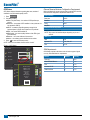
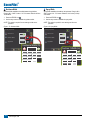
BoomPilot Operation
SmartCable or SDM
Single Section
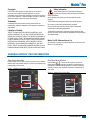
If a SmartCable or Section Driver Module (SDM) is present,
, Automatic
BoomPilot is used to set BoomPilot to Off/Manual
.
or All On
NOTE: GPS is unavailable when the BOOMPILOT icon is grey
BoomPilot status bar icon will be Off/Manual
.
.
If a SmartCable or Section Driver Module (SDM) is not present,
please refer to Single Section to view example.
If Work On/Off Switch is in the “On” position, improper
application may occur.
If the individual boom section switches are in the “On” position,
BoomPilot application control will not control those sections.
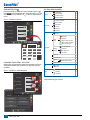
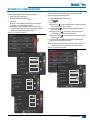
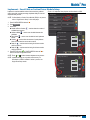
Off/Manual & Automatic
NOTE: GPS is unavailable when the BOOMPILOT icon is grey
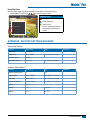
3. Press NAVIGATION AND GUIDANCE OPTIONS icon
navigation options.
to display
.
◄Off/Manual – Status Bar Icon will change to red
◄Automatic – Status Bar Icon will change to green
In areas where application is not desired:
◄Manually turn “off” the rate controller master switch to shut off
the booms. Turn the master switch “on” to resume application.
. Press the BOOMPILOT icon
◄Press BOOMPILOT icon
again to reseume application.
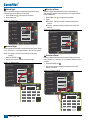
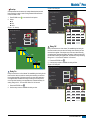
All Sections On Mode
To turn all sections on
:
1. Press NAVIGATION AND GUIDANCE OPTIONS icon
navigation options.
2. Press and hold BOOMPILOT icon
.
If a SmartCable or Section Driver Module (SDM) is present,
please refer to SmartCable or SDM Section for more
information.
To switch application off or on using the console:
1. Work On/Off Switch should remain in the “Off” position.
2. Press NAVIGATION AND GUIDANCE OPTIONS icon
navigation options.
3. Press BOOMPILOT icon
To switch BoomPilot between off/manual
and automatic
:
1. Work On/Off Switch should remain in the “Off” position.
2. Turn the controller master switch to the “On” position. The
individual boom section switches should remain in the “Off”
position.
4. Press BOOMPILOT icon
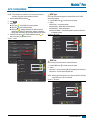
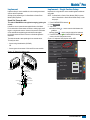
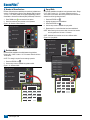
If a SmartCable or Section Driver Module (SDM) is not present,
BoomPilot is used to turn all booms on or off. BoomPilot can be
overridden by using the Work On/Off Switch. Only one Boom Section
width will be illustrated and the Status Bar will have no icon.
to display
.
NOTE: If the Work On/Off Switch is in the “On” position, the
entire section will be activate and the BOOMPILOT
icon
will have no affect.
If the Work On/Off Switch is not present on the system, the
BOOMPILOT icon
will controll the application on/off
functions.
In areas where application is not desired:
. Press the BOOMPILOT icon
◄Press BOOMPILOT icon
again to reseume application.
◄Turn the Work On/Off Switch to the “On” position and back to
the “Off” position. Turn the Work On/Off Switch “on” to resume
application.
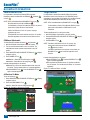
Figure 1-27: All Booms Off/On – No SDM
0.0 mph
Mark A
to display
0.00 ac
A A
.
◄All On – Status Bar Icon will change to yellow
Figure 1-26: Automatic to All Sections On Mode
0.0 mph
Mark A
0.00 ac
A A
12
www.teejet.com
7.0 km/h
Mark A
0.02 ac