1
FINAL DRAFT AV
165 - Header & Footer
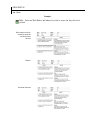
DISPLAYING AND HIDING
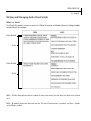
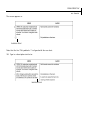
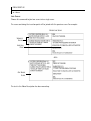
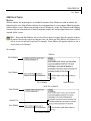
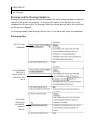
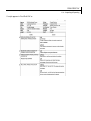
By default, the Regular Header appears in a new script.
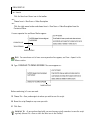
To hide (or display) the Regular Header:
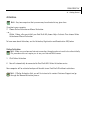
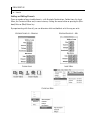
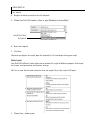
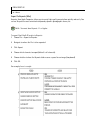
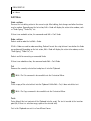
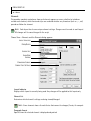
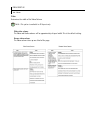
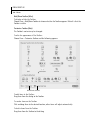
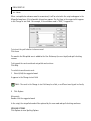
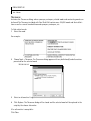
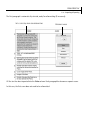
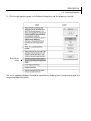
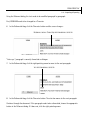
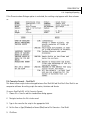
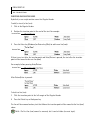
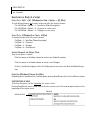
1 Choose View > Layout and the Layout Dialog appears:
SHOW/HIDE REGULAR HEADER
2
Click to uncheck (hide) or check (display) the Show regular header checkbox. Default is Show.
This setting is applied to every page in a script.
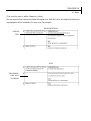
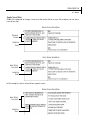
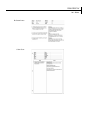
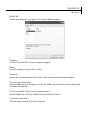
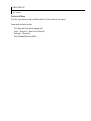
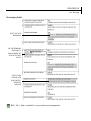
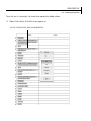
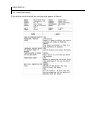
Detailed Header
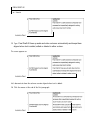
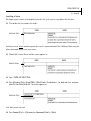
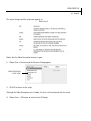
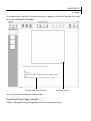
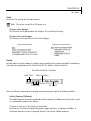
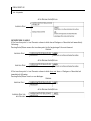
To enter text in the Detailed Header:
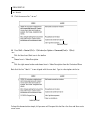
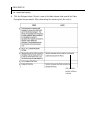
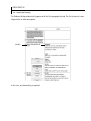
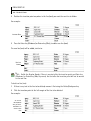
1 Click in the Detailed Header.
Use Tab to move the insertion point forward one cell.
Use Shift-Tab to move the insertion point back one cell.
2
Edit the default titles as desired.
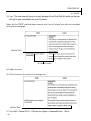
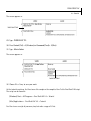
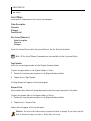
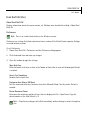
To place the page number or today’s date in the Detailed Header:
1 Position the insertion point.
2
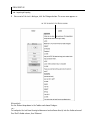
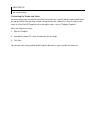
Choose Insert > Page Number, Insert > Dynamic Date or Insert > Static Date. The information will
appear at the insertion point.
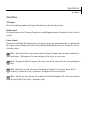
WARNING: Do not use the Dynamic Date feature unless you want the date to change. If you
need the date to remain the same, use Insert > Static Date or type it in directly.
INSERTING AND DELETING LINES
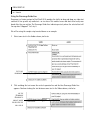
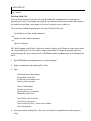
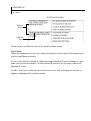
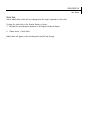
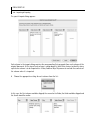
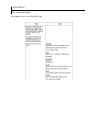
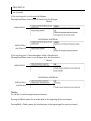
By default, the Detailed Header contains seven lines.
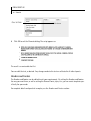
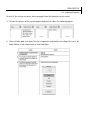
To add (or insert) a line (row) in the Detailed Header:
1 Click in the Detailed Header.