1
Importing Data Files From a TPS Device
Importing Files from a Topcon
GPS Receiver
The Topcon family of GPS receivers have an internal data storage
device to record data in *.tps format. This family of products includes
the following receivers. Refer to the receiver’s documentation for
details on setup, operation, and connection with other devices.
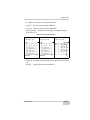
• Odyssey-E, Odyssey-RS,
NET-G3
• HiPer+, HiPer Pro
• HiPer, HiPer GD, HiPer L1,
HiPer GGD
• GR-3
• HiPer XT, HiPer XR
• HiPer Lite, HiPer Lite+
• Map-HP, Map-RT
When importing files from a TPS GPS receiver, Topcon Link
automatically detects the receiver for importing data, and no further
setups are required.
Before connecting the receiver’s USB port to the computer’s USB
port, the TPS USB driver must be installed on the computer. The
driver is available on the TPS website: (http://
www.topconsupport.com/documents/view/1743)
NOTE
This section describes data import using the Topcon
Link interface.
To import data using Windows® Explorer, see
“Using Windows Explorer to Import Files from a
Device” on page 4-13.
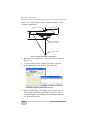
1. Connect your receiver and computer according to the receiver’s
documentation.
Note that a Bluetooth® connection requires that both devices
have Bluetooth wireless technology capabilities.
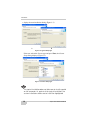
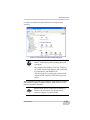
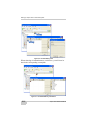
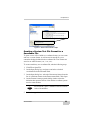
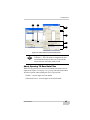
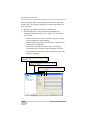
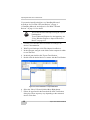
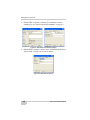
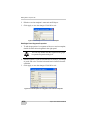
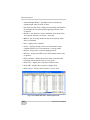
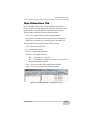
2. With Topcon Link open, click File Import from Device.
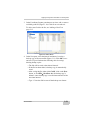
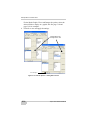
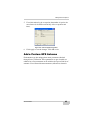
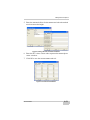
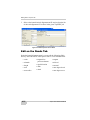
3. In the left panel, double-click Topcon Receivers. Topcon Link
searches for connected devices.
4-2
Topcon Link Reference Manual