1
www.sensis.ru
¾
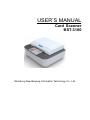
BST-3100 User’s Manual
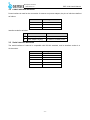
Power switch (15)
Press down “O” to turn off the power and press down “-” to turn on the power.
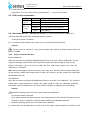
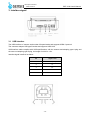
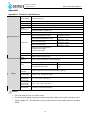
2.3 LED function explanation
LED
Power LED
(green)
Status
Always on
Always off
Always off
Error LED
(red)
Always on
Flash
2.4 Start scanner 2.4.1
Explanation
The scanner is powered on.
The scanner is powered off.
The scanner is in standby mode.
The scanner
reads and identifies
second-generation ID card (optional).
Scanner error, such as card jam or top
cover uplifting.
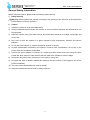
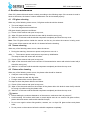
Start up and self-test (1) Make sure that power adapter and
communication cable have been connected correctly, and turn
on the power switch of scanner;
(2) The scanner tests itself and only power LED is on after finishing the self-test.
Caution:
If the scanner can’t be started or it can’t work normally after starting it, please contact with local
agency or SNBC.
2.4.2
Sensor and CIS calibration
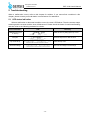
Sensor calibration:
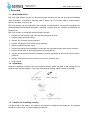
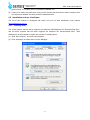
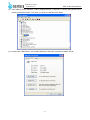
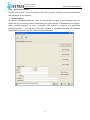
Open the port with tool software IDDigitalCopierTool.exe, then click “Sensor Calibration” and put
a piece of A4 paper whose width is the same with the path and whose length is 20cm for calibration. If the paper comes out from the path and error LED doesn’t alarm error, then the
calibration is successful.
Note: When putting paper into the card entry, there may occur that the scanner doesn’t feed paper.
At that moment, please wait patiently and not take off the paper, and the scanner will feed paper
automatically after 10s.
CIS calibration:
Open the port with tool software IDDigitalCopierTool.exe, and click “CIS Calibration”. Put a piece of
coated paper whose thickness is 0.8mm and whose length is 20cm for calibration according
to prompts. After the calibration is over, there will be the prompt of calibrating CIS successfully.
Caution:
¾
When the following case occurs, the sensor needs to be calibrated:
The scanner doesn’t feed card.
Open upper software and start scanning. If the scanner doesn’t feed card when the card is put on
the sensor, then it is required to close the upper software and calibrate the sensor;
¾
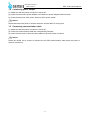
When the following case occurs, CIS needs to be calibrated:
(1) When there are abnormal lines or color cast in the image, check whether the surface of CIS
-4-