1
COBRA Elections: How to Handle
Procedure Overview
Scenario: You have received a signed election form with or without the premium. You may want
to refer to your COBRA Procedures for guidance.
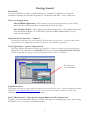
1. In PQB Status, change the status from “Pending Enrollment” to either “Elected” or “Elected
Awaiting Premium” using the Response Result box on the far right.
2. In Elections, add the final COBRA Elections. See detailed instructions below.
3. In Elections and from the Letters button, issue the Confirmation Letter. See detailed
instructions below.
4. In Payment Instructions, issue Premium Payment Instructions. See detailed instructions below.
If you want to issue coupons, refer to the User’s Manual.
5. When received, record the Initial Premium in Premiums. See detailed instructions below.
Elections
Follow these steps to enter the benefit elections.
1. If the final COBRA election is the same as the terminated active coverage, then click on the “Elected
as Active” button and the elections will be auto-completed for you.
Otherwise,
2. Click on Add.
3. Select the Benefit Plan from the drop-down box.
4. Select the Coverage Class from the drop-down box.
5. DO NOT ENTER THE “ENDS DATE” for a current election.
6. When finished, select Save. The Add box will stay open. Continue entering the benefit plan elections
until you are done. When finished, exit the Add Mode by using the X at the top right of the screen.
7. From the Letters button, issue a Confirmation Letter (you will need to make a few choices from an
interim form).
Payment Instructions
You can issue Premium Payment Instructions or Coupons. We recommend the Payment Instructions for
an employer group.
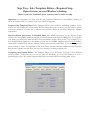
1. Select Print. You will go to Print Preview first. From Print Preview, you can then print your Payment
Instructions. If necessary, you can save to Word and edit, fax, or email.
Premiums
Two Ways to Enter and Track Premiums
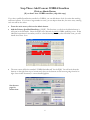
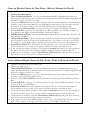
There are two ways you can enter Premiums. You can use the Auto Premium (Auto$)) feature or you can
manually enter them. With the exception of adding the first payment on a PQB who has been enrolled on
COBRA prior to using Solo (page six), using Auto Premium will be the way to go. With Auto Premium,
you can always edit the data that is automatically completed for you.
10