1
CHAPTER ONE
Setting Up and Running the 555 Laptop Module
1.1 Introducing the 555 Laptop Module System
Before entering and editing 555 reports in the Traffic Collision Database Laptop Module,
you should be familiar with the features of the program, as well as how to configure the
Module to your particular needs.
We'll look at the Configuration option in a moment; for now, let's deal with some of the
basic features of the Traffic Collision Database Laptop Module. These built-in features
make inputting data and using the software easy and, most important, efficient.
Here are the details about these basic features:
Active Button Each input form, or screen, has a number of buttons that open other
forms or that save and cancel data. A button with a yellow border around it is the active
button. If you click on a button, it immediately displays the yellow border and then
“executes” (i.e. opens another form or screen if it is supposed to or saves or deletes
data).
Active Field The active field is simply the field the cursor is in (or, to put it another way,
the field you are currently working in). When a field is active, it has a yellow
background. When you hit the Enter key, the program advances to the next field, which
becomes yellow (meaning it is now the active field).
Checkbox Checkboxes are another basic feature of the Laptop Module. When a
checkbox field is active (and has a yellow background), press the space bar on your
keyboard once to check it, and then click it again to uncheck it. Once you have checked
or unchecked a box, hit <Enter> to move on.
Drop-Down Menu The drop-down menu, or drop-down list, is a great time-saving
device. It contains pre-configured information and allows you to select data to enter into
a field. Not every field has a drop-down menu, but some common drop-down fields
include street names, officer ID, state, vehicle make, and vehicle model.
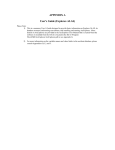
Here's a field with a drop-down menu. The arrow button on the right opens the menu.
Fig. 1
1