1
Exchange Fee System (EFS)
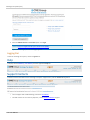
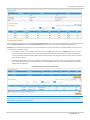
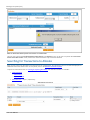
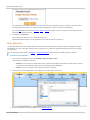
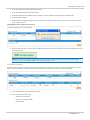
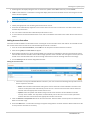
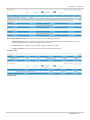
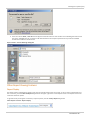
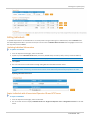
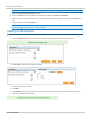
4. Locate the New Trading Account Number by utilizing the auto complete feature that suggests possible trading account
matches as you enter text within the text box, or scroll through the drop-down box to find the account. To input an
account that is not currently registered in EFS, select the Non-Member Account radio button and enter an account
number.
5. Select the Continue button.
To Change Multiple Accounts
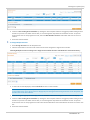
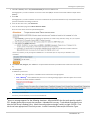
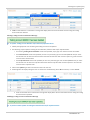
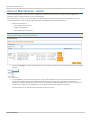
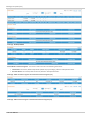
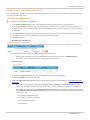
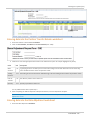
1. Select Change Account from the drop-down list.
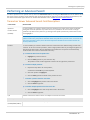
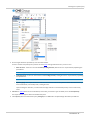
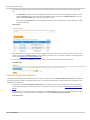
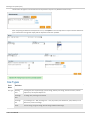
2. Click the check boxes in the rows of all of the accounts to be changed to a single account number.
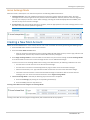
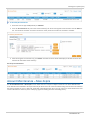
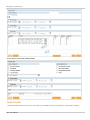
Selecting Multiple Accounts to Change into a Single Account within the Edit Trades Mode of Transaction Summary
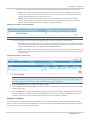
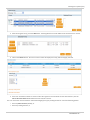
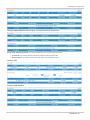
3. To select all accounts displayed, click the Check All box in the column header.
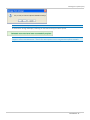
NOTE: The Check All option will only select the accounts that are displayed on the current screen. If more than one
screen of data exists; select the accounts on all pages by first clicking the Show All hyperlink next to the drop-down box
and then click on the Check All box.
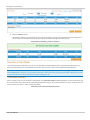
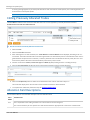
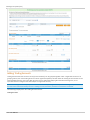
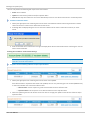
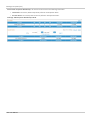
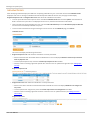
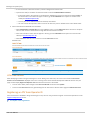
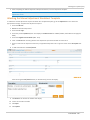
4. After selecting the appropriate account(s), select the Continue button and a Change Account section will display.
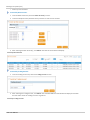
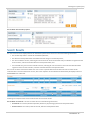
5. Locate the New Trading Account Number by utilizing the auto complete feature that suggests possible trading account
matches as you enter text within the text box, or scroll through the drop-down box to find the account. To input an
account that is not currently registered in EFS select the Non-Member Account radio button and enter an account number.
6. Select the Continue button.
User Manual - 23 -