1
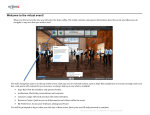
5) In addition, Web Participants will be able to view the following (depending on whether the event has been setup as an Audio or Video Webcast): a. For both Video and Audio Webcasts: 1. Polling questions and responses as configured on the speaker screen will appear on the Web Participant Interface when the Speaker clicks the polling question “Start” button. The web participant will have the ability to select a response and click “Submit.” 2. The Question Submission Field and “Submit” button. 3. The Toll Free Inbound Participant Line (if this option has been configured during event setup). b. For Video Webcasts ONLY: 1. Live video feed(s) of speaker(s) 2. Any Pre-‐Recorded Videos On-‐Demand or Slideshow Presentations played by the Speaker using the Publisher screen. 6) At the conclusion of the event, Web Participants will no longer be able to see video or hear audio as soon as the Speaker clicks the “End Event” button on the Speaker Screen and confirms that he/she wishes to conclude the event. Webcast Notes: The Video and Audio Webcasts features may be used in conjunction with a Tele-‐Town Hall event, so that some participants join via the phone and others join via the Web. In addition, Video and Audio Webcasts may be conducted as stand-‐along events.