1
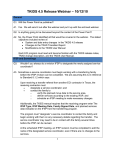
Log In to your Control Screen: Prior to launching your Tele-‐Town Hall event, each member of your staff who will be operating any of the various Control Screens should log in to the appropriate screen as follows: 1) Close all programs on your computer. 2) Log in to your customer account at http://admin.teletownhall.us 3) Locate today’s event at the top of the customer Home page. 4) The person operating the Speaker Screen must confirm that the appropriate Introductory and Answering Machine Prompts have been loaded for the event, by clicking on the name of each prompt in order to listen to them. 5) Open the Control Screen (Speaker, Screener, Observer, Collector, or Publisher) you wish to operate by clicking on the corresponding link in red under the “Controls” column. 6) Follow the instructions below for the appropriate Control Screen. SPEAKER Control Screen: Prior to beginning your event, you will need to complete the following: 1) Configure Polling Questions (optional): Remember: If you plan to ask any Polling Questions during your event, you must configure them before the event begins. Once the event begins, the “Configure Questions” button will disappear, and you will not be able to ask polling question. Once you have received the Control Sheet for your event, you will be able to configure your polling questions using the Speaker Screen. We recommend configuring polling questions at least one (1) hour prior to the schedule event start time. 1) To configure Polling Questions, locate the Polling Question section in the upper right corner of the Speaker Screen. 2) Click on the “Configure Questions” button. You will be taken to the question configuration page. 3) Enter your first polling question in the top field labeled “Type Question Here.” 4) Enter up to five (5) customizable answers in the five (5) numbered fields labeled “Type Answers Here” OR select a set of Commonly-‐Used Answers by choosing an option from the “Commonly-‐ Used Answers” drop down box.