1
8.4.1
Add Users
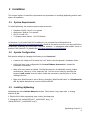
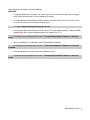
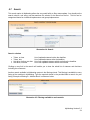
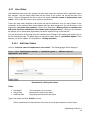
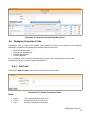
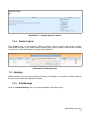
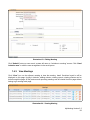
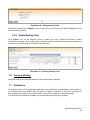
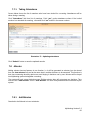
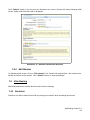
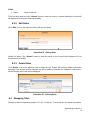
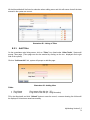
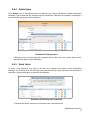
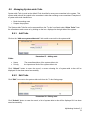
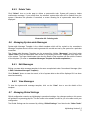
On the committees main listing screen, click on “Users” icon listed under “Other Tasks”. System will
navigate to Users page. (Users page can also be reached by clicking on the icon displayed at the
right side of the system). All the users in MyMeeting system will be listed here.
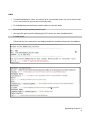
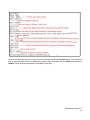
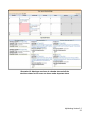
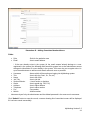
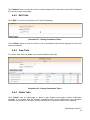
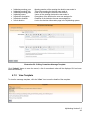
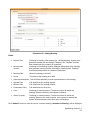
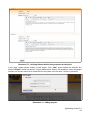
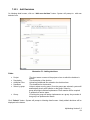
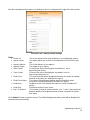
Click on “Add new user” link, system will navigate to add user page.
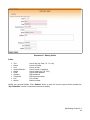
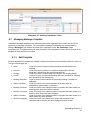
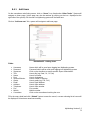
Illustration 92 : Adding Users
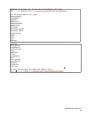
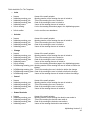
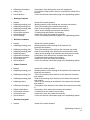
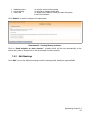
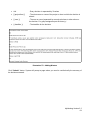
Fields :
✔
✔
✔
✔
✔
✔
✔
✔
✔
✔
✔
✔
✔
✔
Username
Password
Superuser
Title
Name
Post
Section/Division
Grade
Email
Address
Telephone
Fax
Mobile
Committee
-Name which will be used upon logging into MyMeeting system.
-Password which will be used upon logging into MyMeeting system
-Click on the checkbox to assign another Super Administrator.
-User's title (eg. Dato', Dr., Pn.,etc)
-User's full name
-User's designation
-User's section or division
-User's grade (eg. F29, F41)
-User's email address
-User's office address
-User's office number
-Fax number
-Mobile number
-Click on the committees involving the user.
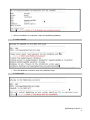
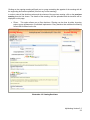
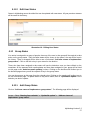
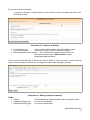
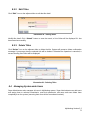
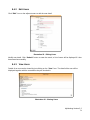
Fill in the users detail and click “Submit” button to save the record, a screen showing list of users will
be displayed if it has been saved successfully.
MyMeeting Version 2.2
73