1
Chapter 4
Human Machine Interface
Generate the Block Diagram
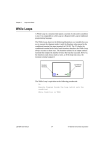
Once you associate a front panel object with a tag and set the various
parameters, the HMI G Wizard generates the appropriate code and places
it on the block diagram. For example, using the HMI G Wizard for Analog
Indicator, shown in Figure 4-1, the following Wizard subdiagram appears
on the block diagram.
Front Panel Object and Wizard
Subdiagram Association
When the HMI G Wizard has created a block diagram, there is an
association between the front panel object and the generated Wizard
subdiagram. The association is protected by a Wizard lock which prevents
you from editing the Wizard subdiagram. The lock glyph on the loop,
shown at left, indicates that the Wizard has locked the subdiagram. While
the subdiagram is locked, you can pop up on the front panel object, select
HMI G Wizard…, and change your selections in the dialog box. To edit
the Wizard subdiagram, pop up on the Wizard subdiagram and select
Release Wizard Lock, as shown below.
Note
Once you have released the Wizard lock, the association is broken. The Wizard no
longer identifies the Wizard subdiagram as being created by it.
Activity 4-1. Use the HMI G Wizard
Your objective is to create a simple HMI using the HMI G Wizard.
BridgeVIEW User Manual
4-8
© National Instruments Corporation