1
DroidEFB Key – Feature Description:
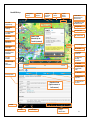
This detailed listing contains a description of the
33 items depicted on the “DroidEFB Key”, page
8. The key is shown with “Split Screen” enabled
in Preferences. The top half of the key displays
the “chart view” while the lower half displays
the “details view”. Some items are suppressed
without a GPS signal or data connection (Item
20).
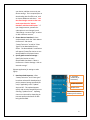
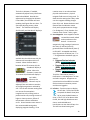
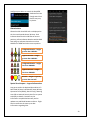
1. Navigation Drawer – This is a flexible
menu that displays:
• Charts
• Tools
• Recent
The last 8
documents are
selectable by
default.
Charts and plates
are viewable via our
server with an
Internet connection
but must be
downloaded for
offline use.
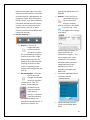
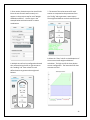
2. Nearest Airports – Touch this icon to
see a query view list of “nearest”
airports (GPS required). Touch
any found airport to display the Details
View (Item 24) for that airport.
Without a GPS fix, the “Find” and
“Direct To” (Items 17-18) buttons are
suppressed. List is continuously update
in flight.
3. Center On Current Position – Touch this
icon to automatically center and
scroll on the current position
(Item 30). This icon only appears when
location is set by GPS and the chart
center is moved from the current
position (Item 20 and 30).
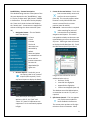
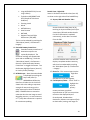
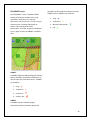
4. POI search – Internet access is required
when searching for points of
interest other than NAVAIDs,
waypoints and airports. This search
uses predictive lookup as characters are
typed allowing an item to be selected at
any time. Touching an item will cause it
to display the Info Box (Item 12). Touch
the Back Button (Item 23) to close it.
Long press the info box for a list of
additional tasks such as:
• Go Direct To POI
• Insert POI into flightplan
• Append POI to flightplan
• Create User Waypoint (Item 11)
The database uses ICAO abbreviations,
so remember to use the “K” prefix, as
required.
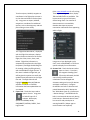
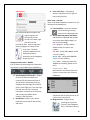
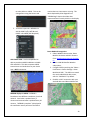
5. Split Screen Control – This icon appears
only if split-screen mode has
been enabled in Preferences.
The arrows point up-down or left-right
relative to screen orientation. When
9