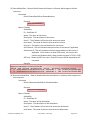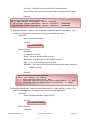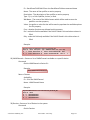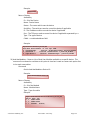
1
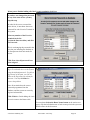
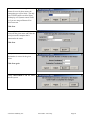
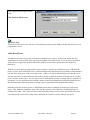
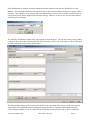
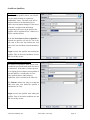
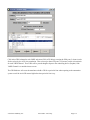
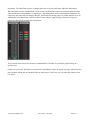
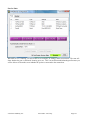
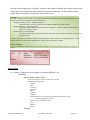
If you close and reopen the panel designer, you can use the File menu to open and edit the Panel if you want to
change it later. Once you resave the changes you must close and open the panel again within PathfinderPC Client
to get the changes to display. In PathfinderPC Mini, just close and re-launch the application to view your
changes. You can also create additional panels and save them to the folder, and they will be available to these
applications.
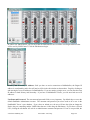
Remember that the MapRouter/Source/Destination is only one thing you can do with the panels. You could also
leave these fields blank and use Stack Event qualifiers to determine the button functions. The section on latching
buttons in the Stack Event part of this document is a good example. In addition the detailed property descriptions
below will provide more insight on the huge variety of functions these controls can perform.
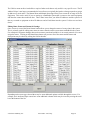
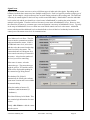
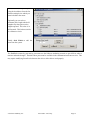
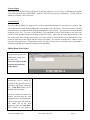
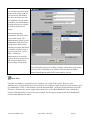
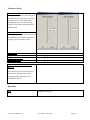
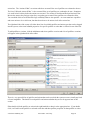
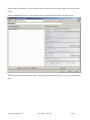
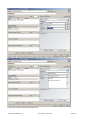
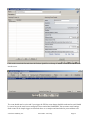
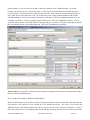
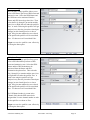
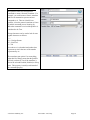
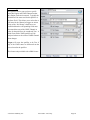
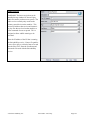
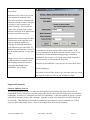
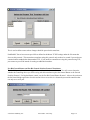
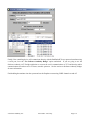
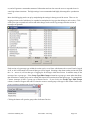
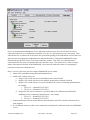
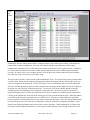
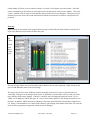
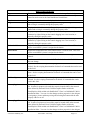
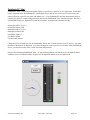
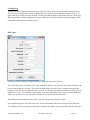
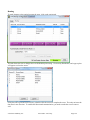
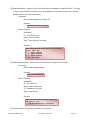
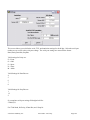
To continue our example, open the Panel you were just designing in Panel Designer again. One of the other
powerful features of these panels is that once created, their button functions can be mapped to actual hardware
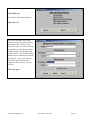
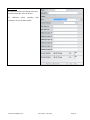
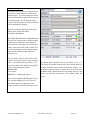
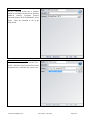
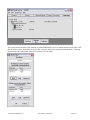
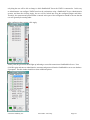
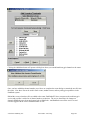
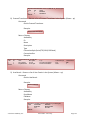
controls as well using either GPIO circuits or Axia Element User Panel buttons. To accomplish this, select the
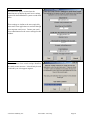
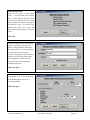
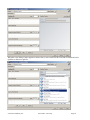
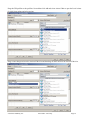
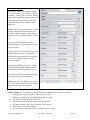
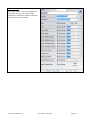
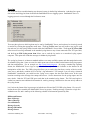
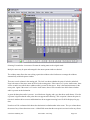
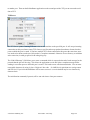
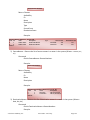
button you wish to map to a hardware control, and then find the HWMapType property and select the Button,
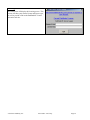
Label, or GPIO button option. You then must select a different property for the change to update. Essentially
you must leave the property for the change to get written into the panel definition. This is true of most of the
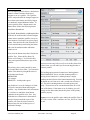
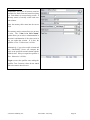
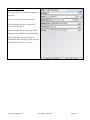
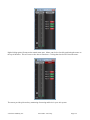
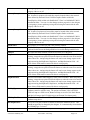
properties. The Button option means that this button will get mapped to an Axia User Panel button. The Label
property means that this button will be mapped to the LCD display of an Axia User Panel. The GPIOButton
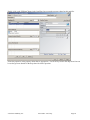
option means that it will map to a GPIO Circuit. You will notice that once you make your selection and then
leave the selection field the options in the HWMap section will change depending on whether a GPIO option or
User Panel option was selected.
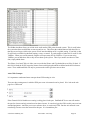
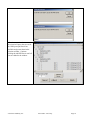
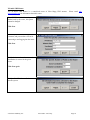
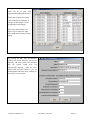
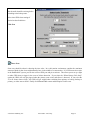
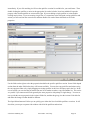
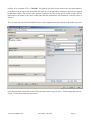
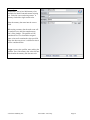
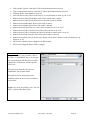
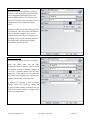
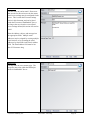
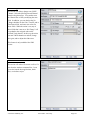
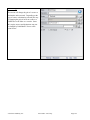
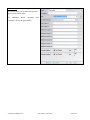
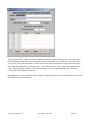
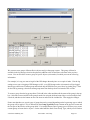
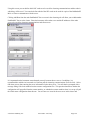
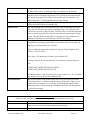
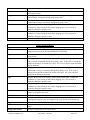
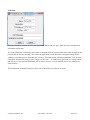
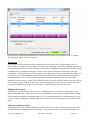
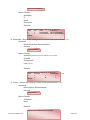
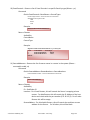
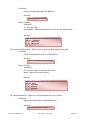
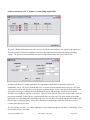
Next under HWMapHostIP enter the IP address of the Element CPU or GPIO box that hosts the hardware device
to be used. The HWMapHostPort will have already been selected when the HWMapType was selected and
should not be casually changed. The HWMapInternalName Property is also automatically defined and matches
the software PanelName.ControlName to which you are mapping. The HWMapAxiaSysName is automatically
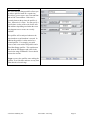
defined by the last two properties on the list, and cannot be manually set. If you have selected a GPIO type map
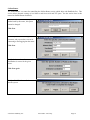
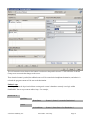
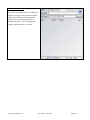
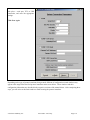
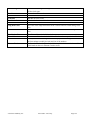
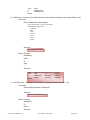
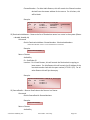
then these last two properties will be GPIO Port and GPIO Circuit. Enter the number of the port on the device
defined by the HWMapHostIP, and the GPI/GPO pin to use.
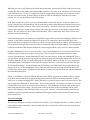
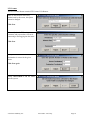
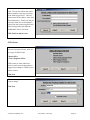
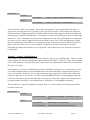
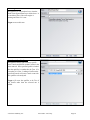
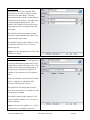
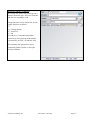
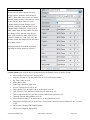
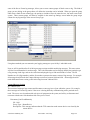
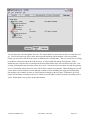
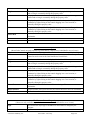
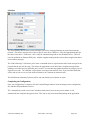
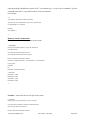
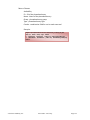
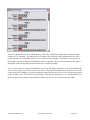
If the HWMapType is a UserPanel Button or Label (LCD Display), then these properties will be
UserPanelModule and UserPanelButton. The module number is related to the dip switch setting on the bottom of
the module in the console. However there is a much simpler method for obtaining the module number if you
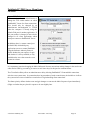
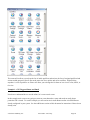
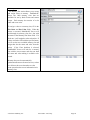
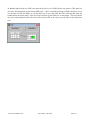
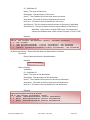
don’t know it. From the PathfinderPC Server PC open a command prompt and type:
telnet ipaddress 4010
example:
Telnet 172.16.1.3 4010
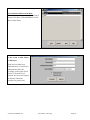
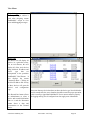
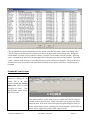
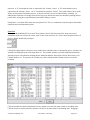
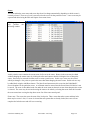
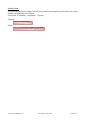
For the IP address use the ipaddress of the Element CPU that hosts the user module. Then press a few buttons on
the module. You should see commands coming back that look like:
EVENT MOD_USER#3.BUT#6 KEY=DOWN
EVENT MOD_USER#3.BUT#6 KEY=UP
© Software Authority, Inc.
Axia Audio / TLS Corp.
Page 171