1
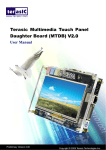
Terasic TRDB_LTM Digital Panel Package
TRDB_LTM
4.3 Inch Digital Touch Panel Development Kit
With complete reference design and source code for digital photo display
and pattern generator using Altera DE2/ DE1 board
Document Version 1.22 9 NOV, 2007 by Terasic
Preliminary Version
© 2007 by Terasic
Terasic TRDB_LTM
Page Index
CHAPTER 1 ABOUT THE KIT.....................................................................................................................................................1
1-1 KIT CONTENTS .......................................................................................................................................................................1
1-2 CONNECTING LTM TO THE ALTERA DE BOARD.....................................................................................................................2
1-3 GETTING HELP .......................................................................................................................................................................3
CHAPTER 2 ARCHITECTURE OF THE LTM............................................................................................................................4
2-1 FEATURES ..............................................................................................................................................................................4
2-2 BLOCK DIAGRAM OF THE LTM ...............................................................................................................................................5
2-3 PIN DESCRIPTION OF THE 40-PIN INTERFACE OF LTM..........................................................................................................6
CHAPTER 3 USING THE LTM.....................................................................................................................................................8
3-1 THE SERIAL PORT INTERFACE OF THE LCD DRIVER IC........................................................................................................8
3-2 INPUT TIMING OF THE LCD PANEL DISPLAY FUNCTION.........................................................................................................10
3-3 THE SERIAL INTERFACE OF THE AD CONVERTER .................................................................................................................13
CHAPTER 4 DIGITAL PANEL DESIGN DEMONSTRATION................................................................................................15
4-1 DEMONSTRATION SETUP .....................................................................................................................................................15
4-2 LOADING PHOTOS INTO THE FLASH .....................................................................................................................................16
4-3 CONFIGURING THE EPHOTO DEMONSTRATION ...................................................................................................................18
4-4 BLOCK DIAGRAM OF THE EPHOTO DESIGN .........................................................................................................................20
4-5 PREPROCESSING THE DESIRED DISPLAY PHOTO ...............................................................................................................21
4-6 CONFIGURING THE PATTERN GENERATOR FOR DE2/DE1 BOARD.....................................................................................23
4-7 CONFIGURING THE PATTERN GENERATOR FOR DEN BOARD .............................................................................................25
CHAPTER 5 APPENDIX .............................................................................................................................................................26
5-1 ABSOLUTE MAXIMUM RATINGS OF THE LCD PANEL MODULE ............................................................................................26
5-2 POWER ON/OFF AND MODE CHANGE SEQUENCE OF THE LCD PANEL MODULE .............................................................27
5-3 REGISTER MAP OF THE LCD DRIVER IC..............................................................................................................................28
5-4 REGISTER DEFINITION OF THE LCD DRIVER IC..................................................................................................................29
5-5 REVISION HISTORY ..............................................................................................................................................................36
5-6 ALWAYS VISIT LTM WEBPAGE FOR NEW APPLICATIONS .....................................................................................................37
ii
About the Kit
1
Chapter
Chapter 1
About the Kit
The TRDB_LTM (LTM) Kit provides everything you need to develop applications
using a digital touch panel on an Altera DE2/DE1 board. The kit contains
complete reference designs and source code for implementing a photo viewer
demonstration and a color pattern generator using the LTM kit and an Altera
DE2/DE1 board. This chapter provides users key information about the kit.
1-1 Kit Contents
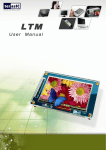
Figure 1.1 shows the picture of the TRDB_LTM package. The package includes:
1.
The Terasic LCD Touch Panel Module (LTM) board
2.
A 40-pin IDE cable
3.
Complete reference design with source code
Figure 1.1. The TRDB_LTM Package
1
About the Kit
1-2 Connecting LTM to the Altera DE Board
Please follow the two steps below to connect LTM to the Altera DE2/DE1 board:
1.
Connect the IDE cable to the back of the LTM board, as shown in Figure 1.2
2.
Connect the other end of the IDE cable to your DE2/DE1 board’s innermost
expansion port (JP1) as shown in Figure 1.3 and Figure 1.4
Figure 1.2 Connect the IDE cable to the TRDB_LTM board
Figure 1.3 Connect the other end of IDE cable to the DE2 board’s expansion port
(innermost expansion port)
2
About the Kit
Figure 1.4 Connect the other end of IDE cable to the DE1 board’s expansion port
(innermost expansion port)
1-3 Getting Help
Here are some places to get help if you encounter any problem:
9
Email to [email protected]
9
Taiwan & China: +886-3-550-8800
9
Korea : +82-2-512-7661
9
Japan: +81-428-77-7000
3
Architecture of the LTM
2
Chapter
Chapter 2
Architecture of the LTM
This chapter will illustrate the architecture of the LTM including device features
and block diagram.
2-1 Features
The feature set of the LTM is listed below:
1.
Equipped with Toppoly TD043MTEA1 active matrix color TFT LCD module.
2.
Support 24-bit parallel RGB interface.
3.
3-wire register control for display and function selection.
4.
Built-in contrast, brightness, and gamma modulation.
5.
Converting the X/Y coordination of the touch point to its corresponding
digital data via the Analog Devices AD7843 AD converter.
6.
The general specifications of the LTM are listed below:
Item
Description
Unit
Display Size (Diagonal)
4.3
Inch
Aspect ratio
15:9
-
Display Type
Transmissive
-
Active Area (HxV)
93.6 x 56.16
mm
800 x RGB x480
dot
0.039 x 0.117
mm
Stripe
-
16Million
-
Number of Dots (HxV)
Dot Pitch (HxV)
Color Arrangement
Color Numbers
4
Architecture of the LTM
2-2 Block Diagram of the LTM
The block diagram of the LTM is listed below:
Figure 2.1 The block diagram of the LTM.
The LTM consists of three major components: LCD touch panel module, AD
converter, and 40-pin expansion header. All of the interfaces on the LTM are
connected to Altera DE2/DE1 board via the 40-pin expansion connector. The LCD
and touch panel module will take the control signals provided directly from FPGA
as input and display images on the LCD panel. Finally, the AD converter will
convert the coordinates of the touch point to its corresponding digital data and
output to the FPGA via the expansion header.
5
Architecture of the LTM
2-3 Pin Description of the 40-pin Interface of LTM
The pin description of the 40-pin connector follows:
Figure 2.2 The pin-out of the 40-pin connector.
Pin Numbers
Name
Direction
1
ADC_PENIRQ_n
output
ADC pen Interrupt
2
ADC_DOUT
output
ADC serial interface data out
3
ADC_BUSY
output
ADC serial interface busy
4
ADC_DIN
input
ADC serial interface data in
5
ADC_DCLK
input
ADC/LCD serial interface clock
6
B3
Input
LCD blue data bus bit 3
7
B2
Input
LCD blue data bus bit 2
8
B1
Input
LCD blue data bus bit 1
9
B0
Input
LCD blue data bus bit 0
10
NCLK
Input
LCD clock signal
11
NC
N/A
N/A
12
GND
N/A
Ground
13
DEN
Input
LCD RGB data enable
14
HD
Input
LCD Horizontal sync input
15
VD
Input
LCD Vertical sync input
16
B4
Input
LCD blue data bus bit 4
17
B5
Input
LCD blue data bus bit 5
18
B6
Input
LCD blue data bus bit 6
19
B7
Input
LCD blue data bus bit 7
20
G0
Input
LCD green data bus bit 0
21
G1
Input
LCD green data bus bit 1
22
G2
Input
LCD green data bus bit 2
23
G3
Input
LCD green data bus bit 3
6
Description
Architecture of the LTM
24
G4
Input
LCD green data bus bit 4
25
G5
Input
LCD green data bus bit 5
26
G6
Input
LCD green data bus bit 6
27
G7
Input
LCD green data bus bit 7
28
R0
Input
LCD red data bus bit 0
29
VCC33
N/A
Power 3.3V
30
GND
N/A
Ground
31
R1
Input
LCD red data bus bit 1
32
R2
Input
LCD red data bus bit 2
33
R3
Input
LCD red data bus bit 3
34
R4
Input
LCD red data bus bit 4
35
R5
Input
LCD red data bus bit 5
36
R6
Input
LCD red data bus bit 6
37
R7
Input
LCD red data bus bit 7
38
GREST
Input
Global reset, low active
39
SCEN
Input
3-wire serial interface enable
40
SDA
Input/Output
3-wire serial interface data
Table 2.1 The pin description of the 40-pin connector.
7
Using the LTM
3
Chapter
Chapter 3
Using the LTM
This chapter illustrates how to use the LTM including how to control the serial port
interface of the LCD driver IC and AD converter. Also, the timing requirement of
the synchronous signal and RGB data which are outputted to the LCD panel
module will be described.
3-1 The Serial Port Interface of the LCD Driver IC
This section will describe how to control the register value of the LCD driver IC on the LTM.
The LCD and touch panel module on the LTM is equipped with a LCD driver IC to support three
display resolution and with functions of source driver, serial port interface, timing controller, and
power supply circuits. To control these functions, users can use FPGA to configure the registers in
the LCD driver IC via serial port interface.
Also, there is an analog to digital converter (ADC) on the LTM to convert the analog X/Y coordinates
of the touch point to digital data and output to FPGA through the serial port interface of the ADC.
Both LCD driver IC and ADC serial port interfaces are connected to the FPGA via the 40-pin
expansion header and IDE cable.
Because of the limited number of I/O on the expansion header, the serial interfaces of the LCD
driver IC and ADC need to share the same clock (ADC_DCLK) and chip enable (SCEN) signal I/O
on the expansion header. To avoid both the serial port interfaces may interfere with each other when
sharing the same clock and chip enable signals, the chip enable signal (CS), which is inputted into
the ADC will come up with a logic inverter. Users need to pay attention controlling the shared
signals when designing the serial port interface controller. The detailed register maps of the LCD
driver IC are listed in appendix chapter. The specifications of the serial port interface of the LCD
driver IC are described below.
The LCD driver IC supports a clock synchronous serial interface as the interface to a FPGA to
enable instruction setting. Please notice that in addition to the serial port interface signals, NCLK
input should also be provided while setting the registers. Figure 3.1 and Table 3.1 show the frame
format and timing diagram of the serial port interface. The LCD driver IC recognizes the start of data
8
Using the LTM
transfer on the falling edge of SCEN input and starts data transfer. When setting instruction, the
TPG110 inputs the setting values via SDA on the rising edge of input SCL.
The first 6 bits (A5 ~ A0) specify the address of the register. The next bit means Read/Write
command. “0” is write command. “1” is read command. Then, the next cycle is turn-round cycle.
Finally, the last 8 bits are for Data setting (D7 ~ D0). The address and data are transferred from the
MSB to LSB sequentially. The data is written to the register of assigned address when “End of
transfer” is detected after the 16th SCL rising cycles. Data is not accepted if there are less or more
than 16 cycles for one transaction.
Figure 3.1 the frame format and timing diagram of the serial port interface.
Item
Symbol
Conditions
Min.
Max.
Unit
ts0
SCEN to SCL
150
ns
ts1
SDA to SCL
150
ns
th0
SCEN to SCL
150
ns
th1
SDA to SCL
150
ns
tw1L
SCL pulse width
160
ns
tw1H
SCL pulse width
160
ns
tw2
SCEN pulse width
1.0
ns
SDA Setup Time
SDA Hold Time
Pulse Width
Clock duty
40
60
Table 3.1 The timing parameters of the serial port interface
9
%
Using the LTM
3-2 Input timing of the LCD panel display function
This section will describe the timing specification of the LCD synchronous signals and
RGB data.
To determine the sequencing and the timing of the image signals displayed on the LCD panel, the
corresponding synchronous signals from FPGA to the LCD panel should follow the timing
specification.
Figure 3.2 illustrates the basic timing requirements for each row (horizontal) that is displayed on
the LCD panel. An active-low pulse of specific duration (time t hpw in the figure) is applied to the
horizontal synchronization (HD) input of the LCD panel, which signifies the end of one row of data
and the start of the next. The data (RGB) inputs on the LCD panel are not valid for a time period
called the hsync back porch ( t hbp ) after the hsync pulse occurs, which is followed by the display
area ( t hd ). During the data display area the RGB data drives each pixel in turn across the row
being displayed. Also, during the period of the data display area, the data enable signal (DEN)
must be driven to logic high. Finally, there is a time period called the hsync front porch ( t hfp ) where
the RGB signals are not valid again before the next hsync pulse can occur.
The timing of the vertical synchronization (VD) is the same as shown in Figure 3.3, except that a
vsync pulse signifies the end of one frame and the start of the next, and the data refers to the set
of rows in the frame (horizontal timing). Table 3.2 and 3.3 show for different resolutions, the
durations of time periods t hpw , t hbp , t hd , and t hfp for both horizontal and vertical timing. Finally, the
timing specification of the synchronous signals is shown in the Table 3.4.
10
Using the LTM
Figure 3.2 LCD horizontal timing specification
Panel Resolution
Parameter
Symbol
NCLK Frequency
FNCLK
Unit
800xRGBx480
480xRGBx272
400xRGBx240
33.2
9
8.3
MHz
Horizontal valid data
thd
800
480
400
NCLK
1 Horizontal Line
th
1056
525
528
NCLK
Min.
HSYNC Pulse Width
Typ.
1
thpw
NCLK
-
Max.
-
Hsync back porch
thbp
216
43
108
NCLK
Hsync front porch
thfp
40
2
20
NCLK
DEN Enable Time
tep
800
480
400
NCLK
Table 3.2 LCD horizontal timing parameters
11
Using the LTM
Figure 3.3 LCD vertical timing specification
Panel Resolution
Parameter
Symbol
Unit
800xRGBx480
480xRGBx272
400xRGBx240
Vertical valid data
tvd
480
272
240
H
Vertical period
tv
525
286
262
H
Min.
VSYNC Pulse Width
Typ.
1
tvpw
H
-
Max.
-
Vertical back porch
tvbp
35
12
20
H
Vertical front porch
tvfp
10
2
2
H
Vertical blanking
tvb
45
14
22
H
TDEN
480
272
240
H
DEN Enable Time
Table 3.3 LCD vertical timing parameters
Parameter
Symbol
Min.
Unit
NCLK period
PWCLK*1
25
ns
NCLK pulse high period
PWH*1
10
ns
NCLK pulse low period
PWL*1
10
ns
HD,VD, DEN, data setup time
tds
5
ns
HD,VD, DEN, data hold time
tdh
5
ns
Table 3.4 The timing parameters of the LCD synchronous signals
12
Using the LTM
3-3 The serial interface of the AD converter
This section will describe how to obtain the X/Y coordinates of the touch point from the AD converter.
The LTM also equipped with an Analog Devices AD7843 touch screen digitizer chip. The AD7843 is a
12-bit analog to digital converter (ADC) for digitizing x and y coordinates of touch points applied to the touch
screen. The coordinates of the touch point stored in the AD7843 can be obtained by the serial port interface.
To obtain the coordinate from the ADC, the first thing users need to do is monitor the interrupt signal
ADC_PENIRQ_n outputted from the ADC. By connecting a pull high resistor, the ADC_PENIRQ_n output
remains high normally. When the touch screen connected to the ADC is touched via a pen or finger, the
ADC_PENIRQ_n output goes low, initiating an interrupt to a FPGA that can then instruct a control word to be
written to the ADC via the serial port interface.
The control word provided to the ADC via the DIN pin is shown in Table 3.5. This provides the conversion
start, channel addressing, ADC conversion resolution, configuration, and power-down of the ADC. The
detailed information on the order and description of these control bits can be found from the datasheet of the
ADC in the DATASHEET folder on the LTM System CD-ROM.
MSB
LSB
A2
Bit
Mnemonic
A1
A0
MODE
F
E
D
R
E
S
S
/
PD1
PD0
Comment
Start Bit. The control word starts with the first high bit on DIN. A
7
S
new control word can start every 15th DCLK cycle when in the
12-bit conversion mode, or every 11th DCLK cycle when in 8-bit
conversion mode.
Channel Select Bits. These three address bits, along with the
A2-A0
F
E
D
R
E
S
6-4
/
bit, control the setting of the multiplexer input,
switches, and reference inputs.
12-Bit/8-Bit Conversion Select Bit. This bit controls the resolution
3
MODE
of the following conversion. With 0 in this bit, the
conversion has a 12-bit resolution, or with 1 in this bit, the
conversion has a 8-bit resolution.
Single-Ended/Differential Reference Select Bit. Along with Bits
F
E
D
R
E
S
2
/
1,0
PD1,PD0
A2– A0, this bit controls the setting of the multiplexer
input, switches, and reference inputs.
Power Management Bits. These two bits decode the power-down
mode of the AD7843.
13
Using the LTM
Table 3.5 Control register bit function description.
Figure 3.4 shows the typical operation of the serial interface of the ADC. The serial clock provides the
conversion clock and also controls the transfer of information to and from the ADC. One complete conversion
can be achieved with 24 ADC_DCLK cycles. The detailed behavior of the serial port interface can be found in
the datasheet of the ADC. Note that the clock (ADC_DCLK) and chip enable signals (SCEN) of the serial port
interface SHRAE the same signal I/O with LCD driver IC. Users should avoid controlling the LCD driver IC
and ADC at the same time when designing the serial port interface controller. Also, because the chip enable
signal (SCEN) inputted to the ADC comes up with a logic inverter, the logic level of the SCEN should be
inverse when it is used to control the ADC.
Figure 3.4 Conversion timing of the serial port interface
14
Digital Panel Design Demonstration
4
Chapter
Chapter 4
Digital Panel Design
Demonstration
This chapter illustrates how to exercise the LTM reference design provided with
the kit. Users can follow the instructions in this chapter to build a 4.3 inch Ephoto
demonstration and pattern generator using the DE2/DE1/DEN in 10 minutes.
4-1 Demonstration Setup
The demonstration configuration is illustrated as Figure 4.1. Display the bmp
format photos, which are saved into the flash of DE2/DE1, on LTM module,
through the control of FPGA on DE2/DE1 board. Users can change the displayed
photo by touching the LTM touch panel.
Figure 4.1. The Ephoto demonstration configuration setup
15
Digital Panel Design Demonstration
4-2 Loading Photos into the Flash
Locate the project directory from the CD-ROM and follow the steps below:
A: For Altera DE2 Board
Quartus II Project Directory: DE2_Control_Panel_V1.04
FPGA Bitstream Used: DE2_USB_API.sof or DE2_USB_API.pof
B: For Altera DE1 Board
Quartus II Project Directory: DE1_Control_Panel_V1.00
FPGA Bitstream Used: DE1_USB_API.sof or DE1_USB_API.pof
1.
Make sure the USB-Blaster download cable is connected into the host PC
2.
Load the Control Panel bit stream (DE2_USB_API/ DE1_USB_API) into the
FPGA. Please also refer to Chapter 3 DE2/DE1 Control Panel in the
Altera DE2/DE1 User Manual for more details in the Control Panel
Software
Figure 4.2. Programming window
3.
Execute the Control Panel application software
4.
Open the USB port by clicking Open > Open USB Port 0. The DE2/DE1
Control Panel application will list all the USB ports that connect to DE2/DE1
board
5.
Switch to FLASH page and click on the “Chip Erase(40 Sec)” bottom to
erase Flash data
16
Digital Panel Design Demonstration
Figure 4.3. DE2 control panel window
6.
Click on the “File Length” checkbox to indicate that you want to load the
entire file
7.
Click on the “Write a File to FLASH” bottom. When the Control Panel
responds with the standard Windows dialog box and asks for the source file,
select the “480x3.bmp” file in the “Photo” directory
17
Digital Panel Design Demonstration
4-3 Configuring the Ephoto Demonstration
Locate the project directory from the CD-ROM and follow the steps below:
A: For Altera DE2 Board
Quartus II Project Directory: DE2_LTM_Ephoto
FPGA Bitstream Used: DE2_LTM_Ephoto.sof or DE2_LTM_Ephoto.pof
B: For Altera DE1 Board
Quartus II Project Directory: DE1_LTM_Ephoto
FPGA Bitstream Used: DE1_LTM_Ephoto.sof or DE1_LTM_Ephoto.pof
1.
Ensure the connection is made correctly as shown in Figure 4.4 and Figure 4.5.
Make sure the IDE cable is connected to JP1 of the DE2/DE1 board
2.
Download the bitstream (DE2_LTM_Ephoto/ DE1_LTM_Ephoto) to the DE2/DE1
board
3.
As shown in Figurate 4.5, touch the bottom left corner and top right corner of the
LTM touch panel to display the next and previous photos respectively
Figure 4.4. The connection setup for the Ephoto demonstration with DE2 board
18
Digital Panel Design Demonstration
Figure 4.5. The connection setup for the Ephoto demonstration with DE1 board
Tuch here for the
previous photo
Touch here for the
next photo
Figure 4.6. The touch function of changing displayed photo
19
Digital Panel Design Demonstration
4.
When users touch the LTM screen, the 7-segment displays "HEX6~HEX4" and
"HEX2~HEX0" on the DE2 board will display the X and Y coordinates (in
Hexadecimal format) of the touch point respectively (DE2 board only). Figure 4.7
indicates that the x and y coordinates of the corners on the LTM touch screen
Figure 4.7 The x and y coordinates of the corners on the LTM touch screen
4-4 Block Diagram of the Ephoto Design
This section will describe the block diagram of the Ephoto demonstration to
help users in reading the code provided.
Figure 4.8 shows the block diagram of the EPhoto demonstration. As soon as
the bit stream is downloaded into the FPGA, the register values of the LCD driver
IC using to control the LCD display function will be configured by the
LCD_SPI_Controller block, which uses the serial port interface to communicate
with the LCD driver IC. Meanwhile, the Flash_to_SDRAM_Controller block will
read the RGB data of one picture stored in the Flash, and then write the data into
SDRAM buffer. Accordingly, both the synchronous control signals and the picture
data stored in the SDRAM buffer will be sent to the LTM via the
LCD_Timing_Controller block.
When users touch LTM screens, the x and y coordinates of the touch point will
be obtained by the ADC_SPI_Controller block through the ADC serial port
interface. Then the Touch_Point_Detector block will determine whether these
coordinates are in a specific range. If the coordinates fit the range, the
Touch_Point_Detector block will control the Flash_to_SDRAM_Controller block to
read the next or previous picture's data from the Flash and repeat the steps as
mentioned before to command the LTM to display the next or previous picture.
20
Digital Panel Design Demonstration
Figure 4.8 The block diagram of the Ephoto demonstration
4-5 Preprocessing the Desired Display Photo
If users want to display their own photos on the LTM ,they can follow the
steps below:
1.
Prepar three 24 bit bmp format photos and image resolution should be
800(high) x 480(width), as shown in Figure 4.9
Figure 4.9. Original photo‘s resolution format
2.
Use the image processing software (such as Photoshop or Photoimpact) to
rotate the images counterclockwise and then merge these photos into a new
photo image. The new photo‘s image resolution should be 1440(high) x 800
(width), as shown in Figure 4.10
21
Digital Panel Design Demonstration
Figure 4.10 The photo format of the DE2_LTM_Ephoto/ DE1_LTM_Ephoto
demonstration
22
Digital Panel Design Demonstration
4-6 Configuring the Pattern Generator for DE2/DE1 Board
Locate the project directory from the CD-ROM and follow the steps below:
A: For Altera DE2 Board
Quartus II Project Directory: DE2_LTM_Test
FPGA Bitstream Used: DE2_LTM_Test.sof or DE2_LTM_Test.pof
B: For Altera DE1 Board
Quartus II Project Directory: DE1_LTM_Test
FPGA Bitstream Used: DE1_LTM_Test.sof or DE1_LTM_Test.pof
1.
Ensure the connection is made correctly as shown in Figure 4.11 and Figure 4.12
Make sure the IDE cable is connected to JP1 of the DE2/DE1 board
Figure 4.11. The connection setup for the pattern generator demo with DE2 board
23
Digital Panel Design Demonstration
Figure 4.12. The connection setup for the pattern generator demo with DE1 board
2.
Download the bitstream (DE2_LTM_Test/ DE1_LTM_Test) to the DE2/DE1 board
3.
Press KEY0 on the DE2/DE1 board to reset the circuit
4.
Touch the LTM screen to switch to the other Pattern
5.
The following table summarizes the Pattern type of this demonstration
Pattern
Gray bar
Color bar
50% gray level pattern
White pattern
6.
When you touch the LTM panel, the 7-segment displays “HEX6~HEX4” and
“HEX2~HEX0” on the DE2 will display the X and Y coordinates (in Hexadecimal
format) of the LTM panel respectively (DE2 board only)
24
Digital Panel Design Demonstration
4-7 Configuring the Pattern Generator for DEN Board
Locate the project directory from the CD-ROM and follow the steps below:
Quartus II Project Directory: DEN_LTM_Test
FPGA Bitstream Used: DEN_LTM_Test.pof
1.
Ensure the connection is made correctly as shown in Figure 4.13. Make sure
the IDE cable is connected to the extension header of the DEN board
Figure 4.13. The connection setup for the pattern generator demo with DEN board
2.
Download the bitstream (DEN_LTM_Test.pof) to the DEN board
3.
Press BUTTON1 on the DEN board to reset the circuit
4.
Touch the LTM screen to switch to the other Pattern
5.
The following table summarizes the Pattern type of this demonstration
Pattern
Gray bar
Color bar
50% gray level pattern
White pattern
25
Appendix
5
Chapter
Chapter 5
Appendix
5-1 Absolute Maximum Ratings of the LCD Panel Module
Item
Symbol
Min
Max
Unit
Logic Power Supply Voltage
VCC
2.7
3.6
V
Remark
VD, HD, NCLK,
Input Signal Voltage
VIN1
0
VCC
V
SDA,SCL,
SCEN,DEN,GREST
Back Light Forward Current
IF
18
23
Operating Temperature
TOPR
-20
+70
D
C
Storage Temperature
TSTG
-40
+85
D
C
26
mA
Appendix
5-2 Power ON/OFF and Mode Change Sequence of the LCD
Panel Module
Power on (low power or reset mode to normal mode) sequence:
Power off (normal mode to low power mode) sequence :
27
Appendix
5-3 Register map of the LCD Driver IC
Address
Default
Read/Write
0x00
0x00
R/W
0x01
0xC1
R
Description
[7:0]:Testing register
[7:4]:Chip ID [3:0]: Chip version
[7:6]: Dot inversion method selection [5]: VD polarity [4]: HD
0x02
0x07
R/W
polarity [3]: Input clock latch data edge [2:0]: Resolution
selection
[7]: Hardware or software selection for resolution and standby.
[6]:Pre-charge on/off [5:4]: Output driving capability [3]: PWM
0x03
0x5F
R/W
output on/off [2]: VGL pump output on/off [1]: CP_CLK output
on/off[0]: Power management
[5:4]: VGL pump frequency [3:2]: CP_CLK frequency [1]:
0x04
0x17
R/W
Vertical reverse mode [0]: Horizontal reverse mode
0x05
0x20
R/W
[5:0]: Horizontal start position for Sync mode
0x06
0x08
R/W
[3:0]: Vertical start position for Sync mode
0x07
0x20
R/W
[5:0]: CKH high pulse width
0x08
0x20
R/W
[5:0]: CKH non-overlap
0x09
0x20
R/W
[5:0]: ENB rising to CKH non-overlap
0x0A
0x20
R/W
[5:0]: ENB low pulse width
0x0B
0x20
R/W
[5:0]: R gain of contrast
0x0C
0x20
R/W
[5:0]: G gain of contrast
0x0D
0x20
R/W
[5:0]: B gain of contrast
0x0E
0x10
R/W
[5:0]: Offset of brightness R
0x0F
0x10
R/W
[5:0]: Offset of brightness G
0x10
0x10
R/W
[5:0]: Offset of brightness B
[7:6]: GAMMA 0[9:8] of gamma Correction [5:4]: GAMMA
0x11
0x00
R/W
8[9:8] of gamma Correction [3:2]: GAMMA 16[9:8] of gamma
Correction [1:0]: GAMMA 32[9:8] of gamma Correction
[7:6]: GAMMA 64[9:8] of gamma Correction [5:4]: GAMMA
0x12
0x5B
R/W
96[9:8] of gamma Correction [3:2]: GAMMA 128[9:8] of gamma
Correction [1:0]: GAMMA 192[9:8] of gamma Correction
[7:6]: GAMMA 224[9:8] of gamma Correction [5:4]: GAMMA
240[9:8] of gamma Correction [3:2]: GAMMA 248[9:8] of
0x13
0xFF
R/W
gamma Correction [1:0]: GAMMA 256[9:8] of gamma
Correction
0x14
0X00
R/W
28
[7:0]: GAMMA 0[7:0] of gamma Correction
Appendix
0x15
0X20
R/W
[7:0]: GAMMA 8[7:0] of gamma Correction
0X16
0X40
R/W
[7:0]: GAMMA 16[7:0] of gamma Correction
0X17
0X80
R/W
[7:0]: GAMMA 32[7:0] of gamma Correction
0X18
0x00
R/W
[7:0]: GAMMA 64[7:0] of gamma Correction
0X19
0X80
R/W
[7:0]: GAMMA 96[7:0] of gamma Correction
0x1A
0x00
R/W
[7:0]: GAMMA 128[7:0] of gamma Correction
0x1B
0x00
R/W
[7:0]: GAMMA 192[7:0] of gamma Correction
0x1C
0X80
R/W
[7:0]: GAMMA 224[7:0] of gamma Correction
0x1D
0XC0
R/W
[7:0]: GAMMA 240[7:0] of gamma Correction
0x1E
0XE0
R/W
[7:0]: GAMMA 248[7:0] of gamma Correction
0x1F
0XFF
R/W
[7:0]: GAMMA 256[7:0] of gamma Correction
[7:4]: Positive gamma output voltage level for source driver
0x20
0xD2
R/W
input FFH [3:0]: Positive gamma output voltage level for source
driver input 00H
[7:4]: Negative gamma output voltage level for source driver
0X21
0xD2
R/W
input FFH [3:0]: Negative gamma output voltage level for
source driver input 00H
0X22
0x05
R/W
[3:0]: DC VCOM level
5-4 Register Definition of the LCD Driver IC
R02h:
R02[7:6]: Dot inversion method selection
R02[7:6]
Function
Note
Default (initial setting value)
0
0
Type1
0
1
Type2
1
0
Type3
1
1
Setting prohibited(Type1)
R02[5]: VD polarity
R02[5]
Function
Note
0
Low pulse
Default (initial setting value)
1
High pulse
R02[4]: HD polarity
29
Appendix
R02[4]
Function
Note
0
Low pulse
Default (initial setting value)
1
High pulse
R02[3]: Input clock latch data edge
R02[5]
Function
Note
0
Latch data at NCLK falling edge
Default (initial setting value)
1
Latch data at NCLK rising edge
R02[2:0]: Resolution selection
R02[2:0]
Input Sequence
Output Resolution
Note
0
0
0
400RGBx240
800RGBx480
(Dual Scan)
0
0
1
480RGBx272
800RGBx480
(Dual Scan)
0
1
0
Setting Prohibited
0
1
1
Setting Prohibited
1
0
0
Setting Prohibited
1
0
1
1
1
0
1
1
1
480RGBx272
480RGBx272
Setting Prohibited
800RGBx480
800RGBx480
Default
R03h:
R03[7]: Hardware or Software selection for resolution and standby
R03[7]
Function
Note
0
Hardware pin (RS[3:1,STBY])
Default (initial setting value)
1
Software register(R02[2:0,R03[0])
R03[6]: Pre-charge ON/OFF
R03[6]
Function
Note
0
Pre-charge disable
1
Pre-charge enable
Default (initial setting value)
R03[5:4]: Driving capability
R03[5:4]
Function
0
0
75%
0
1
100%
1
0
150%
Note
Default (initial setting value)
30
Appendix
1
1
200%
R03[3]: PWM output ON/OFF
R03[3]
Function
Note
0
PWM disable
1
PWM enable
Default (initial setting value)
R03[2]: VGL pump output ON/OFF
R03[2]
Function
Note
0
VGL pump disable
1
VGL pump enable
Default (initial setting value)
R03[1]: CP_CLK output ON/OFF
R03[1]
Function
Note
0
CP_CLK disable
1
CP_CLK enable
Default (initial setting value)
Function
Note
Power management
R03[0]
0
Standby mode
1
Normal operation
Default (initial setting value)
Note: In standby mode, DOUT [400:1], when VCOM are connected to GND, PWM
disabled. Control signals STV, CKV, CKH1~CKH6, and XENB are low, while XCKV,
XCKH1~XCKH6, and ENB are high. CP_CLK1 is pulled high and CP_CLK is pulled low.
R04h:
R04[5:4]: VGL pump frequency
R04[5:4]
Period(Frequency for WVGA)
0
0
2 * H(~16KHz)
0
1
1 * H(~32KHz)
1
0
1/2 * H(~64KHz)
1
1
1/4 * H(~128KHz)
Note
Default (initial setting value)
R04[3:2]: CP_CLK frequency
R04[5:4]
Period(Frequency for WVGA)
0
0
2 * H(~16KHz)
0
1
1 * H(~32KHz)
31
Note
Default (initial setting value)
Appendix
1
0
1/2 * H(~64KHz)
1
1
1/4 * H(~128KHz)
R04[1]: Vertical reverse function
R04[1]
Function
Note
0
Reverse (CSV=L)
1
Normal (CSV=H)
Default (initial setting value)
R04[0]: Horizontal reverse function
R04[0]
Function
0
Reverse
1
Normal
Note
Default (initial setting value)
R05h:
R05[5:0]: Horizontal display position shift for SYNC mode
R05[5:0]
Function
0
0
0
0
0
0
-32 NCLK
0
0
0
0
0
1
-31 NCLK
:
:
:
:
:
:
:
0
1
1
1
1
0
-2 NCLK
0
1
1
1
1
1
-1 NCLK
1
0
0
0
0
0
Center
1
0
0
0
0
1
+1 NCLK
1
0
0
0
1
0
+2 NCLK
:
:
:
:
:
:
:
1
1
1
1
1
0
+30 NCLK
1
1
1
1
1
1
+31 NCLK
Note
(display shift right)
Default (initial setting value)
(display shift left)
R06h:
R06[3:0]: Vertical display position shift for SYNC mode
R06[3:0]
Function
0
0
0
0
-8 NCLK
0
0
0
1
-7 NCLK
:
:
:
:
:
0
1
1
0
-2 NCLK
32
Note
(display shift down)
Appendix
0
1
1
1
-1 NCLK
1
0
0
0
Center
1
0
0
1
+1 NCLK
1
0
1
0
+2 NCLK
:
:
:
:
:
1
1
1
0
+6 NCLK
1
1
1
1
+7 NCLK
Default (initial setting value)
(display shift up)
R07h~R0Ah:
R07[5:0]: CKH high pulse width adjustment. Set 0x20 for normal operation.
R08[5:0]: CKH non-overlap adjustment. Set 0x20 for normal operation (around
0.6us).
R09[5:0]: ENB to CKH1 non-overlap adjustment. Set 0x20 for normal operation
(around 1.2us).
R0A[5:0]: ENB low pulse width adjustment. Set 0x20 for normal operation
(around 2.8us).
Notice that CKV transition timing is in the middle of ENB low pulse.
R07~R0A[5:0]
Function
0
0
0
0
0
0
-32 NCLK
0
0
0
0
0
1
-31 NCLK
:
:
:
:
:
:
:
0
1
1
1
1
0
-2 NCLK
0
1
1
1
1
1
-1 NCLK
1
0
0
0
0
0
Center
1
0
0
0
0
1
+1 NCLK
1
0
0
0
1
0
+2 NCLK
:
:
:
:
:
:
:
1
1
1
1
1
0
+30 NCLK
1
1
1
1
1
1
+31 NCLK
Note
Default (initial setting value)
R0Bh:
R0B[5:0]: R Gain of Contrast
R0B[5:0]
R Gain of Contrast
0x00
0.00000
33
Note
Appendix
0x20
1.00000
0x3F
1.96875
Default (initial setting value)
R0Ch:
R0C[5:0]: G Gain of Contrast
R0C[5:0]
G Gain of Contrast
0x00
0.00000
0x20
1.00000
0x3F
1.96875
Note
Default (initial setting value)
R0Dh:
R0D[5:0]: B Gain of Contrast
R0D[5:0]
B Gain of Contrast
0x00
0.00000
0x20
1.00000
0x3F
1.96875
Note
Default (initial setting value)
R0Eh:
R0E[5:0]: R Offset of Brightness
R0E[5:0]
R Offset of Brightness
0x00
-16
0x10
0
0x3F
47
Note
Default (initial setting value)
R0Fh:
R0F[5:0]: G Offset of Brightness
R0F[5:0]
G Offset of Brightness
0x00
-16
0x10
0
0x3F
47
34
Note
Default (initial setting value)
Appendix
R10h:
R10[5:0]: B Offset of Brightness
R10[5:0]
B Offset of Brightness
0x00
-16
0x10
0
0x3F
47
Note
Default (initial setting value)
R11h ~ R1Fh: Gamma Correction
The gamma correction is done by 11-segment piecewise linear interpolation. The 11
segments are defined with 12 register values for level 0, 8, 16, 32, 64, 96,128, 192, 224,
240, 248, and 256 for positive polarity. Negative polarity data are generated
symmetrically. The gamma correction output is then fed to 8-bit DAC and OP to drive the
source lines on the panel.
R20h : Voltage range for positive polarity (when VDDP=5V and VDDN=-5V)
R20[7:4] defines positive polarity DAC reference voltage for code FFH
0xD
R20[7:4] 0x0
0x1
0x2
0x3
0x4
0x5
0x6
0x7
0x8
0x9
0xA
0xB
0xC
0xE
0xF
4.7
4.8
(Default)
Gamma
3.3
3.4
3.5
3.6
3.7
3.8
35
3.9
4
4.1
4.2
4.3
4.4
4.5
4.6
Appendix
Level
R20[3:0] defines positive polarity DAC reference voltage for code 00H
0x2
R20[3:0] 0x0
0x1
0x3
0x4
0x5
0x6
0x7
0x8
0x9
0xA 0xB 0xC 0xD 0xE
0xF
0.35
0.4
0.45
0.5
0.55
0.6
0.65
0.7
0.9
0.95
0xE
0xF
(Default)
Gamma
0.2
0.25
0.3
0.75
0.8
0.85
Level
R21 : Voltage range for negative polarity (when VDDP=5V and VDDN=-5V)
R21[7:4] defines negative polarity DAC reference voltage for code FFH
0xD
R21[7:4] 0x0
0x1
0x2
0x3
0x4
0x5
0x6
0x7
0x8
0x9
0xA
0xB
0xC
(Default)
Gamma
-3.3 -3.4 -3.5 -3.6 -3.7 -3.8 -3.9
-4
-4.1 -4.2
-4.3
-4.3
-4.5
-4.6
-4.7 -4.8
Level
R21[3:0] defines negative polarity DAC reference voltage for code 00H
0x2
R21[3:0] 0x0
0x1
0x3
0x4
0x5
0x6
0x7
0x8
0x9
0xA
0xB
0xC
0xD
0xE
0xF
(Default)
Gamma
-0.2 -0.25
-0.3
-0.35 -0.4 -0.45 -0.5 -0.55 -0.6 -0.65 -0.7 -0.75 -0.8 -0.85 -0.9 -0.95
Level
R22 : DC VCOM level
R22[3:0] defines DC VCOM level
0x5
R22[3:0] 0x0
0x1
0x2
0x3
0x4
0x6
0x7
0x8
0x9
0xA 0xB 0xC 0xD 0xE
0xF
(Default)
VCOM
0.5
0.4
0.3
0.2
0.1
0
-0.1 -0.2 -0.3 -0.4 -0.5 -0.6 -0.7 -0.8 -0.9
Level
5-5 Revision History
Version
Change Log
36
-1
Appendix
V1.0
Initial Version (Preliminary)
V1.1
Edit appendix.
V1.2
Edit Ch3 and Ch4.
V1.21
Edit Figure 4.1, Figure 4.11, Figure 4.12, and Figure
4.13
V1.22
Edit chapter contents.
5-6Always Visit LTM Webpage for New Applications
We will continually provide interesting examples and labs on our LTM webpage.
Please visit www.altera.com or ltm.terasic.com for more information.
37