1
•
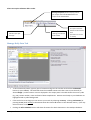
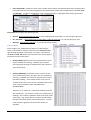
Import NOAA and Calc Chart Avgs: This is a common function, as it makes the weather station data
available for use in this program. Use this when you want to work with this station and the analysis (above)
shows either no records in DB, or the NOAA analysis shows more years than the DB analysis. The latter
normally means that new NOAA data has been made available but has not yet been imported into the
database.
•
Export Raw Daily Data: Creates one comma-delimited text file containing daily records for each station
selected, between the years displayed in Start Year and End Year boxes at the bottom of the window.
Note that this option is only available if the Hothaps database
contains this station (i.e. has yellow highlighting).
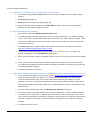
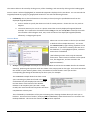
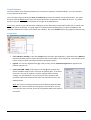
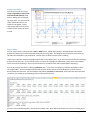
After selecting this menu item the user is prompted for the
desired values:
You can select a single variable or any number of values by
using Ctrl-Click or Shift-Click.
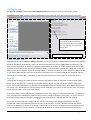
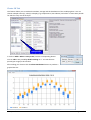
Next, the user is prompted to select the location (folder) for
the generated file(s). The filenames contain the station, years
and the selected values, followed by the csv extension, e.g.:
SHANGHAI-HONGQIAO 1980-2013 , Temp Max, WBGT(max), UTCI(max).csv
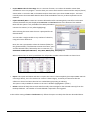
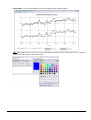
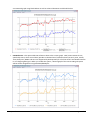
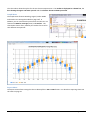
When imported into an Excel spreadsheet this will produce suitable column headers as shown here:
•
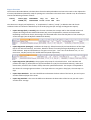
Repair: This option will delete and then re-import this station’s data completely (see Import NOAA and Calc
Chart Avgs above); use it if in doubt over a station’s data integrity, caused by circumstances like the
software or the PC has been closed or has crashed during importing or indexing.
This option is only available for stations in the user’s database (highlighted in yellow.)
•
Delete: Deletes all daily data records and all monthly chart averages for the selected station(s) from the
Hothaps database. The number of records deleted is reported in the log panel.
In this tab the setting of Start and End Years only affects the export raw daily data function described above.
Hothaps Software 1.0.5.0
User Manual ©2014
Page 8 of 17