1
Getting Started
To open the software double-click on Start Hothaps-Soft shortcut on your memory stick (or file system).
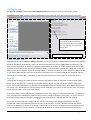
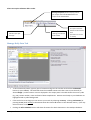
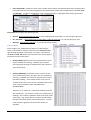
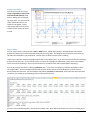
The display has 2 parts: The lists, buttons and clickable areas to the left, and a grey output panel to the right.
The output panel shows a log of
commands, results and the time it
has taken to execute the command.
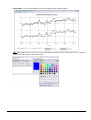
You can copy and paste data from
the log area
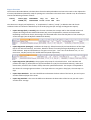
This is the running mode: Online or Offline
Online vs. Offline Mode
Hothaps-Soft can be run Online or Offline, depending on your requirements. Both modes are functionally identical;
however, the Offline-mode doesn’t require an Internet connection but around 4 GB of data stored locally. The
Online-mode depends on an Internet connection with much less local data. In Online-mode Hothaps-Soft is likely
to perform some tasks a little slower than in Offline-mode. If you have been supplied with a USB-stick version it is
likely to have all the required data on the storage device; in this case you want to run the program in Offline-mode.
If you downloaded Hothaps-Soft from the Internet, you need to run it in Online mode, as the download does not
include all the required data. A checkbox on the main form shows the current mode (see screenshot above).
Start-Up
The program carries out a number of routine activities and checks at start-up, the detail of which varies slightly
depending on whether you’re running the software Online or Offline (see above). These include validating the
status of the Hothaps database and whether the NOAA/GSOD index (more information about NOAA data below) is
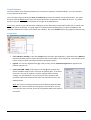
up to date. This should take only a few moments if your database is up to date. In this case the text in the output
panel will look similar to the screenshot above.
If running in Offline mode, and you have moved the location of the program or the NOAA data files, you will get an
error message that no NOAA files could be found, or that it “Could not find part of the path”. In case of any error
message relating to NOAA indexing try changing the data path (button in the Manage Daily Tab page 6).
Any other error messages here usually indicate that the connection to the Hothaps database has not been
established. There are potentially numerous reasons for those errors, and if the problems persist you should
contact the developer for advice by providing a screenshot or copy of error message(s) and a brief explanation of
the circumstances (e.g. which operation system was used, whether it used to work at some earlier stage etc.).
Hothaps Software 1.0.5.0
User Manual ©2014
Page 5 of 17