1
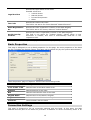
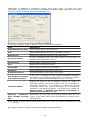
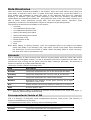
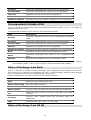
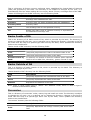
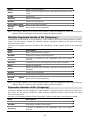
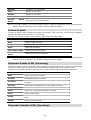
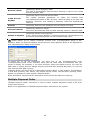
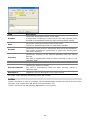
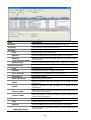
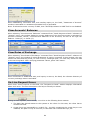
Type of Balance
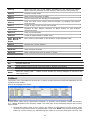
Account closing balance type: (D) - Debit, (C) - Credit
Closing Available
Balance
Closing account balance available for use
Type of Balance
Available balance type: (D) - Debit, (C)- Credit
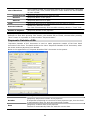
button displays the initial document of selected transaction.
AMD equivalent of amounts specified in “Statement of Account” documents are visible, if the
account is in foreign currency, otherwise those fields are useless.
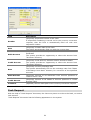
Send and Receive Documents
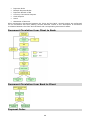
The system provides special means to track the progress of signing, sending and receiving of
documents, and to check the status of sent documents. Such means are as follows:
Sign Document
Send Document to Bank
Receive Document from Bank
The process of checking the status of documents is described in “Track Out All Sent Document
States” section.
Sign Document
The system allows appending digital signature to documents in “Editable” state only, and only to
users, with first or second signatory permissions. To sign documents in “Editable” state, open
the document folder where necessary documents are located, move to necessary row therein,
and select “Sign” command from “Actions” menu. When signing a number of documents from
the same folder, mark necessary rows therein, and select “Sign” command from “Actions”
menu.
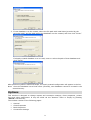
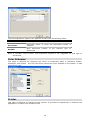
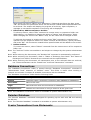
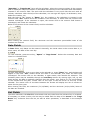
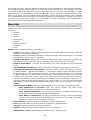
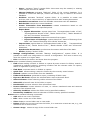
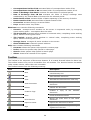
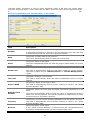
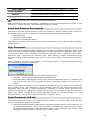
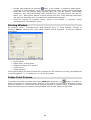
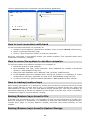
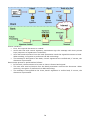
When signing a document, the window in the picture below is displayed, wherefrom the
document signing process is displayed.
Here are some important opportunities provided by this window:
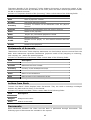
“Cancel” – cancels the process of signing of documents.
Error description appears when errors occur during the document signing. Depending on
the type of error, the error is displayed either in the same window or in a form of a
report.
Once the document is signed, it is not subject to changes. If for any reasons, (e.g., the field
value contains error), the document is to be changed then the user must first remove the
signatures. With the help of “Remove Signature” command in “Actions” menu, the user may
remove the already put signatures, change the document and thereafter sign the document
again. The system records all the above-described actions as document history. To view
document history, select “View Log” command from “Actions” menu.
Send Document to Bank
The system allows the client to send documents in “Ready to be Sent” state. There are two
ways to send the documents to the bank:
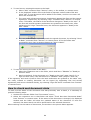
1. Open the document folder containing the required document; Move to the respective row
of to-be sent document. Select “Send to Bank” command from “Actions” menu. When
sending several documents from the same folder, mark respective rows therein, and
then select “Send to Bank” command from “Actions” menu.
57