1
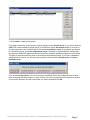
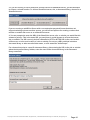
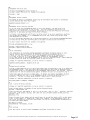
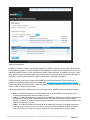
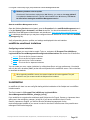
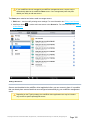
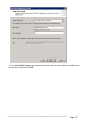
The Licensing window can also be used to replace serial numbers to upgrade user count.
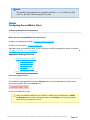
Administering mobilEcho Remotely
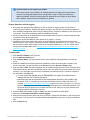
You can configure mobilEcho on a remote computer if mobilEcho is already installed on that computer.
You must have Windows administrative privileges on the remote computer. The experience of
administering a remote server is very similar to that of the local server Administrator, except that the title
of the Administrator dialog box shows the name or IP Address of the remote computer whose
mobilEcho service you are configuring and you cannot browse for folders to share. Otherwise, you can
configure the remote server just as you would a local server.
To administer a remote mobilEcho server, do the following:
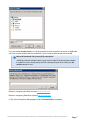
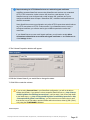
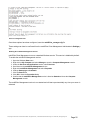
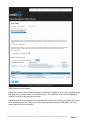
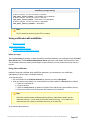
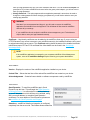
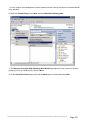
1. Hold down the Control key while you launch the mobilEcho Administrator. Alternatively, if there is no
local installation of mobilEcho, mobilEcho Administrator will start immediately in remote mode.
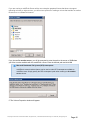
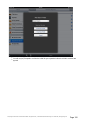
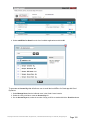
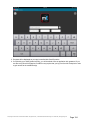
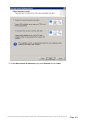
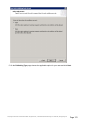
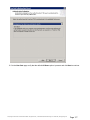
2. Type the name or IP Address of the remote computer and click OK.
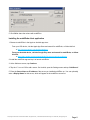
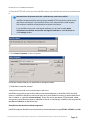
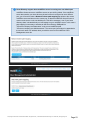
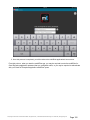
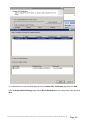
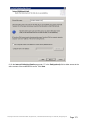
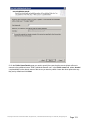
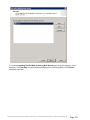
3. The mobilEcho Administrator will attempt to use your Windows credentials to log onto the server. If
necessary, you will be prompted for an alternate username and password.
Using the mobilEcho File Server
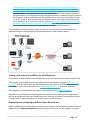
After using the mobilEcho Settings dialog box to set up your server, security and search settings, you
can create the volumes you want to share to you mobilEcho clients. You can also use the Users dialog
box to see who is connected to the server.
Creating Volumes in mobilEcho
You can share NTFS directories located on your Windows server, or on a remote SMB/CIFS file share,
for access by mobilEcho users. When mobilEcho users connect, they see these directories as file share
volumes.
You can create volumes that provide access to an activEcho server.
You can also create volumes that provide access to a SharePoint 2007 or 2010 server, site, subsite,
or document library. Volumes that point to an entire SharePoint server, or an individual site or subsite,
allow the user to browse and navigate through sites, subsites, and document libraries they have access
to.
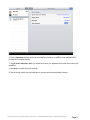
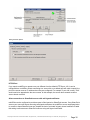
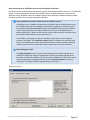
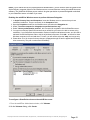
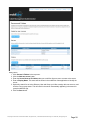
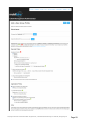
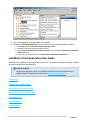
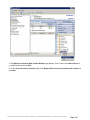
Use the Volumes dialog box to create, modify, or delete individual volumes to share with mobilEcho
users.
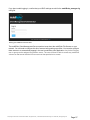
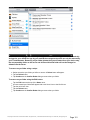
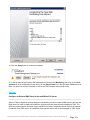
Click Volumes on the mobilEcho Administrator main window to display the Volumes dialog.
GroupLogic © 2002-2012 Acronis International GmbH. All rights reserved. | 1100 N Glebe Rd, Suite 800 Arlington, VA 22201 USA | www.grouplogic.com
Page 38