1
PLAYBACK
4. Use [] and [] to
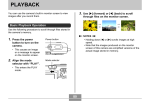
Rotating the Display Image
select “Rotate”, and
then press [SET].
Use the following procedure to rotate the image 90 degrees
and register the rotation information along with the image.
After you do this, the image is always displayed in its
rotated orientation whenever it appears during a slideshow
(page 93) or on your computer screen. Note that the image
is rotated automatically during a slideshow only. Rotating
an image ensures that images you recorded with the
camera held sideways appear correctly during a slideshow.
• This rotates the image
90 degrees to the right.
5. After you are finished configuring settings,
press the [MENU] button to exit the setting
screen.
1. In the PLAY mode, press [MENU].
IMPORTANT!
2. Select the “PLAY” tab, select “Rotation”, and
• You cannot rotate an image that is protected. To
rotate such an image, first unprotect it.
• You may not be able to rotate a digital image that
was recorded with another type of digital camera.
• You cannot rotate voice record images.
then press [].
3. Use [] and [] to scroll through images until
the one you want to rotate is on the monitor
screen.
98