1
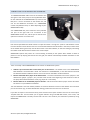
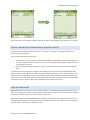
SMARTSCAN User Guide Page | 2 CONNECTING YOUR SMARTSCAN HARDWARE The SMARTSCAN RFID reader must be connected to the start gate in each track (lane) via the supplied PS2 cable. On the underside of the SMARTSCAN unit, there are two PS2 ports – one for connection to the remote unit, and one for the additional connection of a SMARTJUMP contact mat (labeled “Jump” or “Mat” depending on your SMARTSCAN model). Your SMARTSCAN PS2 ports should be clearly labeled. The port on the right side is for connection to the SMARTSPEED remote unit, and the port on the left is for optional connection of a contact mat. HOW DOES SMARTSCAN WORK? Each Fusion Sport RFID wrist band contains a unique ID number. The tags are “passive” and therefore cannot have the athlete’s names written to them. The association between the ID number in the band, and the name of the athlete wearing the band, must be done either in the PDA software, or after the testing by associating the athlete name with the band number in the results output. SMARTSCAN replaces the process of a coach needing to identify to the system which athlete is about to perform a test. By swiping the band at the start gate, the athlete automatically identifies themselves to the PDA software. USING SMARTSCAN There are 3 ways in which SMARTSCAN can be used as an identification system. 1.
2.
3.
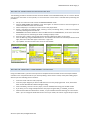
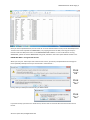
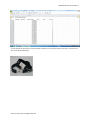
Athlete is pre‐associated with a wrist band prior to the session – the athlete name in the SMARTSPEED PDA database is associated with a band. The association is TEAM SPECIFIC, so one wrist band can be used for different athletes in different teams. This can be done on the PDA or in Microsoft Excel Band is associated with a player in the default team – a band is associated for each of the “players” in the default team (player 1, player 2, etc.) and the coach records at the beginning of the session the name of the player with each default team name (e.g. player 01 = John Smith) Band is added as an unidentified player in the field ‐ and the association with a player name is done after the session in a spreadsheet or Database. The most effective is the first method, however in situations where the names of the athletes are not known prior to the session (e.g. in talent identification testing), methods 2 and 3 are more convenient. If you wish to import a team list from Excel, please visit the Fusion Sport member’s area for the Team Import Template Excel file. This file allows you to register athletes using a PC‐USB RFID reader, save as CSV, and import into SMARTSYNC or directly into the PDA. This file is also used for post association (method 3) using SMARTSYNC. © Fusion Sport 2012, All Rights Reserved